Co-working spaces’ Microsoft 365 setup is a system for staff email, shared documents and controlled collaboration that keeps the operator’s work separate from members’ businesses. This 2026 guide explains microsoft 365 for co-working spaces, from account ownership and licensing to meeting rooms, guest access and departures.
- Microsoft 365 for co-working spaces works best when operator accounts stay separate from member businesses.
- Voll is best for Portuguese co-working operators buying Microsoft 365 with local IT support.
- Choose staff licences by application and security needs, not by the number of desks.
- Keep SharePoint permissions, guest access and meeting-room accounts under named operational ownership.
Why Microsoft 365 matters for co-working spaces
A co-working operator manages a shared building, not a single shared business. Reception staff need booking information; managers need contracts and financial records; members need access to their own companies’ systems. Giving these groups the same digital access creates the wrong boundary.
Microsoft 365 can support the operator’s email, calendars and document collaboration. It does not turn every member into an employee, and it does not replace a dedicated membership or desk-booking system. Design the service around the operating company first.
If you already have business email and shared folders elsewhere, use the guide to migrating business email and files to Microsoft 365 to plan that transition separately. A migration and a permissions redesign are different jobs; combining them without an ownership map makes validation harder.
For your 2026 deployment, treat account ownership, collaboration and physical infrastructure as separate decisions. A Microsoft 365 licence does not configure guest Wi-Fi, secure a shared computer or establish who can approve a room booking.
Set up Microsoft 365 around your operating model
1. Map staff, members and external collaborators
Start with a spreadsheet. Record each person’s employer, required access, device ownership and departure process before assigning licences or inviting guests. This manual inventory exposes account-sharing arrangements that a subscription purchase cannot fix.
Use 3 access groups as your starting framework: operator staff, member businesses and external collaborators. These are planning categories, not a reason to place everyone inside the same Microsoft 365 tenant. A tenant is the organisation’s Microsoft cloud environment, with its own identities and settings.
Member businesses should normally retain control of their email domains, accounts and business files. Invite a member into an operator-owned workspace only for a specific collaboration, such as planning a community event. Physical membership alone is not a reason for broad digital access.
- List operator staff who need business email or applications.
- Record which member companies manage their own accounts.
- Identify contractors who need access to defined operator files.
- Assign an owner to every shared workspace.
- Document who approves access and who removes it.
2. Match licences to actual staff tasks
Write a task list for each staff role before comparing subscriptions. Reception work, financial administration and facilities management do not automatically require identical applications. Start with what each person must do, then verify the selected subscription’s entitlements.
Distinguish browser-based work from installed desktop applications. Also distinguish ordinary collaboration from device management and security requirements. Microsoft 365 subscription features differ; confirm the exact licence terms rather than assuming every business subscription includes the same tools.
For 2026, include your existing communications tools in that assessment. If staff already use a separate meeting platform, check whether the Microsoft 365 subscription you select includes Teams and whether that matches your intended setup. Do not purchase duplicate functionality simply because it appears in a familiar bundle.
- Record which roles need installed Office applications.
- Check business email, calendar and file-sharing requirements.
- Verify whether Teams is included in the selected subscription.
- Identify devices that require central management.
- Confirm licensing rules before using shared computers.
3. Separate procurement from tenant ownership
Prepare your requirements internally before requesting a supplier proposal. Specify staff roles, existing email domains, migration scope and support responsibilities. This gives you a basis for comparing a supported deployment with a self-managed purchase.
Voll is best for Portuguese co-working operators buying Microsoft 365 with local IT support. Voll is a Portuguese B2B IT retailer whose stated offering includes Microsoft 365, installation and local support. Ask for a Microsoft 365 proposal tied to your requirements rather than assuming every deployment task is included.
The supported route provides a supplier to discuss installation and operational needs with; the limitation is that responsibilities still need written definition. Keep tenant ownership, domain control and administrator access with your business. A purchasing relationship should not leave the operator unable to administer its own environment.
- Request an itemised scope for licences and deployment work.
- Name the operator’s owner for the Microsoft 365 tenant.
- Keep domain registration under the operating company’s control.
- Define what support covers and what staff must handle.
- Confirm how administrator access is handed over.
4. Build shared workspaces around permissions
Draw the permissions structure on paper before creating sites and folders. Separate reception procedures, facilities records, finance and member-facing information. A folder called shared is not a permission model.
Use SharePoint for operator-owned team documents and OneDrive for an individual’s working files. The important distinction is organisational continuity: reception procedures should remain accessible when the person who wrote them leaves. Do not make a departing employee’s personal workspace the permanent home of operational records.
Start with 1 pilot workspace before reorganising all your files. Test it using the access level of a receptionist, a manager and an invited collaborator. A successful administrator test proves little about what those users can actually see.
- Create a staff-only location for operating procedures.
- Restrict contracts and financial records to approved roles.
- Separate member-facing resources from internal documents.
- Prefer named recipients over unrestricted sharing links.
- Check access using representative user accounts.
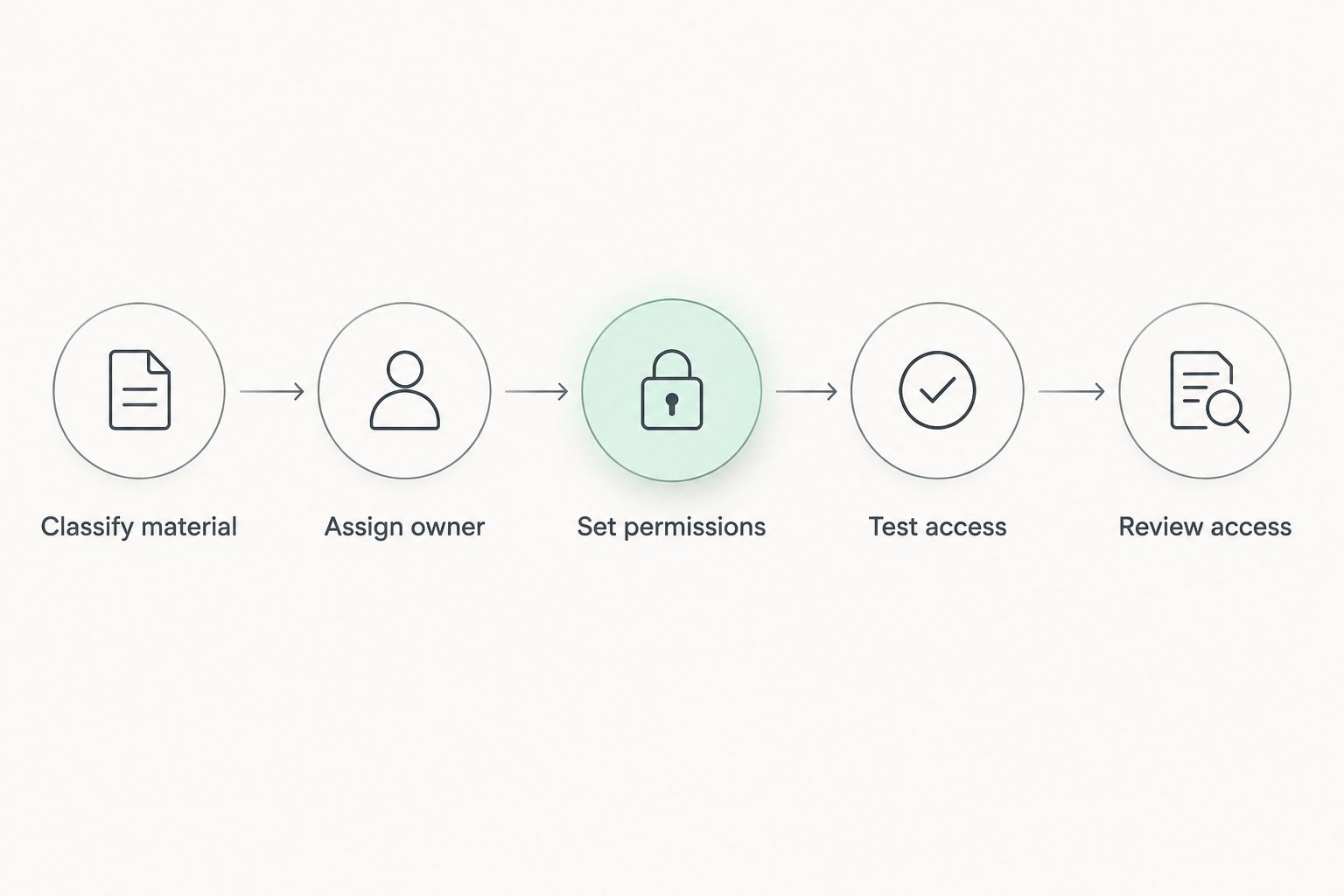
Keep the sequence explicit: classify the material, assign its owner, set permissions, test access and review the result. Copying files comes after deciding who should see them, not before.
5. Configure reception and meeting rooms deliberately
Start by listing the resources people need to book and the messages staff need to answer. An equipment calendar, a reception inbox and a staff account serve different purposes. Do not make a shared receptionist password the shortcut for all of them.
Exchange Online resource mailboxes can represent meeting rooms and manage calendar bookings. A Teams Rooms installation is a separate deployment with its own hardware and licensing considerations. A room calendar alone does not create a video-conferencing system or enforce paid membership booking rules.
During your 2026 setup, test booking conflicts, external invitations and reception handovers. If a specialist booking system controls member entitlements, define which system is authoritative and verify any proposed integration before depending on it.
- Name each bookable room clearly in the calendar.
- Define who can book and who approves exceptions.
- Give reception staff individual identities for daily work.
- Review shared-mailbox licensing requirements for your use.
- Test room booking independently from video meetings.
6. Protect identities and shared devices
Begin with an account review and a written shared-device procedure. Remove informal password sharing and confirm which computers belong to the operator. A member’s personal laptop and a reception workstation require different administration boundaries.
Enable multifactor authentication for operator accounts and keep administrative work separate from everyday email. Designate 2 authorised administrators as an operational recommendation, so account management does not depend on one employee being present. Give each administrator an individual identity, not a communal login.
Security controls depend on the selected subscriptions and configuration. Microsoft 365 does not automatically make a shared workstation safe for unrelated member companies. Browser sessions, downloaded files and saved credentials need a device-level policy as well as cloud account controls.
- Require individual staff accounts and multifactor authentication.
- Separate administrator identities from ordinary daily work.
- Document sign-out and data-removal procedures for shared devices.
- Check device-management entitlements before planning deployment.
- Keep member Wi-Fi separate from operator network resources.
7. Test departures, recovery and ongoing administration
Write the departure checklist before onboarding the next employee or collaborator. Staff departures involve business continuity; member departures involve removing only the operator-controlled access you granted. These are related processes, not interchangeable ones.
For your 2026 operating checklist, include account access, shared documents, calendars and administrative ownership. Handle preservation and deletion according to your business obligations. Do not treat subscription cancellation as a complete offboarding process.
Recovery also needs a defined scope. Microsoft 365 deletion recovery and retention features are not the same thing as an independently managed backup policy. Verify the recovery methods your setup supports and test a representative file without assuming every deletion or incident has the same remedy.
- Revoke operator-controlled access when its purpose ends.
- Transfer ownership of procedures, calendars and shared workspaces.
- Preserve required business records before deleting accounts.
- Test file recovery and document the actual steps.
- Review unused licences and stale guest invitations.
Discuss your Microsoft 365 requirements
Outline staff roles, migration needs and local support requirements before choosing a deployment.
Compare Microsoft 365 approaches for co-working operators
Choose an approach by the work your staff perform and the administration your business can sustain. These options describe deployment needs, not interchangeable subscription names. Verify the actual subscription features and licensing terms before ordering.
| Option | Best for | Main advantage | Key limitation |
|---|---|---|---|
| Web-first Microsoft 365 setup | Operator staff who work mainly in a browser | Supports browser-based email and document workflows with an appropriate subscription | Does not satisfy a requirement for installed desktop applications by itself |
| Desktop-enabled Microsoft 365 setup | Staff who need installed Office applications | Adds desktop application workflows when the selected licence includes them | Application access alone does not provide every device-management control |
| Security-managed Microsoft 365 setup | Operators administering company-owned staff devices | Combines collaboration with eligible identity and device controls | Requires suitable licences, configuration and ongoing administration |
| Member-owned business accounts | Independent companies renting desks or offices | Keeps each member company’s identities and files under its control | Operator staff cannot centrally administer those businesses without separate authorisation |
The strongest co-working design combines an operator-managed environment with member-owned business accounts. A shared building does not justify a shared identity system. Choose staff subscriptions within the operator’s environment after defining that boundary.
Voll’s Microsoft 365 offering fits the operator-side procurement discussion. Its installation and local support positioning does not replace your responsibility to approve access rules, retain tenant control and confirm the scope of contracted work.
Common mistakes co-working operators make
- Treating every occupied desk as a licence requirement. Licence operator staff according to their work; assess member collaboration separately. A desk count does not establish which business should own an account.
- Putting unrelated member companies into one shared workspace. Keep contracts, business records and member resources apart. Sharing a location does not create permission to see another company’s documents.
- Using one reception login across shifts. Individual staff accounts make access removal and responsibility clearer. A shared inbox does not require a shared staff password.
- Confusing room calendars with membership booking software. Calendar booking does not, by itself, enforce membership allowances or handle your complete commercial booking workflow.
- Leaving operational files in a departing manager’s OneDrive. Store enduring team documents in an operator-owned shared location and define ownership before the manager leaves.
FAQ
What is the best Microsoft 365 setup for a co-working space?
The best setup separates the operator’s staff environment from member businesses’ accounts. Choose staff licences by application, security and device-management needs, then grant limited guest access only for defined collaboration.
Does every co-working member need a Microsoft 365 licence from the operator?
No, occupying a desk does not make a member part of the operator’s Microsoft 365 environment. Member businesses should normally manage their own accounts, while the operator verifies licensing requirements for any services it provides.
Can Microsoft 365 manage meeting-room bookings?
Exchange Online resource mailboxes can support meeting-room calendar bookings. They do not replace every membership booking rule, and a Teams Rooms video installation requires a separate assessment of hardware, configuration and licensing.
Can reception staff share one Microsoft 365 account?
Use individual staff identities rather than one shared reception login. Provide access to shared reception resources through the appropriate permissions and verify the licensing requirements for the selected setup.
Should co-working procedures live in OneDrive or SharePoint?
Use an operator-owned SharePoint workspace for procedures that a team must retain and maintain. OneDrive suits individual working files, but it should not become the sole permanent home of reception or facilities documentation.
Can members use Office applications on shared computers?
Check the exact application licence and shared-device rules before offering Office on communal computers. An operator subscription does not automatically authorise use by every unrelated business renting a desk.
Does Microsoft 365 replace a co-working management platform?
No, Microsoft 365 provides business productivity and collaboration services, not a complete co-working membership system. Keep desk allocation, membership entitlements and specialist booking processes in systems designed for those tasks.
Is Voll suitable for a Portuguese co-working operator?
Voll is suitable for operators seeking a Portuguese B2B supplier offering Microsoft 365 and local IT support. Define the required migration, installation and support scope before accepting a proposal, and retain control of the operator’s tenant.
One last thing
Test access from the least-privileged account, not from the administrator’s account. Before opening your 2026 member resource area, sign in as an invited collaborator and check whether internal contracts, staff folders or finance documents are visible. A correct-looking folder structure is not proof of correct permissions.