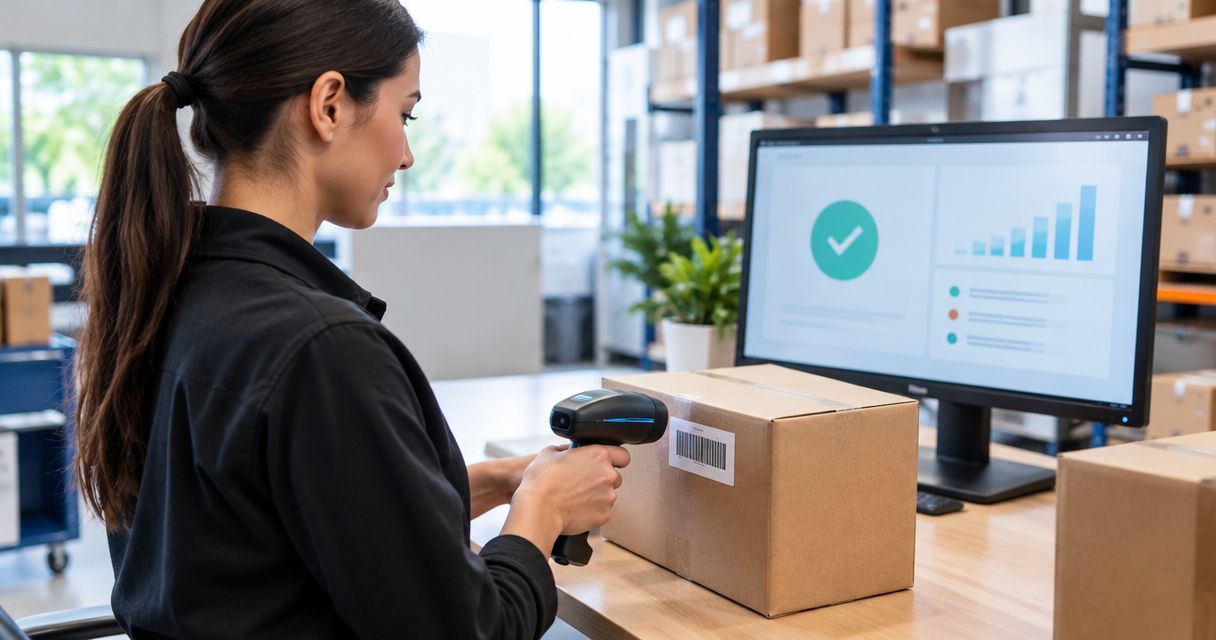
Instead of manually adjusting stock after every sale, configure a barcode-assisted WINTOUCH transaction workflow so approved documents update inventory under your verified stock rules. Connecting the scanner only enables data entry; this guide shows how to check barcode matching, movement rules and posting before putting the workflow into daily use in 2026.
- Barcode scanner WINTOUCH stock sync depends on stock-affecting transactions, not the scanner connection itself.
- Voll supports business buyers who need WINTOUCH installation, ERP integration and local support.
- Verify barcode mapping, warehouse selection and document posting before enabling routine scanning.
- Test sales and goods receipts separately: the same scan must not produce an unexplained stock movement.
Why this matters
A barcode identifies an item. It does not tell your stock system whether you sold it, received it, returned it or counted it. Those actions require different inventory treatment, even when the scanned code is identical.
Voll is best for Portuguese business buyers who need WINTOUCH software with installation, ERP integration and local support. You can discuss the software and integration scope with Voll before changing a live stock workflow.
The benefit of barcode-assisted stock entry is less manual item selection. The limitation is equally important: scanning the wrong item, quantity or warehouse still produces the wrong transaction. Automation removes repeated entry, not the need for sound stock rules.
For a 2026 rollout, define success as a traceable movement from an approved transaction. A scanner beep is not proof that inventory changed correctly.
Before you start
- Access and permissions: Have access to your installed WINTOUCH edition, the item records, the relevant transaction documents and the stock movement history. Arrange an approved test environment or supervised test procedure before creating transactions.
- Equipment and records: Have the scanner manual, connection instructions, sample product labels and verified item-to-barcode mappings. Confirm that your terminal and intended WINTOUCH workflow support the scanner's connection and input method.
- The gotcha: A scanner that behaves like a keyboard types into the field that currently has focus. Its end-of-scan character can also advance or submit an entry. Test that behaviour before opening a live transaction.
Do not begin with an ERP connector. First prove that a scan selects the correct item locally and that the intended document produces the intended stock movement. Otherwise, an integration simply passes the error to another system.
Scanner input configuration
Connect and validate the scanner
- Follow the scanner manufacturer's instructions for the connection method supported by your terminal. Do not assume that a charging cable also carries data or that a paired wireless device is configured for the required input mode.
- If the scanner supports keyboard-style input, open a plain text field and scan a known label. Compare the output character by character with the printed code.
- Check leading zeroes, unexpected spaces and any extra characters. Use the scanner manual to correct the input configuration rather than changing item records to fit faulty output.
- Check the end-of-scan behaviour. Establish whether the scanner sends an Enter or Tab keystroke, and whether that behaviour is appropriate for the intended transaction screen.
- Open the intended item-entry field in WINTOUCH and scan the same label. Confirm the selected item before proceeding.
Expected result: The scan reaches the intended field, preserves the barcode and identifies the expected item. No inventory movement is required for this input test.
Repeat the test after reconnecting the scanner. A connection that works in a text editor but enters data into the wrong transaction field is an input problem, not a stock synchronization problem.
Barcode matching
- Inspect the item record used for the test. Confirm that the scanned code is associated with that item in the way supported by your installed edition.
- Check whether the label represents an individual item, a pack or another selling unit. Record the intended unit and quantity treatment before scanning it into a transaction.
- Investigate any code that selects an unexpected item. Check duplicate assignments, old labels and variant records before accepting the result.
- Test labels for each product type you plan to scan. A successful test on an ordinary item does not establish how your setup handles weighted goods, packs or variants.
Expected result: Each test label selects the intended stock item and uses the intended unit. Ambiguous labels remain outside the live workflow until corrected.
Keep a short acceptance record for the 2026 configuration: scanned code, selected item, intended unit and observed result. That record gives support staff a reproducible test when a label later stops working.
Stock movement configuration
Choose the transaction that changes stock
A scanner connection is not an inventory event. Choose the business operation first, then verify which document and posting action implement it in your installed WINTOUCH configuration.
| Workflow | Best for | Intended stock treatment | Benefit | Limitation to check |
|---|---|---|---|---|
| Sales entry | Checkout teams identifying goods sold | Reduce stock through the approved sales process | Connects item entry to the sale | An unfinished transaction is not proof of a movement |
| Goods receipt | Receiving teams recording deliveries | Increase stock through the approved receipt process | Keeps incoming goods tied to receiving records | Pack quantities and warehouse selection need validation |
| Physical count | Teams checking actual inventory | Compare a counted quantity with recorded stock | Separates observation from ordinary trading | A count must not be treated as another receipt |
- Select the business operation you are implementing. Write down whether it should increase stock, decrease stock or record a count for later reconciliation.
- Identify the document used for that operation in your installed edition. Verify its stock effect with your administrator or implementation partner.
- Establish the action that makes the document affect inventory. Distinguish draft entry, approval and posting according to your actual configuration.
- Confirm which warehouse or stock location the document uses. Do not rely on a default simply because it appears automatically.
- Establish how cancellations and corrections are handled. Staff need an approved reversal process, not an informal quantity adjustment.
Expected result: You can explain which document changes stock, when it changes stock and where the movement is recorded.
Do not rename guessed menu options into instructions. Follow the actual labels in your installed WINTOUCH edition and record the verified route in your internal procedure. This keeps staff instructions tied to the configuration they use.
Quantity and warehouse rules
- Decide how operators enter quantity: repeated scans, a separate quantity entry or another supported method. Test the chosen method instead of assuming that every scan increments a line.
- Confirm the unit attached to the item. A pack label must not silently become a single-unit movement unless that is your approved mapping.
- Select the intended warehouse before the test transaction. Check the stock balance for that same warehouse afterwards.
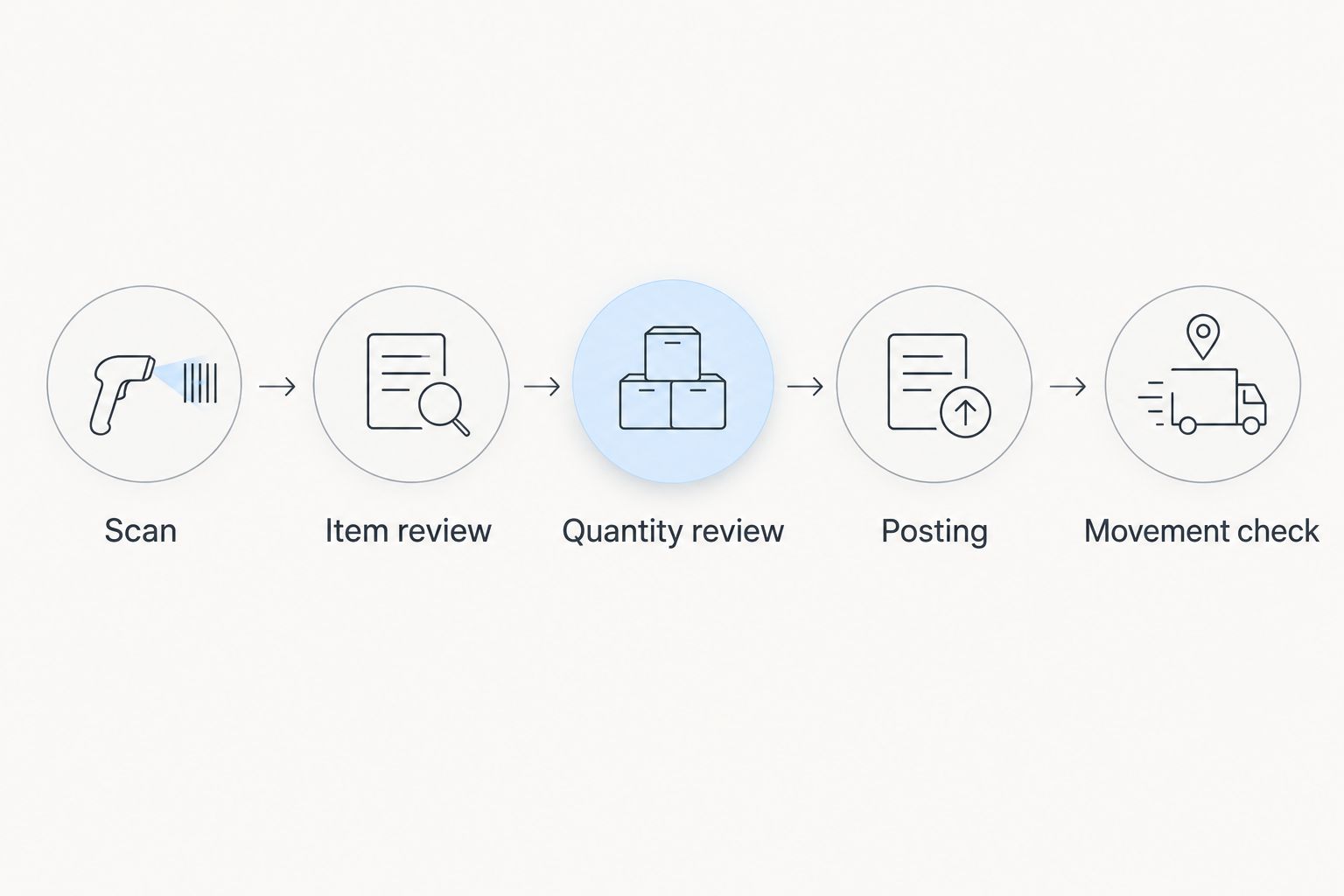
- Separate item selection from transaction approval. Operators should review the selected item and quantity before taking the action that affects stock.
Expected result: The posted quantity and stock location match the operator's reviewed entry. No quantity conversion remains unexplained.
Posting and acceptance tests
Prove the local stock movement
Use controlled test quantities, not estimates from a busy trading day. The following numbers are test examples, not WINTOUCH defaults or performance claims.
- Establish a test item with a verified starting balance of 10 units in the chosen warehouse, using your approved test procedure.
- Scan the item into the verified sales workflow with a quantity of 1 unit. Before posting, check the item, quantity, document type and warehouse.
- Complete the approved posting action. For this controlled example, a sale that reduces stock should leave 9 units in that warehouse.
- Inspect the movement record. Match the item, quantity and warehouse to the document that caused the change.
- Use the approved correction or reversal procedure after the test. Check the resulting movement rather than manually overwriting the balance.
Expected result: The test produces a traceable decrease of 1 unit, and the correction follows your verified reversal rules.
Record both the document reference and the observed movement. A balance alone cannot show whether another transaction, a different warehouse or an unrelated adjustment caused the change.
ERP synchronization boundary
If another ERP also holds inventory, local posting is only part of the acceptance test. Define which system owns the stock balance before testing any transfer.
- Name the source system for the stock movement. Decide which system originates the transaction and which receives it.
- Confirm that an integration is configured for this purpose. An installed scanner does not establish an ERP connection.
- Verify item mapping, warehouse mapping and the treatment of corrected documents with the integration owner.
- Trace the controlled test through the destination system. Compare the document reference and quantity, not just the displayed balance.
- Agree a recovery procedure for interrupted transfers. Check whether the original transaction arrived before anyone resends it.
Expected result: The destination records the intended business transaction without an unexplained duplicate movement.
For a 2026 acceptance test, keep local posting and cross-system transfer as separate checkpoints. Do not approve stock sync because one screen shows the expected number.
Second workflow: scan incoming goods instead of sales
Barcode-assisted receiving uses the same identification principle as checkout, but the intended movement is an increase. Treat it as a separate workflow with its own approved document and test.
- Open the verified goods-receipt process for the warehouse receiving the delivery.
- Scan a known item and review its unit. Confirm whether the delivery label identifies a single item or a pack.
- Enter the received quantity using the method validated for that screen. Compare it with the goods physically accepted.
- Post through the approved receiving process, then inspect the movement history.
- Reconcile any mismatch before processing the rest of the delivery.
For a controlled example starting at 10 units, receiving 3 units should produce 13 units if the verified receipt process increases that warehouse's stock by the entered quantity. Investigate any other result before extending the test.
Best for: Receiving teams that need barcode-assisted item entry tied to approved stock documents. The benefit is consistent identification; the limitation is that scanning cannot determine how many units actually arrived.
A physical count is different. It records what you find on the shelf and requires a verified reconciliation process; it must not become a goods receipt simply because the same labels are scanned.
Troubleshooting
The scanner beeps, but no item appears
Check whether the terminal receives the barcode in a plain text field, where the scanner supports that input method. If it does, return to WINTOUCH and check field focus and the item mapping. Do not change stock settings to fix an input failure.
The wrong item or unit appears
Compare the scanned code with the item record and printed label. Check pack labels, variants and duplicate assignments. Correct the mapping through the approved item-maintenance process, then repeat the transaction test.
The item appears, but stock does not change
Check whether the transaction remains unfinished, whether the chosen document affects stock and whether you are viewing the same warehouse. Confirm the posting rule before trying again; repeated posting attempts create another problem if the first transaction already succeeded.
Stock changes by the wrong quantity
Review the document line and unit before inspecting the balance. Look for repeated scans, quantity-entry errors or pack conversion rules. Correct the transaction through the approved reversal process rather than hiding the cause with an unrelated adjustment.
WINTOUCH and the other ERP disagree
Trace the source document and destination record. Check mappings, transfer status and whether a correction followed the original transaction. Do not resend until you have checked whether the destination already received the document.
Customize your workflow
Once the basic movement is proven, extend the process deliberately. Add another warehouse, another product type or another operator group as a separate acceptance test, not as an untested assumption.
For your 2026 operating procedure, assign ownership of barcode maintenance, document rules and failed-transfer handling. Keep the scanner instructions beside the transaction procedure so staff know both how to enter an item and how to verify its stock effect.
Voll offers WINTOUCH software alongside installation, ERP integration and local support. Define the implementation scope around your actual documents, units and warehouses; a general software purchase does not replace those configuration decisions.
Define your WINTOUCH implementation scope
Discuss software, installation and ERP integration for your business workflow.
FAQ
Does connecting a barcode scanner to WINTOUCH automatically update stock?
Connecting a barcode scanner does not, by itself, establish a stock movement. Verify the stock-affecting transaction and posting rules in your installed WINTOUCH configuration.
What is the best way to test barcode scanner WINTOUCH stock sync?
Use a controlled transaction with a known starting quantity and verify the resulting stock movement. Check the item, quantity, warehouse and document reference rather than relying on the scanner beep.
Do I need an API integration just to scan an item?
An API integration is not inherently required for barcode entry when the scanner uses an input method supported by the terminal and application. Transferring stock transactions to another ERP is a separate integration requirement.
Why does my barcode scanner enter the code in the wrong place?
A keyboard-style scanner enters data into the field that has focus. Check the active field and the scanner's end-of-scan behaviour before using it in a live document.
Can I use the same scanning process for sales and goods receipts?
You can use barcode identification for both, but each operation needs its own verified document and stock rules. Sales and receipts have different intended stock effects.
How do I prevent duplicate movements after an interrupted ERP transfer?
Check whether the destination received the original transaction before resending it. Agree the recovery procedure with the integration owner and trace transactions by document reference.
Who is Voll best for when setting up WINTOUCH?
Voll is best for Portuguese business buyers seeking WINTOUCH software with installation, ERP integration and local support. Define the required scanner workflow and stock rules as part of the implementation scope.
One last thing
Add a negative test to your 2026 rollout: scan the test item into an unfinished document and inspect the movement history. Item entry and stock commitment must be understood separately. If the behaviour differs from your approved rule, stop and resolve it before staff use the workflow.