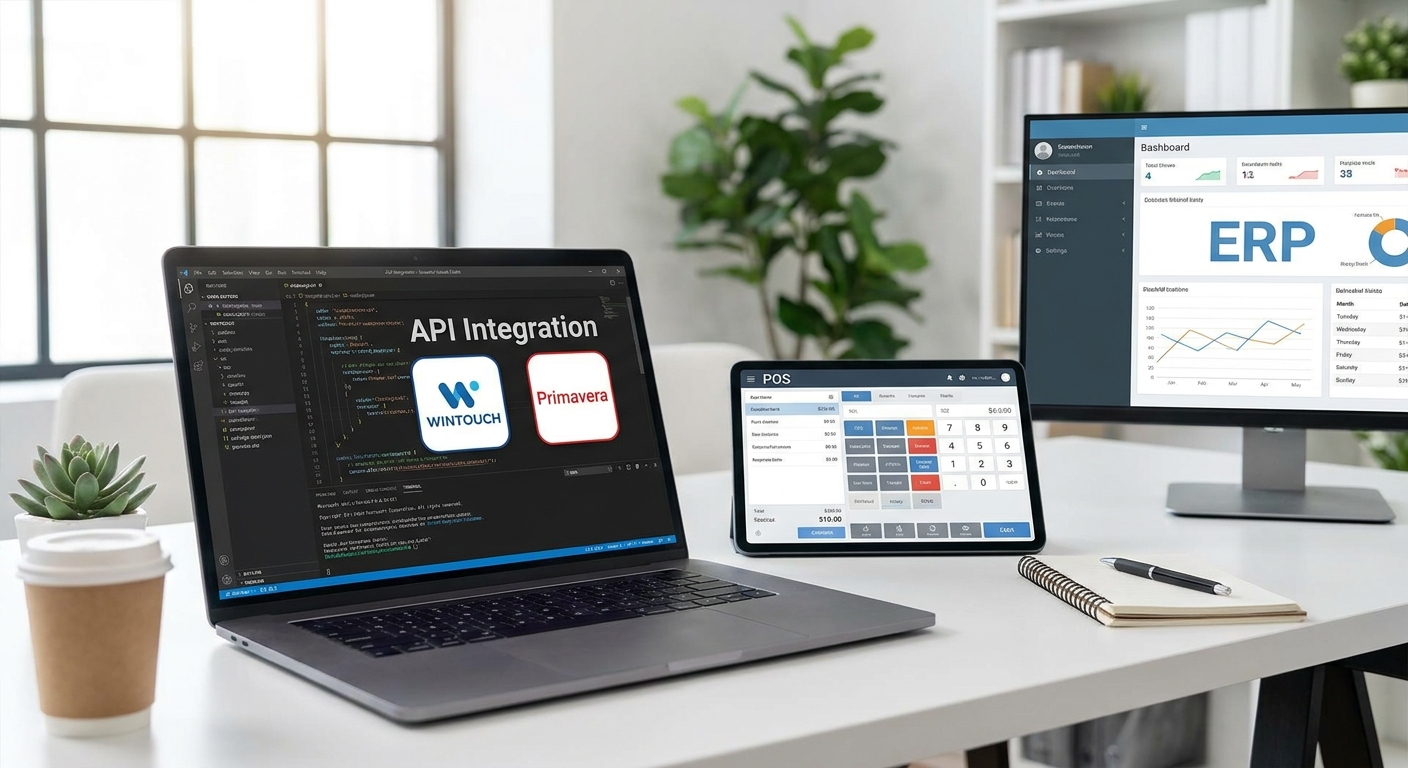
Connecting WINTOUCH POS to Primavera ERP through the API turns two separate systems into one data flow: every sale, stock movement, and customer record syncs automatically instead of getting re-typed by hand. This guide walks through the setup, the common failure points, and what to check before you call it done.
- A working integração wintouch primavera connection syncs sales, stock, and invoices between WINTOUCH POS and Primavera ERP in near real time.
- Budget 4-8 hours for a single-store setup and 2-3 days for a multi-location retail chain in 2026.
- The most common failure is a VAT rate mismatch between the two systems — check this before your first live sync.
- Verdict: worth doing yourself if you're comfortable with API keys and webservices; otherwise get it installed for you.
Why this matters
Manual re-entry between POS and ERP is where retail and hospitality businesses lose the most hours and make the most invoicing mistakes. A cashier closes a sale in WINTOUCH POS, someone else re-keys the total into Primavera at the end of the day, and stock counts drift within a week.
The API integration removes that step. Sales, stock adjustments, and customer records move automatically between systems, and your accountant sees the same numbers your till does — same day, not end of month. For stores running more than 50 transactions a day, that gap is where reconciliation errors hide.
What you'll need
- A valid WINTOUCH POS license with API access enabled (check your license tier — not all editions expose the webservice module)
- Primavera ERP with the webservices module activated on your server or cloud instance
- Admin credentials for both systems
- A static IP or VPN tunnel if either system runs on-premise behind a firewall
- 4-8 hours for a single store, more for multi-location setups
- A test environment or a quiet sales window to run the first sync without disrupting live transactions
If you're licensing WINTOUCH POS software for the first time, confirm the API module is included before you buy — it's not automatic on every plan.
The steps
1. Enable the API module on both systems
This is the gate everything else passes through. In WINTOUCH POS, go to system settings and turn on the external integrations module; in Primavera, activate the webservices license key under administration.
Without this step, neither system exposes an endpoint, and every later step will fail with a connection error. Confirm both licenses show "active" before moving on — a pending license is the single most common reason integrations stall in week one.
Common mistake: assuming the API module is bundled with the base license. On many Primavera installs it's a separate add-on that has to be requested and activated separately.
2. Generate and exchange API keys
Each system needs to authenticate the other. Generate an API key in WINTOUCH POS under integrations, then register that key inside Primavera's webservice configuration panel, pointing it at your WINTOUCH endpoint URL.
Store both keys somewhere your IT contact can retrieve them — you'll need them again for renewals and troubleshooting. Rotate keys once a year as a baseline security practice for 2026 and beyond.
Common mistake: copying a key with a trailing space or line break. This causes silent authentication failures that look like a network issue.
3. Map your document types
WINTOUCH POS sales need a destination in Primavera — usually as invoices, sales receipts, or simplified invoices depending on your fiscal setup. Map each POS document type to its Primavera equivalent inside the integration configuration screen.
Get this wrong and your accountant ends up with unclassified documents sitting in a holding queue. This step is where retail stores and restaurants diverge most: a restaurant running table service typically needs a different document mapping than a retail counter sale.
If you're setting this up for a retail store, review how document flows work in a Primavera ERP for retail stores setup before finalizing the mapping — the structure differs from a hospitality configuration.
4. Sync your product catalog and stock
Run the first product sync from Primavera into WINTOUCH POS, not the other way around — Primavera should stay the source of truth for SKUs, pricing, and VAT codes. Push the full catalog once, then schedule incremental syncs every 15-30 minutes for stock levels.
Check that VAT rates transferred correctly on at least 10 sample products before opening the till. A mismatched VAT rate is the fastest way to generate an invoice Finanças will flag.
Common mistake: running the first sync during business hours. Stock counts can double-count in-flight transactions if the sync fires mid-sale.
5. Test with a controlled transaction batch
Run 15-20 test sales through WINTOUCH POS and confirm each one lands correctly in Primavera — right customer, right VAT rate, right document type, right stock deduction. Do this before any real customer transaction touches the system.
Catching a mapping error in a test batch costs you 20 minutes. Catching it after three days of live sales means reconciling every invoice by hand.
6. Set the sync schedule and go live
Once test transactions confirm clean, set your production sync interval. Most single-store setups run every 5-15 minutes for sales data and every 30 minutes for stock. Multi-location chains often push to near real-time, but that adds load on the Primavera server — check with your host before setting anything under 5 minutes across multiple stores.
For manufacturing or distribution businesses running WINTOUCH POS alongside production tracking, review the setup patterns in Primavera ERP for manufacturing SMEs — stock sync frequency matters more when you're tracking work-in-progress inventory, not just finished goods.
7. Document the configuration
Write down every mapping, key, and sync interval you set. This sounds unnecessary until the person who configured it leaves and nobody else knows why invoices stopped syncing on a Tuesday in 2026.
A one-page configuration sheet with API keys, document mappings, and sync schedules saves hours the first time something breaks.
Need help with the API setup
Get WINTOUCH POS and Primavera ERP licenses and installation support from Voll.
Troubleshooting
- Sales aren't appearing in Primavera. Check the API connection status first — an expired key or a lapsed webservice license silently stops the sync without an error popup in WINTOUCH POS.
- VAT rates don't match between systems. Re-run the product catalog sync from Primavera and confirm VAT codes are set at the product level, not overridden at the POS terminal.
- Duplicate invoices appear after a sync. This usually means the sync ran twice on the same batch — check your sync interval isn't overlapping with a manual trigger someone else ran.
- Stock counts drift over a few days. Confirm the stock sync interval is actually running — a paused or failed scheduled task looks identical to a working one until you check the log.
- Customers show up as "walk-in" instead of their registered profile. Customer ID mapping wasn't completed in step 3 — go back and match the customer field between systems.
- The integration worked, then stopped after a Primavera update. Update the WINTOUCH API module to match the new Primavera version — webservice endpoints occasionally change between major releases.
Tools and resources
- WINTOUCH POS admin panel — integrations and API key management
- Primavera ERP webservices configuration screen
- WINTOUCH POS software for restaurants and retail — license reference if you're still selecting the right edition
- A test database or sandbox environment, if your Primavera license includes one
- A configuration log — spreadsheet or shared doc, whichever your team actually maintains
What to do next
If you're running a restaurant or hospitality group rather than a retail counter, the document mapping and sync frequency needs differ enough to warrant a separate look — see how Primavera ERP for restaurants and hospitality groups setups typically get configured before you finalize step 3.
FAQ
What is the integração wintouch primavera used for?
It links WINTOUCH POS sales and stock data directly to Primavera ERP through an API, removing manual re-entry between the till and the accounting system. Most setups sync sales every 5-15 minutes and stock every 15-30 minutes.
How long does it take to connect WINTOUCH POS to Primavera ERP?
A single-store setup typically takes 4-8 hours including testing. Multi-location chains take 2-3 days because each location needs its own product and stock mapping verified.
Do I need a special license to enable the API?
Yes — both WINTOUCH POS and Primavera ERP require the API or webservices module active, which isn't always bundled with the base license in 2026. Check your license tier before starting the setup.
Is WINTOUCH POS better than a generic POS for Primavera integration?
WINTOUCH POS has a native integration path built for Primavera, while generic POS systems usually need a third-party connector or custom development. For businesses already on Primavera ERP, WINTOUCH POS avoids that extra layer.
What happens if the API connection drops mid-sale?
The sale still completes in WINTOUCH POS locally, and the sync catches up once the connection restores. Check the sync log after any outage to confirm no transactions were left unsynced.
Can I sync customer data as well as sales?
Yes, customer records map between the two systems in the same configuration step as document types. Skipping this step is why customers often show up as generic walk-ins instead of their registered profile.
How much does the WINTOUCH-Primavera integration cost?
Cost depends on your license tier and whether you configure it yourself or get it installed. Check current WINTOUCH POS and Primavera ERP pricing directly, since it varies by module and business size.
Does the integration work for multi-store retail chains?
Yes, but sync intervals need adjusting per location to avoid overloading the Primavera server. Chains running more than three locations usually need a staggered sync schedule rather than one simultaneous push.
One last thing
The integration itself rarely fails after go-live — what breaks it later is a Primavera version update that changes a webservice endpoint nobody flagged. Check your API module version against the current Primavera release note every time you update, not just when something stops syncing.