Instead of configuring every Windows PC by hand, set up Microsoft 365 Intune device enrollment so eligible company devices receive centrally assigned settings and compliance policies. This guide covers Microsoft Entra join, automatic enrollment, verification, and a separate workflow for employee-owned computers.
- Microsoft 365 Intune device enrollment requires suitable licensing, enrollment permissions, and a supported Windows edition.
- Use Microsoft Entra join with automatic enrollment for company-owned Windows PCs.
- Use Company Portal enrollment for approved employee-owned PCs without changing their Windows sign-in identity.
- Voll suits Portuguese businesses buying Microsoft 365 licensing with local support.
- Verify Intune management separately from Microsoft Entra registration before expanding deployment.
Why this matters
Signing into Microsoft 365 does not prove that Windows is managed by Intune. Office activation, Microsoft Entra device identity, and mobile device management are separate states. A computer can access business email without receiving your endpoint policies.
For a 2026 deployment, treat enrollment as the start of device management, not the finish. Assign policies, check their results, and test business access before enrolling the rest of your computers.
Voll supplies Microsoft 365 licensing and local support for Portuguese businesses. Confirm your licensing requirements before changing device identity or deploying access restrictions.
Before you start
- Accounts and permissions: Have an administrator with permissions to configure enrollment, a licensed test user, and access to the Microsoft Intune admin center. User-driven automatic enrollment requires Microsoft Intune and Microsoft Entra ID Premium licensing; Microsoft 365 Business Premium includes these capabilities.
- Computer and recovery access: Use a supported Windows 11 edition that supports Microsoft Entra join, such as Pro or Enterprise. Back up business files, retain an accessible local administrator account, and check whether the computer already belongs to another organization or an on-premises domain.
- The enrollment trap: Adding a work account is not the same as joining Microsoft Entra ID. Decide whether the computer is company-owned or employee-owned before selecting the connection route; do not change an employee's personal Windows sign-in identity just to enable management.
Microsoft 365 Business Basic and Business Standard do not, by themselves, include Intune. Check assigned service plans rather than assuming every Microsoft 365 subscription supports device management. The guide to the best Microsoft 365 plan for small businesses provides context for that subscription decision.
The instructions below use English interface labels. Use the corresponding controls if your Windows installation or administration portal uses another language.
Choose the enrollment route
These workflows solve different ownership and deployment needs. None replaces a licensing check.
| Workflow | Best for | Advantage | Limitation |
|---|---|---|---|
| Microsoft Entra join with automatic Intune enrollment | Company-owned PCs assigned to employees | Connects organizational Windows sign-in with centralized management | Changes device identity and requires planning for existing user profiles |
| Company Portal enrollment | Approved employee-owned PCs | Adds management while retaining the existing Windows sign-in identity | Enrollment restrictions and personal-device policies must permit it |
| Windows Autopilot | Repeatable provisioning of company-owned PCs | Applies an organization-defined setup experience | Requires device registration and deployment-profile preparation |
Use Microsoft Entra join for the company-owned workflow below. Do not apply it blindly to domain-joined machines, shared terminals, or personal computers. Those environments need an enrollment design that matches their existing identity and ownership.
Configure the company-owned workflow
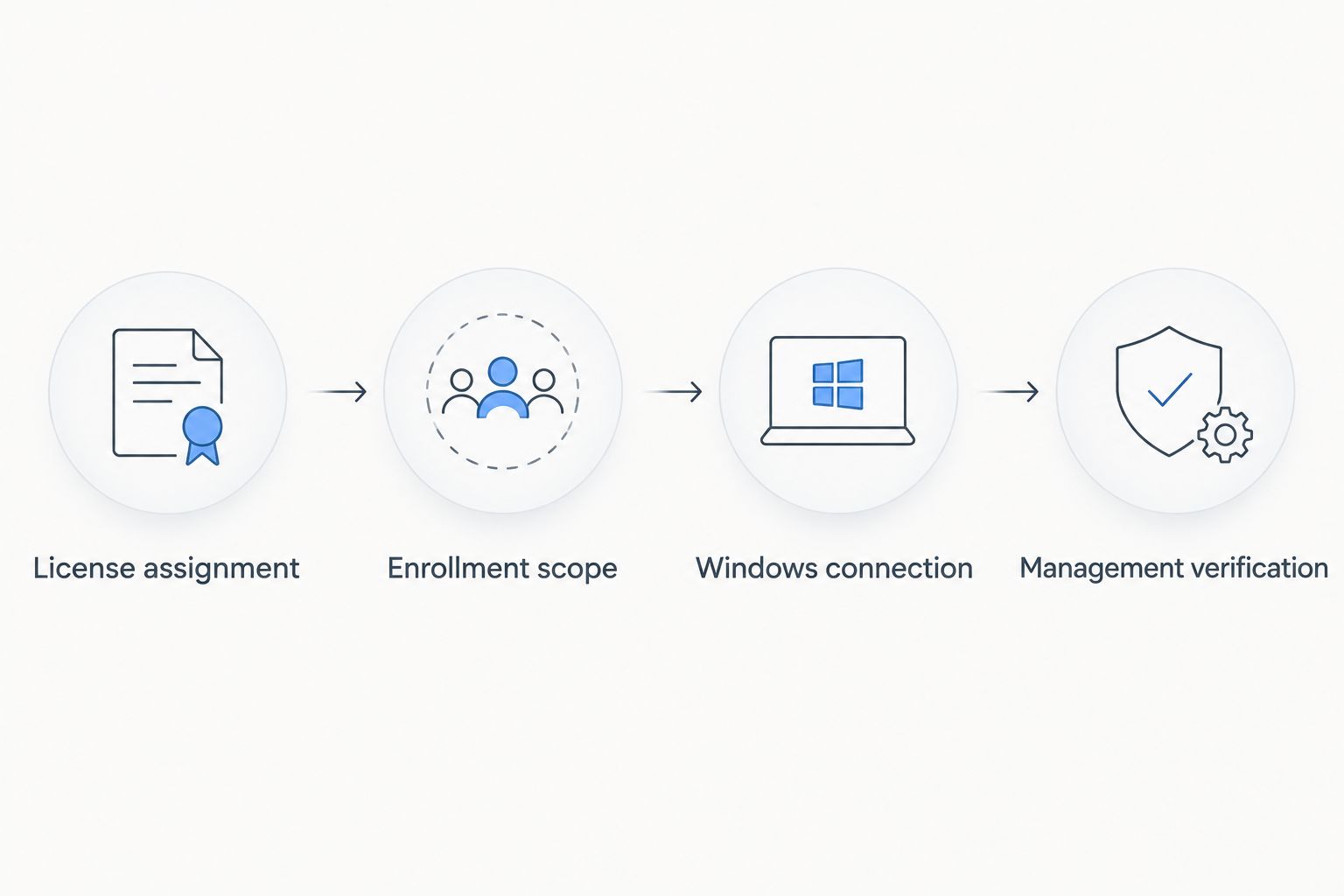
License assignment
- Open the Microsoft 365 admin center and select Users, then Active users.
- Select the employee who will enroll the pilot computer. Open Licenses and apps.
- Assign a subscription that includes the required Intune and Microsoft Entra capabilities, or the appropriate separate licenses. Check that the relevant service plans are enabled, then select Save changes.
- Confirm that the user can sign into the correct organization and complete its authentication requirements. Use the employee's account for enrollment, not an administrator account used only for tenant configuration.
Expected result: The enrolling user has the required service entitlements and can authenticate to the intended tenant. A license assigned to a different employee does not satisfy this check.
For the initial rollout, use 1 pilot PC before expanding deployment. This is a testing recommendation, not an Intune device limit. Choose a computer whose user can test the business applications that matter.
Enrollment scope
- In the Microsoft Intune admin center, open Devices, then Enrollment. Select the Windows tab and open Automatic Enrollment.
- Set MDM user scope to Some for the pilot. Select the group containing your licensed test user.
- Keep the default Microsoft enrollment URLs unless your documented configuration requires a change. Select Save.
- Review Windows enrollment restrictions and per-user device limits. Confirm that the pilot user and computer are allowed to enroll.
- Check the tenant's Microsoft Entra device settings to ensure the employee is permitted to join devices. Enrollment scope and permission to join are separate controls.
Expected result: The pilot user is inside the automatic-enrollment scope, can join Microsoft Entra ID, and is not blocked by an enrollment restriction.
For a 2026 rollout, keep the scope narrow until you verify policy behavior. Selecting All changes which users qualify for automatic enrollment; it does not instantly enroll every existing computer in the organization.
Do not copy enrollment URLs from an unrelated tenant or older setup document. Automatic enrollment depends on the relationship between the user, tenant, licensing, and device connection—not just the presence of a work email address.
Windows connection
- On the company-owned PC, open Settings, then Accounts, then Access work or school.
- Select Connect. In the account setup window, select Join this device to Microsoft Entra ID rather than simply entering an email address in the standard work-account connection flow.
- Enter the licensed employee's organizational account and complete authentication. Check the organization displayed in the confirmation screen before selecting Join.
- Finish the connection and restart when prompted. Sign into Windows using the organizational account.
- Return to Access work or school and inspect the organizational connection. Open Info where available to review management information and initiate Sync.
Expected result: The computer is Microsoft Entra joined and begins Intune enrollment because the employee is licensed and included in the MDM user scope.
Plan for a different Windows user profile. Joining an existing PC does not automatically transfer a local user's desktop, application settings, or files into the organizational sign-in profile. Keep the original profile and backup intact until the employee confirms access to required data.
A domain-joined computer needs a different plan. Do not disconnect it from the domain as a shortcut; assess Microsoft Entra hybrid join and the supported enrollment method for that environment.
Management verification
- In the Microsoft Intune admin center, open Devices, then All devices. Locate the pilot PC and open its record.
- Check that the management authority is Intune. Review the device identity, primary user, ownership, and last check-in information.
- Assign the intended configuration and compliance policies to the pilot group. Review policy status and investigate errors or conflicts rather than relying only on the device's presence in the list.
- On Windows, use Access work or school, open the connection's Info page, and select Sync. Recheck the device record after it reports back.
- Test business application access and confirm that the intended settings have reached the PC. Record the result before expanding the enrollment scope.
Expected result: You have evidence of management, policy delivery, and usable business access—not merely a Microsoft Entra device record.
For your 2026 acceptance check, verify 3 distinct states: joined identity, active Intune management, and compliance evaluation. Passing one does not establish the other two.
Enroll employee-owned PCs with Company Portal
Company Portal enrollment is the better fit when the employee should retain their existing Windows sign-in identity. This workflow adds device management without using the company-owned Microsoft Entra join sequence above.
Before proceeding, explain what management permits and which policies apply to personal devices. Obtain the organization's required consent and confirm that Windows personal-device enrollment is allowed.
- Install Company Portal from the Microsoft Store on the employee's PC.
- Open Company Portal and sign in with the licensed organizational account.
- Follow the device setup prompts and select the current device when asked. Read the management disclosure before accepting the connection.
- Complete the enrollment instructions, then check the device's access status in Company Portal.
- Find the computer in Intune and confirm its ownership classification, assigned policies, and compliance results.
Expected result: The approved personal PC appears in Intune, while the employee retains their existing Windows sign-in account. The device can still need remediation before it meets your compliance requirements.
Use separate assignment groups where company-owned and employee-owned computers need different settings. Do not assume a policy intended for business equipment is appropriate for someone's personal PC.
If your organization blocks personal Windows enrollment, stop here. Changing a device's ownership label simply to bypass that restriction is not a substitute for an approved onboarding policy.
Troubleshooting
The PC appears in Microsoft Entra but not in Intune
Check the enrolling user's license, MDM user scope, and enrollment restrictions. Confirm that the PC actually joined Microsoft Entra ID rather than only registering a work account.
If the computer joined before automatic enrollment was configured, changing the scope does not guarantee retrospective enrollment. Identify the existing join state and use a supported enrollment route; do not repeatedly disconnect and reconnect the device.
Enrollment reports a device limit or blocked platform
Review both Intune enrollment limits and Microsoft Entra device limits. Also check the Windows enrollment restriction assigned to the user, including whether personal devices are blocked.
Remove obsolete records only after confirming that they no longer represent active equipment. Raising limits without reviewing the inventory hides the underlying ownership problem.
Windows has no Microsoft Entra join option
Check the Windows edition and existing connection state. Windows Home does not support Microsoft Entra join, and an existing organizational connection affects the available setup options.
Use an eligible edition for the company-owned workflow. For an already domain-joined PC, assess the existing domain and hybrid identity configuration instead of forcing the manual join sequence.
Enrollment succeeds, but compliance remains unresolved
Open the device's compliance results and identify the setting that is pending or failing. Trigger a sync, then address the reported requirement; enrollment alone does not make a computer compliant.
In a 2026 rollout, test compliance policies before enforcing access restrictions across all employees. Evaluate Conditional Access with a controlled pilot and preserve approved emergency access procedures.
The wrong organization appears during setup
Cancel before confirming the join. Check the account being used and inspect existing organizational connections on the computer.
Where another organization manages the PC, arrange an authorized release before onboarding it. Removing a visible work account does not automatically remove every management or provisioning relationship.
Customize your workflow
Once the pilot works, expand by employee group or device purpose. Separate office laptops, shared workstations, and dedicated terminals where their sign-in and security requirements differ.
- Configuration: Assign documented settings for encryption, firewall behavior, and other endpoint controls. Verify that the device supports the selected settings.
- Compliance: Define the conditions a device must meet, then test remediation instructions from the employee's perspective.
- Application deployment: Package and assign the applications employees need. Enrollment does not automatically deploy every application included in their Microsoft 365 subscription.
- Provisioning: Consider Windows Autopilot when repeated new-PC setup becomes the next operational problem.
Voll's Microsoft 365 offering is relevant to Portuguese businesses that want licensing with local support. The trade-off is that purchasing a subscription does not define your tenant's enrollment, compliance, or access policies; document those requirements separately.
For the 2026 operating procedure, name the person responsible for enrollment failures, policy exceptions, and departing employees' devices. Decide how corporate data will be removed before the first personal computer is enrolled.
FAQ
How do I connect a Windows PC to Microsoft 365 with Intune?
For a company-owned PC, assign the required licenses, include the employee in the MDM user scope, and join the computer to Microsoft Entra ID. Then verify its Intune record and policy results; signing into Microsoft 365 applications alone does not enroll Windows.
Does every Microsoft 365 plan include Intune?
No. Microsoft 365 Business Basic and Business Standard do not include Intune by themselves, while Microsoft 365 Business Premium includes Intune and Microsoft Entra ID Premium capabilities. Check the user's assigned service plans before enrollment.
Is Microsoft Entra registration the same as Intune enrollment?
No. Microsoft Entra registration establishes a device identity relationship, while Intune enrollment establishes device management. Check the Intune device record and management status separately.
Can employees enroll their own Windows computers?
Yes, if your organization allows personal Windows enrollment and the employee has the required licensing. Company Portal provides a user-driven route that retains the existing Windows sign-in identity; explain management permissions before enrollment.
Will enabling automatic enrollment manage computers already joined to Microsoft Entra?
Not automatically in every existing-device scenario. The MDM user scope defines eligible users, but an earlier join does not guarantee that enrollment will be triggered retrospectively. Assess the current device state before selecting a supported enrollment method.
Why is my enrolled PC still marked noncompliant?
Enrollment and compliance are separate checks. Review the device's compliance results in Intune, resolve the reported requirement, and sync the computer before checking the status again.
Who is Voll best suited to for Microsoft 365 licensing?
Voll suits Portuguese businesses buying Microsoft 365 licensing with local support. Define your device-management requirements separately from the subscription purchase so the required licenses and configuration are clear.
One last thing
The useful enrollment test is not whether the computer appears in a portal; it is whether the intended employee can work under the intended policies. Keep the pilot open until both conditions are true. A visible device record with failed policy delivery is unfinished onboarding.