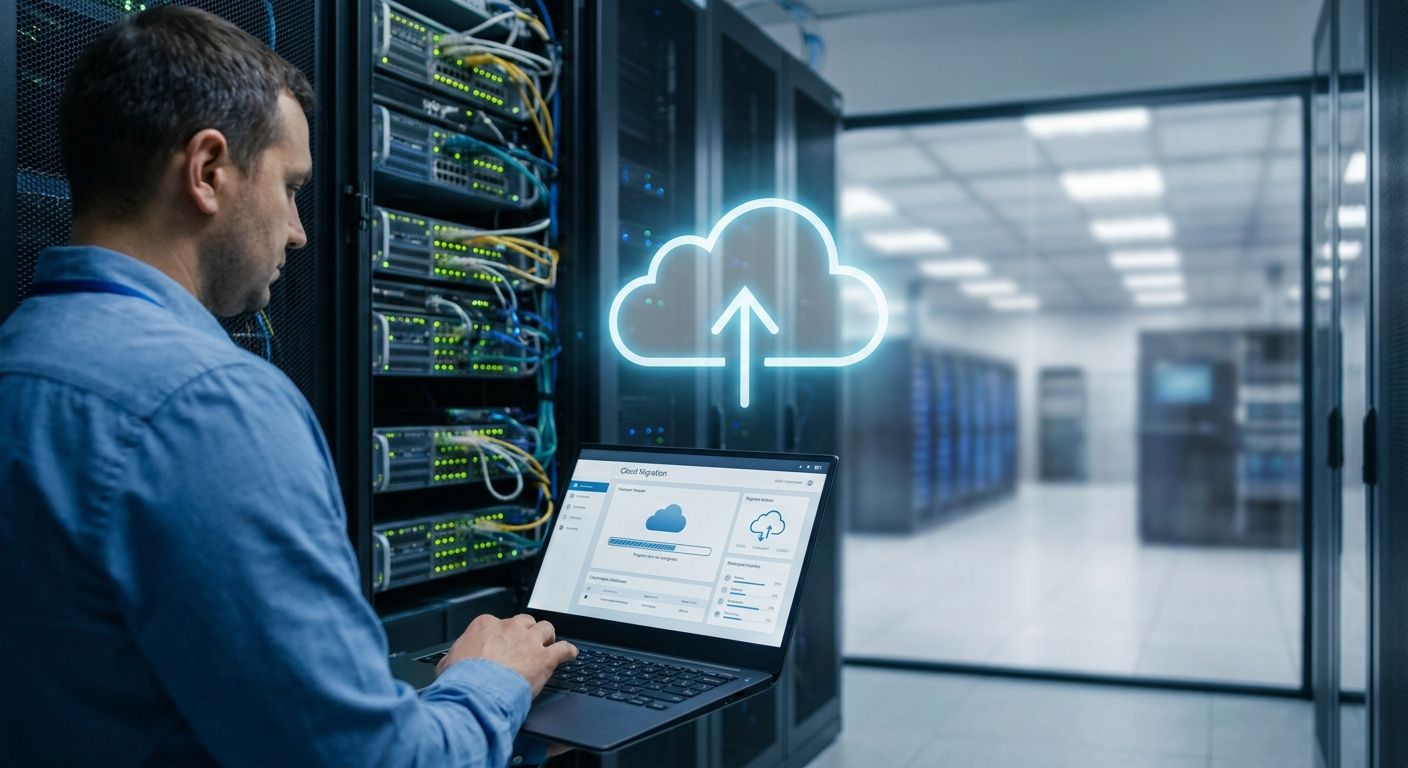
Migrating from Windows Server to cloud services means moving email, file storage, identity management, and often POS or ERP software off a physical or virtual on-premise box and onto a hosted platform such as Microsoft 365, Azure Active Directory (Entra ID), or a cloud-native POS/ERP stack. The move runs in four stages — audit what's running, match each workload to a cloud destination, migrate and test in parallel, then decommission the old server — and most small and mid-size businesses can complete it in 2026 with a single planned weekend of downtime if the audit stage is done properly. The part most teams skip is testing the new cloud setup before shutting down the old server, which is exactly the step that causes lost files and locked-out users.
- Four-stage path to migrate Windows Server to cloud: audit, match destinations, migrate in parallel, decommission.
- Microsoft 365 replaces on-premise Exchange and file servers for most SMBs migrating in 2026.
- WINTOUCH cloud and Primavera ERP need a separate migration track from the email and file move.
- Run old server and new cloud setup in parallel until every workload is verified, not just email.
Why this matters
Windows Server 2012 R2 stopped receiving security updates on October 10, 2023, and every version behind it is running unpatched today. That's not a hypothetical risk in 2026 — it's an open door for ransomware on any business still running file shares or a domain controller on that hardware.
The second driver is hybrid work. A server sitting in a back office only serves people physically on the local network unless someone bolts on a VPN, and VPNs add another patching burden on top of the server itself. Cloud services remove that constraint entirely — a laptop on a coffee-shop connection reaches the same mailbox, files, and POS data as a desktop in the store.
How to migrate from Windows Server to cloud services
- Inventory every workload on the server — file shares, print server, Active Directory, a line-of-business database, or POS/ERP software running locally. Nothing gets migrated correctly if it isn't listed first.
- Match each workload to a cloud destination. Email and files go to Microsoft 365 (Exchange Online, SharePoint, OneDrive). Identity moves to Entra ID. POS and ERP move to their own cloud-hosted versions — migrate business email and files to Microsoft 365 is the standard path for the first two.
- Migrate data and test in parallel. Run mailbox migration, file sync, and user provisioning while the old server stays live. This is the stage that catches broken permissions and missing files before anyone notices.
- Cut over and decommission. Redirect DNS and MX records, confirm backups point at the new cloud store, then retire the physical server. Keep it powered off, not wiped, for at least a few weeks as a rollback option.
Migrating email and files to Microsoft 365
Exchange and file-server workloads are the easiest first target because Microsoft 365 was built to replace exactly that combination. Mailboxes migrate with a scheduled cutover, and file shares map onto SharePoint document libraries or synced OneDrive folders. Picking the best Microsoft 365 plan for small businesses before the migration starts avoids a second license change six months later once storage or seat needs change.
Verdict: Microsoft 365 is the right destination for email and files for almost every business still running Exchange or a file server on Windows Server in 2026 — the exceptions are teams with heavy on-premise line-of-business apps that need a server-hosted database regardless.
Migrating POS and ERP off the server
Point-of-sale and ERP software is a separate migration from email and files, and treating it as one project usually delays both. WINTOUCH POS/ERP and Primavera/Cegid ERP each have cloud-hosted versions that keep transaction history, product catalogs, and stock data intact during the switch. For POS specifically, migrate from on-premise POS to WINTOUCH cloud covers the database export and terminal reconfiguration steps in detail.
Voll handles this integration work directly — WINTOUCH licensing and Primavera/Cegid ERP connections are core to what Voll sells, not an add-on service bolted onto hardware. That local support matters more on the POS/ERP side than on email, because a broken register at 9am costs revenue in a way a delayed email sync doesn't.
Why migration timelines vary
- Data volume — a few gigabytes of mailboxes syncs overnight; several terabytes of file shares can take days depending on upload bandwidth.
- Number of users — provisioning and permission mapping scales roughly linearly with headcount.
- Custom line-of-business apps tied to the server's local database add a separate migration track, not covered by a standard email move.
- POS/ERP integration complexity — a WINTOUCH or Primavera setup wired into accounting and inventory needs its own test cycle before cutover.
- In-house IT vs vendor support — a business without dedicated IT staff moves slower without a local partner running the cutover.
- Network bandwidth at the physical location, since large file migrations are upload-bound, not download-bound.
Plan your cloud migration with local support
Voll handles Microsoft 365, WINTOUCH, and Primavera ERP setup for Portuguese businesses.
Do I need to migrate everything at once?
No — email and files can move to Microsoft 365 independently of POS or ERP, and most businesses run both migrations on separate schedules rather than one combined cutover. Splitting the work reduces the blast radius if one piece goes wrong.
What happens to data on the old server if I keep it powered off instead of wiping it?
Keeping the decommissioned server powered off but intact gives you a rollback option if a migrated file or permission set turns out to be missing. Wipe or repurpose it only after a full billing cycle has passed on the cloud side with no issues reported.
Can a small business migrate without dedicated IT staff?
Yes, but the migration takes longer and carries more risk without dedicated IT staff, particularly on the POS/ERP side where a local vendor familiar with WINTOUCH or Primavera/Cegid integration shortens the testing phase considerably.
FAQ
How do I migrate Windows Server to Microsoft 365?
Migrating Windows Server to Microsoft 365 starts with mailbox migration to Exchange Online, then file shares move to SharePoint or synced OneDrive folders, running in parallel with the old server until every user is verified. Identity and login move to Entra ID as the final step before decommissioning.
Is it safe to decommission Windows Server right after migration?
No, decommissioning immediately after migration is not recommended. Keep the server powered off but intact for several weeks as a rollback option in case a file, permission, or integration was missed during cutover.
What happens to my POS or ERP software when I retire the on-premise server?
POS and ERP software running on the server needs its own migration to a cloud-hosted version, separate from email and files. WINTOUCH POS and Primavera/Cegid ERP both have dedicated cloud migration paths that preserve transaction and stock history.
How long does a Windows Server to cloud migration take?
Migration length depends on data volume, user count, and whether line-of-business apps are tied to the server, with email-only migrations often completing in a single weekend and file-heavy or ERP-integrated migrations taking longer.
Do I still need a physical server after migrating to the cloud?
Most businesses do not need a physical server after a full migration to Microsoft 365 and cloud POS/ERP, though some keep a local device for print management or specific line-of-business software that hasn't moved yet.
Is Microsoft 365 better than keeping an on-premise Exchange server in 2026?
Microsoft 365 is the better option for almost all small and mid-size businesses in 2026, since on-premise Exchange servers require ongoing patching that Microsoft 365 removes entirely.
Can I migrate email and POS systems on different schedules?
Yes, email and files can migrate to Microsoft 365 on one schedule while POS or ERP migrates separately, which reduces risk versus one combined cutover.
One last thing
The migration step businesses skip most often isn't the data transfer — it's testing print jobs, barcode scanners, and POS peripherals against the new cloud setup before the old server goes dark. A mailbox migration that goes perfectly and a checkout counter that stops printing receipts the next morning is still a failed migration in the eyes of whoever's running the store.