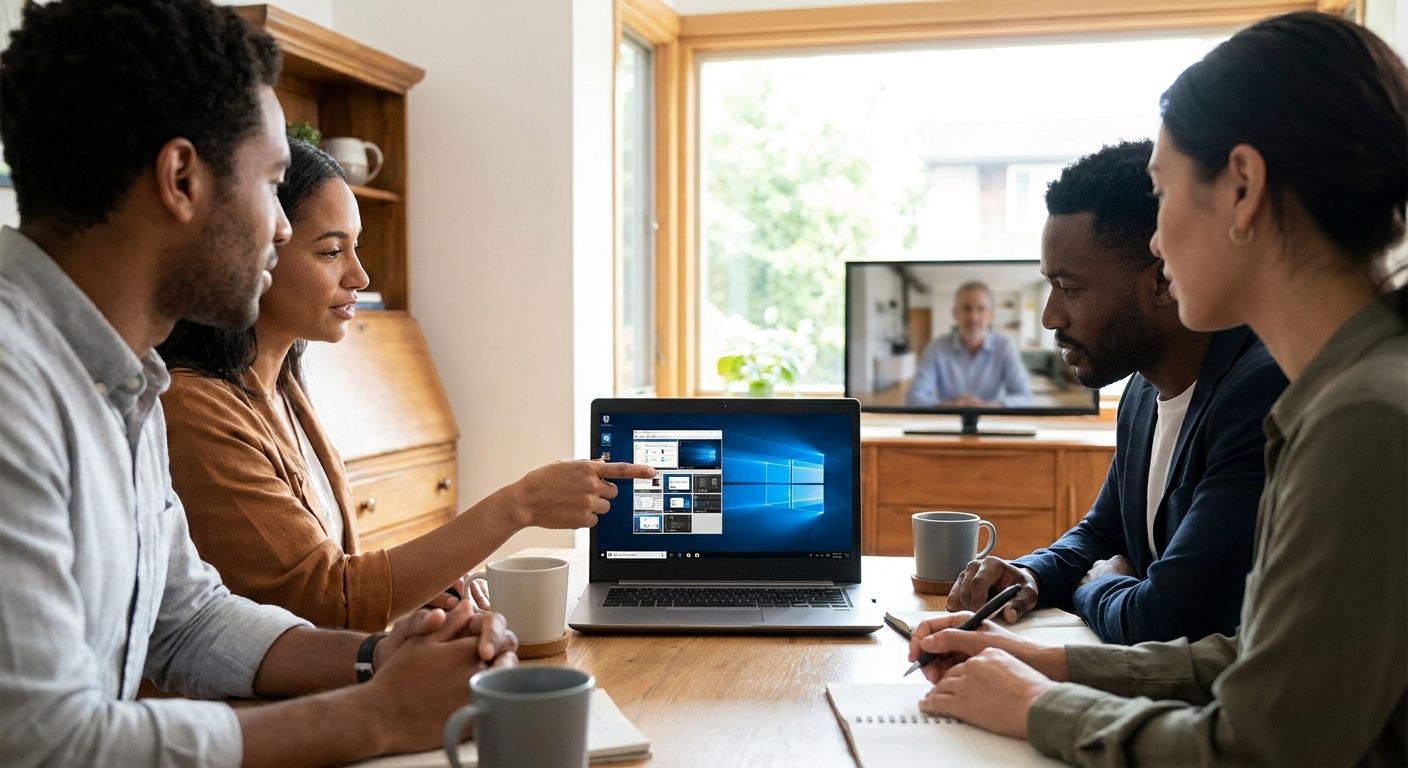
Remote desktop software for distributed teams lets an employee in Braga control a desktop, a POS terminal, or an ERP session sitting in Lisbon, and the tool you pick decides whether that connection is fast and audited or slow and wide open to anyone scanning for it. The right setup in 2026 depends less on brand names and more on how your team is spread out and what those machines actually run.
Distributed teams differ from a single-office setup in three ways: no shared LAN, staggered shifts across locations, and a mix of devices — Windows laptops, POS terminals running WINTOUCH, the odd Mac in marketing. A tool built for one desk talking to another desk inside an office doesn't hold up against that mix.
- Remote desktop software for teams needs MFA, session logging and a locked firewall port, not just a fast connection.
- TeamViewer and AnyDesk cover unattended access for most distributed offices; Microsoft Remote Desktop (RDP) is free with Windows Pro but exposes port 3389 if left open to the internet.
- Splashtop and Chrome Remote Desktop fit lighter budgets; RustDesk is the self-hosted option for teams that want data off third-party servers.
- Pair remote access with business-grade firewalls, not a home router, if staff connect from house networks in 2026.
- Teams running WINTOUCH POS/ERP across branches need remote access that survives a branch VPN drop, not just a laptop-to-laptop link.
Why remote desktop software matters for distributed teams
A distributed team in 2026 usually spans more than one branch, a handful of home offices, and at least one technician who needs into a back-office PC without a plane ticket. Remote desktop software is what makes that possible without shipping a laptop every time someone changes location.
For businesses running WINTOUCH POS/ERP across several branches, the stakes go past convenience. A call about a jammed cash drawer or a failed Primavera export needs a technician inside that machine in minutes, not after a site visit. Microsoft 365 users working from home need the same reach — IT has to get back into the office desktop to fix a stuck sync, without opening the whole network to the internet to do it.
Starting with the right best laptops for remote and hybrid business teams cuts a chunk of remote-support tickets before they happen. Most remote desktop complaints trace back to underpowered hardware struggling with the session, not the software itself.
VOLL doesn't sell remote desktop software directly — the catalog runs on WINTOUCH POS/ERP licenses, Microsoft 365, and network hardware. But the laptops, docking stations, and firewalls that make remote desktop software run reliably across branches do come from VOLL, priced ex-VAT for business buyers with delivery nationwide in 24-48h.
Map your access requirements before you choose a tool
- List which devices need remote access: POS terminals, back-office PCs, ERP servers, laptops.
- Decide whether sessions are attended (someone at the far end clicks accept) or unattended (access to an empty office at 11pm).
- Count concurrent users — five technicians logging in at once needs a different license tier than one.
- Flag any device handling payment or health data; those need session recording, not just a fast connection.
- Confirm the operating systems in play — Windows, Linux-based POS terminals, macOS.
Choose the connection model that fits your network
- Agent-based tools (TeamViewer, AnyDesk) punch through NAT without a VPN, which suits teams with no central network.
- RDP over a VPN keeps traffic inside a private tunnel, but needs a VPN already running at every branch.
- Browser-based tools like Chrome Remote Desktop skip client installs but give up centralized admin control.
- Self-hosted options like RustDesk keep session data off a third-party relay server, at the cost of running your own server.
- For branch-to-branch links, multi-branch VPN connectivity removes the need to expose any single office directly to the open internet.
Lock authentication down before rollout
- Turn on MFA for every remote desktop account, no exceptions for admins.
- Whitelist devices or IP ranges where the tool supports it, instead of open access from any device.
- Set session timeouts so an unattended login doesn't stay open overnight.
- Block clipboard and file transfer on sessions touching payment or health records.
- Rotate shared admin credentials at least quarterly — a distributed team leaks passwords faster than a single office does.
Standardize the client across every device
- Push the same remote desktop client to every laptop before it ships to a new hire, not after.
- Preconfigure business laptops with the client, MFA app, and VPN profile installed before handoff.
- Pair a docking station at each home setup so remote staff aren't troubleshooting a cramped laptop screen mid-session.
- Standardize on one video conferencing equipment for hybrid teams setup for handoff calls between technician and end user.
- Document the client version and update cadence so IT isn't supporting five different builds at once.
Set up unattended access for office machines and POS terminals
- Enable unattended access only on machines that are physically secured — a locked office, not an open counter.
- Pair unattended access with a firewalls for small business network security setup so the only inbound rule is the remote desktop agent, nothing else.
- Log every unattended session with timestamp, technician ID, and duration, not just "accessed."
- Test the unattended connection during business hours before relying on it at 11pm on a Sunday.
- Keep a fallback attended-access contact at each branch for machines that can't run unattended sessions.
Monitor sessions and keep an audit trail
- Review session logs weekly, not just when something breaks.
- Flag logins from new locations or unusual hours for a manual check.
- Store logs for the retention period your industry requires — longer for health and financial data.
- Cross-check remote desktop logs against Microsoft 365 sign-in logs if the same staff use both.
- Assign one person to own the audit review, or it stops happening after month one.
Build network resilience so remote access doesn't fail mid-session
- Pair remote desktop access with a 4G/LTE failover router at branches where fiber drops are common.
- Keep multi-branch VPN connectivity in place so remote sessions don't rely on one branch's single internet line.
- Segment guest Wi-Fi from the network segment carrying POS and ERP traffic.
- Test failover during a scheduled maintenance window, not the first time the primary line actually goes down.
Train the team on secure remote access habits
- Require staff to lock the local screen before walking away from an active remote session.
- Ban saving remote desktop passwords in browsers on shared or public machines.
- Set a rule: no unattended access setup without IT sign-off, ever.
- Run a 15-minute refresher when a new remote desktop tool rolls out, not just an email.
Comparing remote desktop options for distributed teams
| Option | Best for | Key limitation |
|---|---|---|
| Microsoft Remote Desktop (RDP) | Windows Pro/Enterprise teams with a VPN already in place | Needs a VPN or RDP gateway to be safe over the public internet — port 3389 exposed directly is a common breach vector |
| TeamViewer | Distributed teams needing broad OS support and instant ad-hoc support calls | Per-seat/per-session licensing gets costly as the team grows |
| AnyDesk | Low-latency sessions for POS and back-office troubleshooting | Fewer built-in compliance and reporting features than TeamViewer |
| Splashtop | Cost-conscious teams needing unattended access to a fixed set of machines | Advanced admin and audit tools sit behind higher-tier plans |
| Chrome Remote Desktop | Occasional one-off access with no dedicated IT budget | No built-in session recording or centralized admin console |
| RustDesk | Teams that want to self-host and keep session data off third-party servers | Self-hosting means your team owns server maintenance and uptime |
“TeamViewer or AnyDesk covers most distributed setups in 2026; RDP behind a VPN is the free option for Windows-only teams that already run one.”
Lock down your remote access network
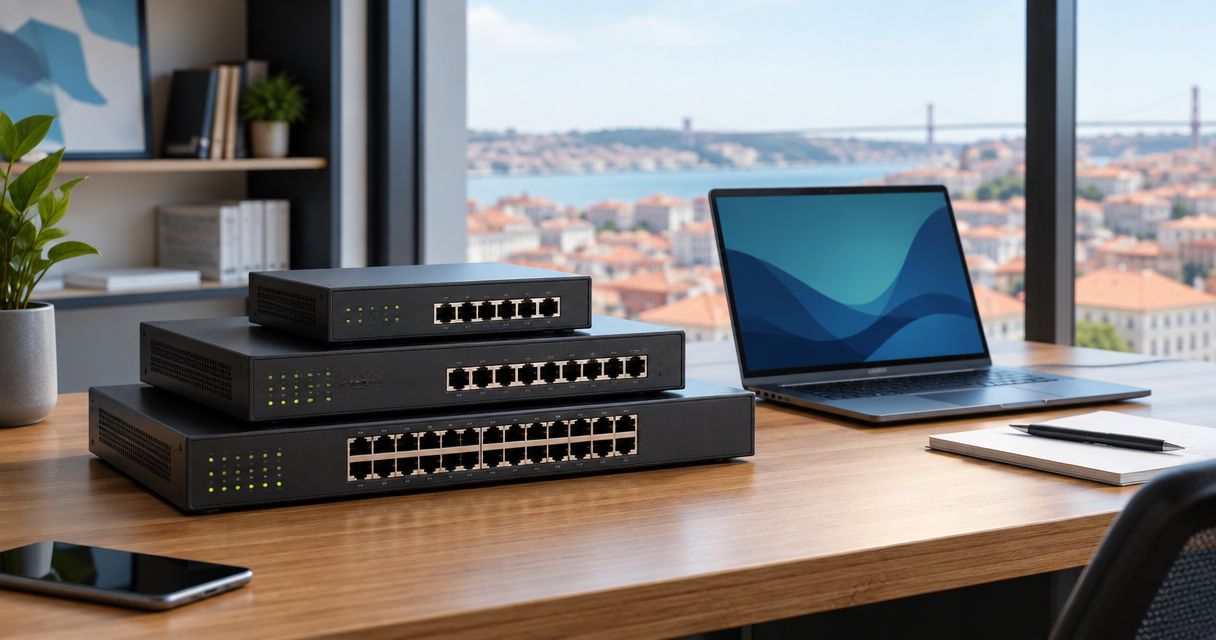
VOLL specs firewalls and network gear built for distributed teams.
Common mistakes distributed teams make with remote desktop software
- Leaving RDP's port 3389 open directly to the internet instead of routing it through a VPN or gateway.
- Sharing one login across the whole remote team instead of individual MFA-protected accounts.
- Skipping session logging, so nobody can tell who touched a POS terminal or ERP export overnight.
- Choosing a tool on price alone and discovering later it doesn't support the Linux-based POS terminals running in the stores.
- No fallback connectivity plan, so one branch's internet outage kills remote support for every store that branch handles.
FAQ
What's the best remote desktop software for distributed teams in 2026?
TeamViewer and AnyDesk cover most distributed teams in 2026 because they punch through NAT without a VPN and support unattended access. Windows-only teams with a VPN already running can use Microsoft Remote Desktop for free instead.
Is remote desktop software safe for accessing POS terminals?
Yes, if the session runs behind MFA, a locked-down firewall rule, and session logging. An unsecured connection to a POS terminal is a bigger risk than most retail teams assume, since payment data sits on that machine.
How much does remote desktop software cost for a small team?
Pricing runs per-seat or per-session and varies by vendor and feature tier, so check current plans on each vendor's site before committing. Chrome Remote Desktop and Microsoft Remote Desktop are free; TeamViewer, AnyDesk, and Splashtop charge for centralized admin and unattended access.
Is TeamViewer better than AnyDesk for distributed teams?
TeamViewer has broader OS support and a deeper admin console; AnyDesk usually runs lower latency for quick POS or back-office troubleshooting. The right pick depends on whether your team needs compliance reporting (TeamViewer) or speed on constrained connections (AnyDesk).
Do I still need a VPN if I already use remote desktop software?
Agent-based tools like TeamViewer and AnyDesk don't require a VPN, but Microsoft Remote Desktop does if you want it safe over the public internet. Multi-branch teams often run both: a VPN for branch-to-branch traffic and an agent-based tool for individual laptops.
Can remote desktop software work over a 4G or mobile connection?
Yes, most agent-based tools tolerate mobile connections, though latency and dropped packets degrade the session more than on fixed broadband. Pairing a 4G/LTE failover router at the branch keeps the connection alive when the primary line drops.
What port does RDP use, and is it safe to leave open?
Microsoft Remote Desktop uses port 3389 by default, and leaving it open directly to the internet is one of the most common breach vectors in 2026. Route it through a VPN or RDP gateway instead of exposing it on a public firewall rule.
How does WINTOUCH POS/ERP access work for remote staff?
Staff connect through standard remote desktop software to the machine running WINTOUCH, then work inside that session as if sitting at the terminal. The connection itself needs the same MFA, logging, and firewall rules as any other remote desktop session touching payment data.
One last thing
Port 3389 is the single most-scanned port on the public internet — leaving it open on a branch firewall isn't a theoretical risk, it's an invitation. If your distributed team runs Microsoft Remote Desktop anywhere, put it behind a VPN or an RDP gateway in 2026, never on a direct inbound rule, and check that rule again after every new hire's laptop ships.