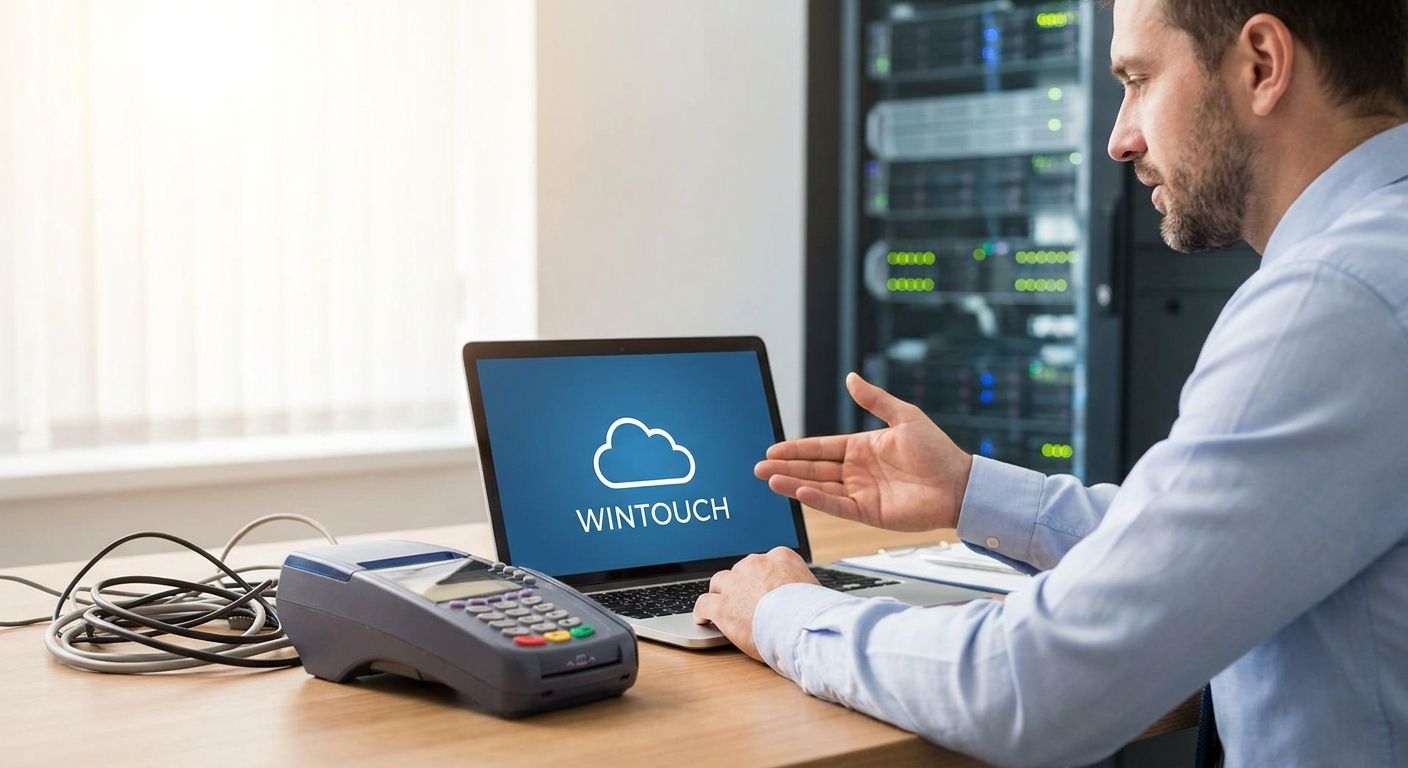
Moving from an on-premise WINTOUCH installation to WINTOUCH Cloud changes how your stores handle backups, updates and multi-location reporting — here is the step-by-step process for 2026.
- Businesses that migrar para WINTOUCH Cloud in 2026 cut server maintenance and gain real-time multi-location reporting.
- Back up your on-premise WINTOUCH database before touching the cloud license — skipping this causes most failed migrations.
- Multi-location retailers should confirm ERP sync with Primavera or Cegid before cutover, never after.
- Run WINTOUCH Cloud parallel to the old system for one full sales cycle before decommissioning the local server.
- Most migrations finish in 2-3 weeks when the network and hardware are checked upfront.
Why this matters
An on-premise WINTOUCH server is a single point of failure. If the machine under the counter dies, every till in the store stops ringing sales until someone replaces or reimages it.
WINTOUCH POS software running on-premise also means every price change, menu update or promo has to be pushed store by store. Multi-location retailers feel this the most — a chain with four locations updating stock levels manually is losing hours every week that WINTOUCH Cloud automates.
2026 is also the year most Portuguese retailers stop treating cloud migration as optional. Insurance requirements, remote reporting demands from owners, and the end-of-life clock on aging on-premise hardware are pushing the decision. Waiting until the server fails is the expensive way to migrate.
What you'll need
- Admin access to your current on-premise WINTOUCH installation
- A full export/backup of the local SQL database (not a partial one)
- Confirmation of internet bandwidth at each till location — plan for at least 5 Mbps upload per active terminal
- ERP integration credentials if you sync with Primavera or Cegid
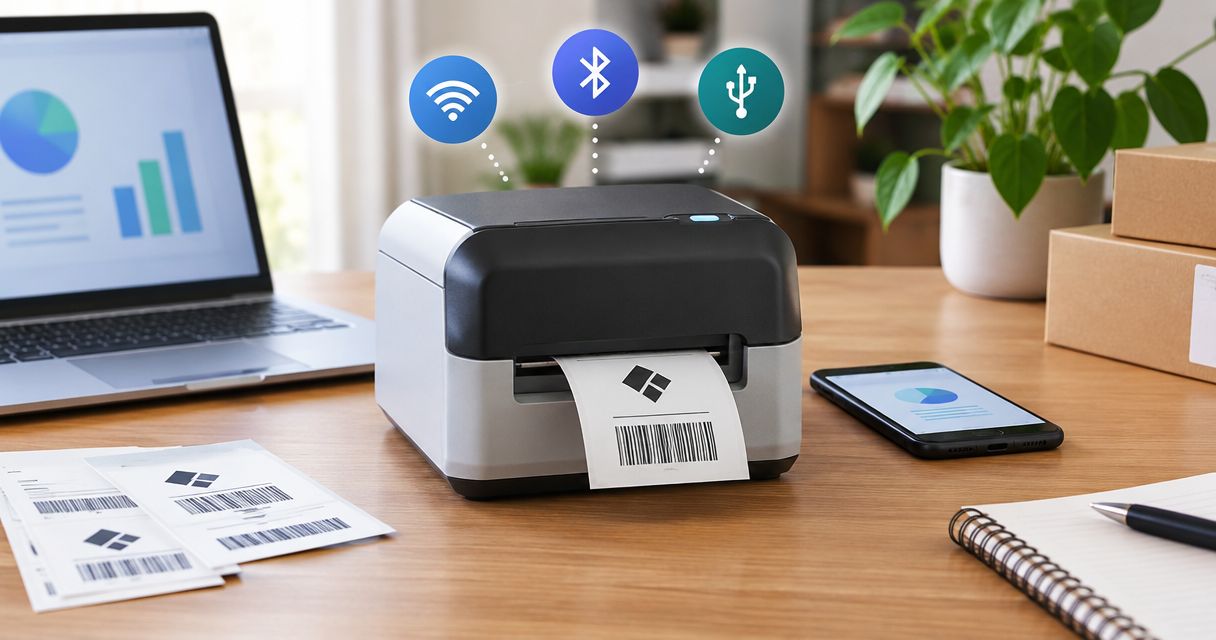
- A list of connected hardware: SUNMI terminals, receipt printers, barcode scanners, cash drawers
- A staff training window of 2-3 hours per location
- One point person per store to own the cutover day
The steps
1. Audit your current on-premise environment
List every terminal, printer, scanner and integration touching WINTOUCH today. This is the step most migrations skip, and it is the one that causes surprises on go-live day.
Write down firmware versions on SUNMI or third-party hardware, and note which stores run custom price lists or discount rules. Expected outcome: a one-page inventory per location. Common mistake: forgetting seasonal or promo-only SKUs that only show up during specific months.
2. Back up and export your database
Export the full local WINTOUCH database — sales history, inventory, customer records, loyalty balances — before any cloud provisioning starts. Store the backup in two separate locations, not just on the same server you're about to retire.
Run the export during closed hours to avoid capturing a database mid-transaction. Expected outcome: a verified, restorable backup file dated and timestamped. Common mistake: exporting while the till is still open, which corrupts open-order records.
3. Confirm network and hardware readiness
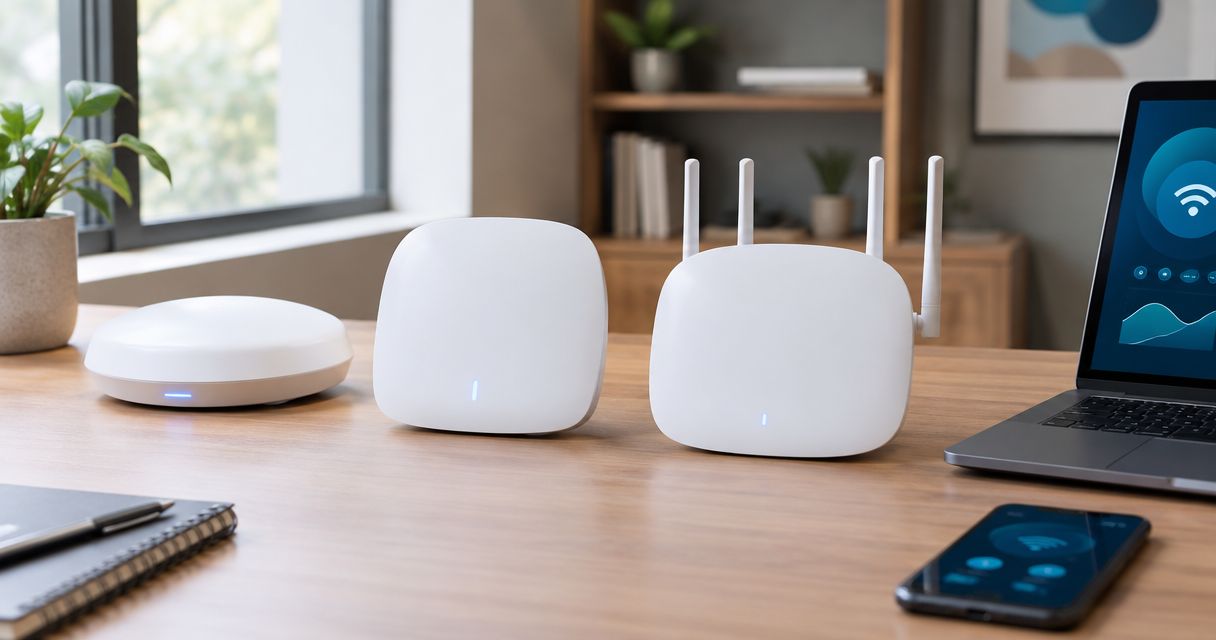
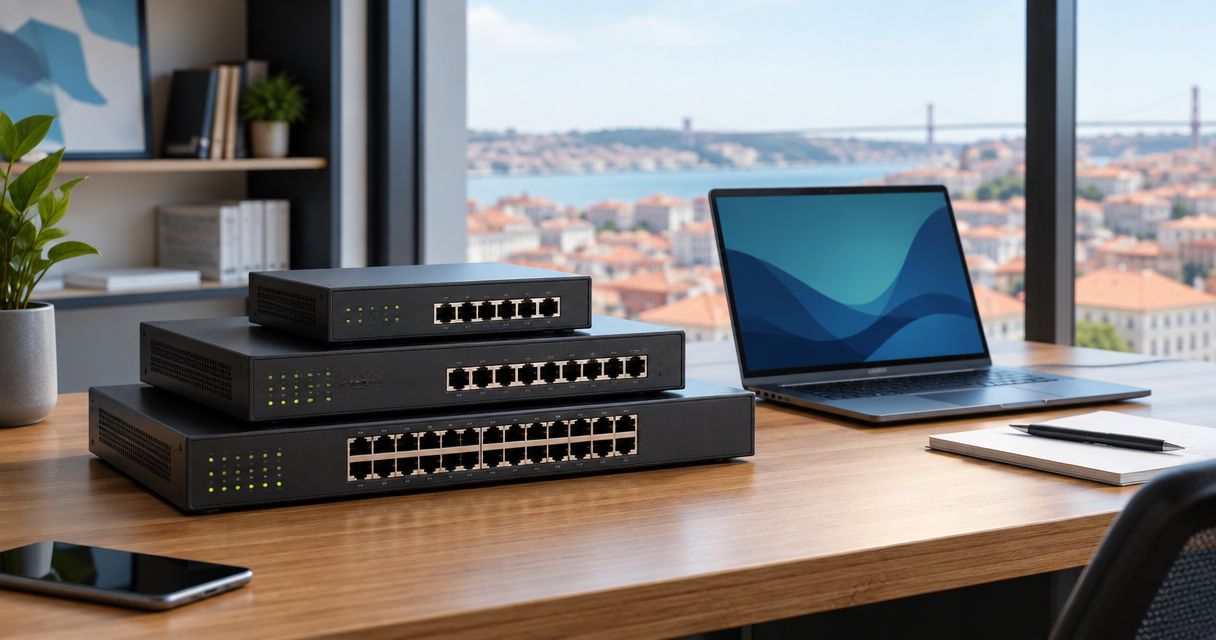
WINTOUCH Cloud depends on a stable connection at every location, unlike the on-premise version that kept working through a local outage. Test upload and download speeds at each till during peak hours, not just once in the morning.
If a location runs on a shared office connection with fewer than 5 Mbps available per terminal, upgrade the line or add a dedicated business connection before cutover. Expected outcome: every terminal holds a stable connection through a full lunch rush test. Common mistake: testing bandwidth once, off-peak, and assuming it holds under load.
4. Provision the WINTOUCH Cloud license and test environment
Set up the cloud license and create a sandbox or test store profile before touching your live data. This lets staff click through the new interface without risking a live sale.
Match user roles and permissions to what exists on-premise — manager overrides, discount limits, cash-drawer access — so nothing gets looser or tighter by accident during the switch. Expected outcome: a working test environment mirroring one real store. Common mistake: copying permissions loosely and giving cashiers manager-level discount access by default.
5. Migrate data and reconnect ERP integrations
Import the backed-up database into the cloud environment and verify record counts match — same number of SKUs, same customer count, same open loyalty balances. If your stores sync with Primavera or Cegid, this is the point to reconnect that link rather than leaving it for later.
Follow the process to connect WINTOUCH POS to Primavera ERP via API and run a test transaction that posts through to the ERP side before going further. Expected outcome: a sale in the cloud POS shows up correctly in Primavera or Cegid within minutes. Common mistake: assuming the ERP sync carried over automatically — it usually needs to be re-authenticated.
6. Run parallel operations before cutover
Keep the on-premise system running as a fallback while WINTOUCH Cloud handles live sales for at least one full sales cycle — a full week for most retail stores, a full month-end close for anyone reconciling against Primavera or Cegid. Chains rolling this out across locations should stagger it store by store rather than flipping every till the same day.
For businesses with more than one store, WINTOUCH Cloud for multi-location retail chains covers how central reporting and stock transfers behave once every store is on the same cloud account. Expected outcome: identical sales totals reported on both systems during the overlap window. Common mistake: cutting the parallel period short because the cloud system looks fine after two days.
7. Train staff and go live
Run a short training session per location covering the new login flow, the parked-order screen, and any UI differences from the on-premise version. Cashiers who trained on the old system for years will hunt for buttons that moved.
Schedule go-live for a low-traffic day or shift, never a Friday evening or a weekend opening. Expected outcome: staff process a full shift with no manager intervention needed. Common mistake: going live on the busiest day of the week because it's already scheduled.
Troubleshooting
- POS feels slow after cutover — check bandwidth per terminal first; WINTOUCH Cloud needs a live connection where the on-premise version didn't.
- ERP sync shows missing transactions — re-check API credentials from step 5; expired tokens are the most common cause.
- Receipt printer or barcode scanner stops responding — cloud drivers sometimes differ from local drivers; reinstall the printer driver matched to the cloud client, not the old on-premise one.
- Prices differ between stores after go-live — a central price list update didn't propagate; force a manual sync from the admin panel.
- Staff report the till logs out mid-sale — this is almost always a dropped connection, not a software bug; test the line again during peak hours.
- Multi-location stock counts don't match — confirm every store finished the parallel-run cutover on the same day; mixed cutover dates cause double-counted transfers.
Tools and resources
- The local database export tool built into your current on-premise WINTOUCH install
- A bandwidth test run at peak hours, not off-peak
- Primavera ERP for retail stores for retailers syncing inventory and accounting through Primavera
- SUNMI or existing POS hardware compatibility notes from your original install
- A written cutover schedule with one owner per store
What to do next
Once the migration is stable, revisit user permissions and multi-company setup — chains adding new stores or a second company code should check adding users to a Primavera Cegid license before onboarding the next location. Voll delivers WINTOUCH Cloud licenses and connected hardware nationwide in 24-48h, so hardware replacements during migration don't stall the timeline.
FAQ
What is WINTOUCH Cloud?
WINTOUCH Cloud is the hosted version of WINTOUCH POS/ERP that removes the need for a local on-premise server. Sales, inventory and reporting run through a hosted environment accessible from any connected terminal.
How long does it take to migrate from on-premise POS to WINTOUCH Cloud?
Most single-store retailers complete the migration in 2-3 weeks in 2026, including a parallel-run period. Multi-location chains take longer because cutover is staggered store by store.
Do I lose my sales history when migrating to WINTOUCH Cloud?
No, sales history transfers when the database export from the on-premise system is complete and verified before import. Skipping the backup verification step is the main cause of lost records.
Is WINTOUCH Cloud compatible with Primavera or Cegid ERP?
Yes, WINTOUCH Cloud connects to Primavera and Cegid through API integration, the same way the on-premise version does. The connection needs to be re-authenticated during migration, not assumed to carry over.
What internet speed do I need to run WINTOUCH Cloud?
Plan for at least 5 Mbps of upload bandwidth per active terminal at peak hours. Locations on shared office connections often need a dedicated line before cutover.
Can I run WINTOUCH Cloud and on-premise POS at the same time during migration?
Yes, running both in parallel for at least one full sales cycle is the recommended way to catch discrepancies before decommissioning the local server. A full week works for most single stores; multi-location chains often extend it through a month-end close.
How much does migrating to WINTOUCH Cloud cost in 2026?
Cost depends on the number of terminals, integrations and whether on-site installation support is needed. Request a quote for exact pricing, quoted without VAT for business buyers.
What happens to my existing POS hardware after migration?
Compatible hardware like SUNMI terminals, printers and scanners typically continues working with WINTOUCH Cloud once drivers are matched to the cloud client. Older or unsupported hardware may need replacement, which is worth checking during the audit step.
One last thing
The migrations that go wrong almost never fail because of WINTOUCH Cloud itself — they fail because the parallel-run period got cut short. Give it the full sales cycle, even when the cloud system looks fine after two days.