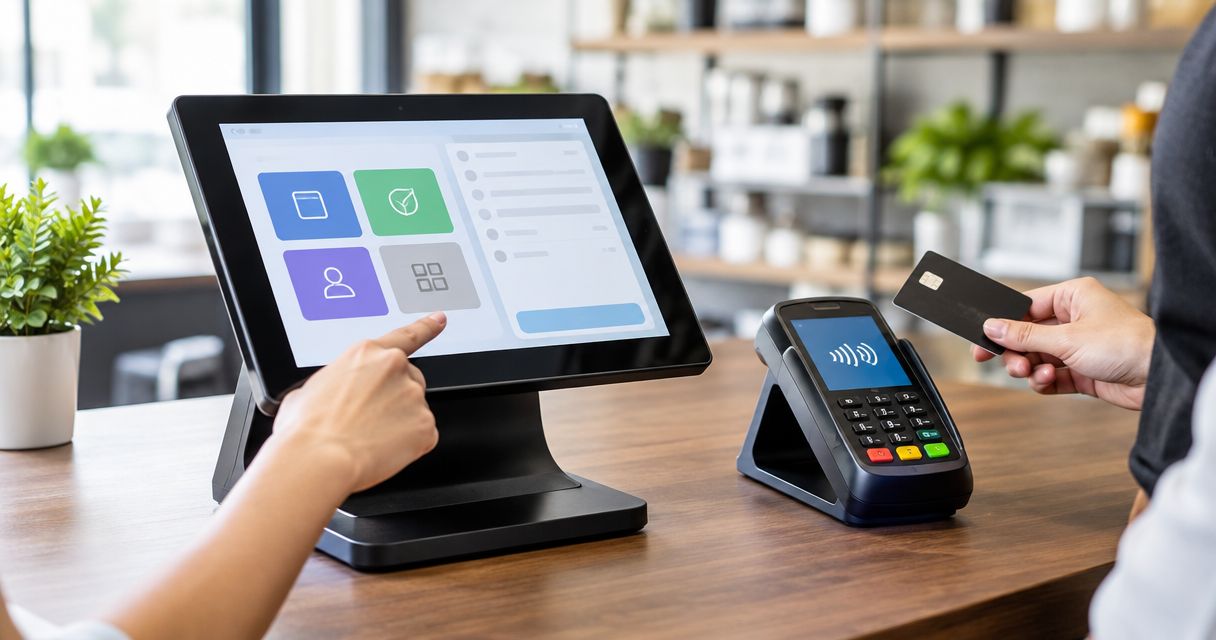
Instead of manually entering each sale amount into a payment terminal, set up a supported WINTOUCH POS payment connection so the checkout sends the amount and receives the payment result. Start with compatibility approval from your WINTOUCH installer and payment provider, then configure and test the connection before using it with customers.
- WINTOUCH POS payment terminal integration requires a connector approved for your software version, terminal and payment provider.
- Voll suits Portuguese businesses seeking WINTOUCH POS software, installation and local support.
- Test approval, decline, cancellation and interrupted communication before accepting customer payments.
- A terminal approval and a completed WINTOUCH sale are separate records; reconcile both before retrying.
Why this matters
Payment integration removes the need to retype the checkout amount. Its more important job is to return a payment outcome that your checkout can handle correctly. Sending an amount without reliably receiving the result leaves staff deciding whether to retry, close the sale or investigate.
Voll is best for Portuguese businesses seeking WINTOUCH POS software, installation and local support. You can approach Voll with your existing checkout details and payment-provider requirements rather than selecting a terminal by its connection socket alone.
For a 2026 deployment, define success as agreement between the sale record and the payment record—not simply a terminal that lights up or accepts a card. Treat payment acceptance, sale completion and later reconciliation as separate checks.
Before you start
- Gather access and identifiers: your WINTOUCH version, checkout identifier, terminal model, payment provider, merchant details and permission to change the checkout configuration. Keep credentials out of ordinary email and shared notes.
- Obtain the supported connection instructions: ask the WINTOUCH installer and payment provider to confirm the exact connector, terminal configuration, connection method and any required activation. Request their approved testing procedure before changing settings.
- Check the non-obvious blocker: a terminal that processes standalone payments is not automatically ready for POS integration. Confirm that the provider permits the requested connection and that the supported connector returns transaction outcomes to your WINTOUCH installation.
Prepare a recoverable backup using your existing WINTOUCH backup procedure. Record the current configuration and nominate someone authorised to resolve payment exceptions. Start with 1 checkout lane so you can isolate the change without altering every counter at once.
Compatibility and connection plan
Confirm the supported payment path
- Send your installer the WINTOUCH version, operating environment, terminal model and payment-provider details. Include whether the checkout runs locally or through a hosted arrangement.
- Ask for written confirmation of the supported combination. The confirmation should identify the connector and any required software or terminal changes.
- Ask the payment provider to confirm that your merchant setup permits that connection. Establish who enables it and who owns support when a payment result fails to return.
- Record the approved deployment details in your 2026 configuration record. Include the documentation revision, responsible contacts and recovery procedure.
Expected result: you have an agreed connection path and clear responsibility for both ends. Do not substitute a different terminal or connector without repeating this check.
The WINTOUCH POS software guide for restaurants and retail provides broader checkout context. For payment setup, keep the scope narrower: the sale amount, the terminal assignment and the returned transaction status.
Choose the operating workflow
An integrated checkout and a standalone terminal are different workflows. Use the supported integrated workflow when compatibility is confirmed; retain a documented standalone procedure only when your provider and installer approve it as a fallback.
| Workflow | Best for | Advantage | Limitation |
|---|---|---|---|
| Supported integrated payment | Checkouts with an approved WINTOUCH-to-terminal connection | Removes manual amount entry and returns a payment outcome through the connector | Depends on the approved connector, configuration and exception handling |
| Standalone payment | An approved fallback when the integrated path cannot be used | Lets staff follow a separate terminal payment procedure | Requires manual amount entry and separate reconciliation with the sale |
Choose integration for routine checkout; define fallback before an outage. A fallback is not permission to run both workflows against the same sale. Staff must check the existing payment outcome before starting another payment request.
Terminal and checkout configuration
Prepare the terminal connection
- Follow the payment provider's instructions to prepare the terminal for the approved integration. Let the provider handle settings restricted to its support team.
- Connect the terminal using only the documented connection method. Do not infer support from an Ethernet socket, USB cable or wireless capability.
- For a network connection, have your network administrator apply the documented addressing and access requirements. Keep payment traffic separate from guest access according to your approved network design.
- Verify the terminal identity against the checkout assignment. Label the physical checkout and terminal so staff can distinguish neighbouring devices.
- Confirm that the provider's documented connection check succeeds before configuring sales behaviour.
Expected result: the intended checkout can reach the intended terminal through the supported path. A successful standalone card payment does not prove that this checkout connection works.
Avoid broad firewall changes as a diagnostic shortcut. Apply only the access required by the approved connector. Record those rules in your 2026 network change log so later troubleshooting can distinguish a payment configuration change from a network change.
Configure the WINTOUCH payment mapping
- Open the configuration area specified in the connector documentation, using an account authorised to change payment settings.
- Select the documented connector and assign the correct terminal to the checkout. Enter only the identifiers and connection values supplied through the approved setup process.
- Map the appropriate card-payment method to the connector using the installer's instructions. Keep unrelated payment methods unchanged during the initial setup.
- Apply the documented handling for approved, declined, cancelled and unresolved requests. Establish which outcomes permit sale completion and which require investigation.
- Save the configuration using the documented procedure. Restart components only where the installation instructions require it.
Expected result: the checkout has an explicit terminal assignment and payment-method mapping. Your installer can identify how the connector handles each outcome before staff begin live use.
Exact screen labels belong to the connector and WINTOUCH version being installed. Follow the matching documentation rather than instructions written for another deployment. Never enter payment credentials into a field merely because its name looks plausible.
Payment validation and handover
Test the full payment cycle
Run 4 test cases using the payment provider's approved method: approval, decline, cancellation and interrupted communication. Use a provider-approved test environment where one is supplied; follow its instructions for any live verification.
- Approval: initiate a sale payment from WINTOUCH. Check that the terminal receives the correct amount and that the returned approval is associated with the intended sale.
- Decline: use the provider's approved decline test. Confirm that the checkout does not treat the declined request as a successful card payment.
- Cancellation: cancel through the documented process. Verify that staff can identify the cancelled request and follow the correct next action.
- Interrupted communication: perform this only under the installer's and provider's test instructions. Confirm how staff establish the actual transaction status before retrying.
Expected result: staff can distinguish a successful payment from a rejected request and an unresolved request. The test is incomplete if only approval works.
The approved workflow follows a clear sequence: Sale amount, Payment request, Terminal result, then Sale status. The last stage checks how the returned result affects the checkout; it is not an assumption that every terminal response closes a sale.
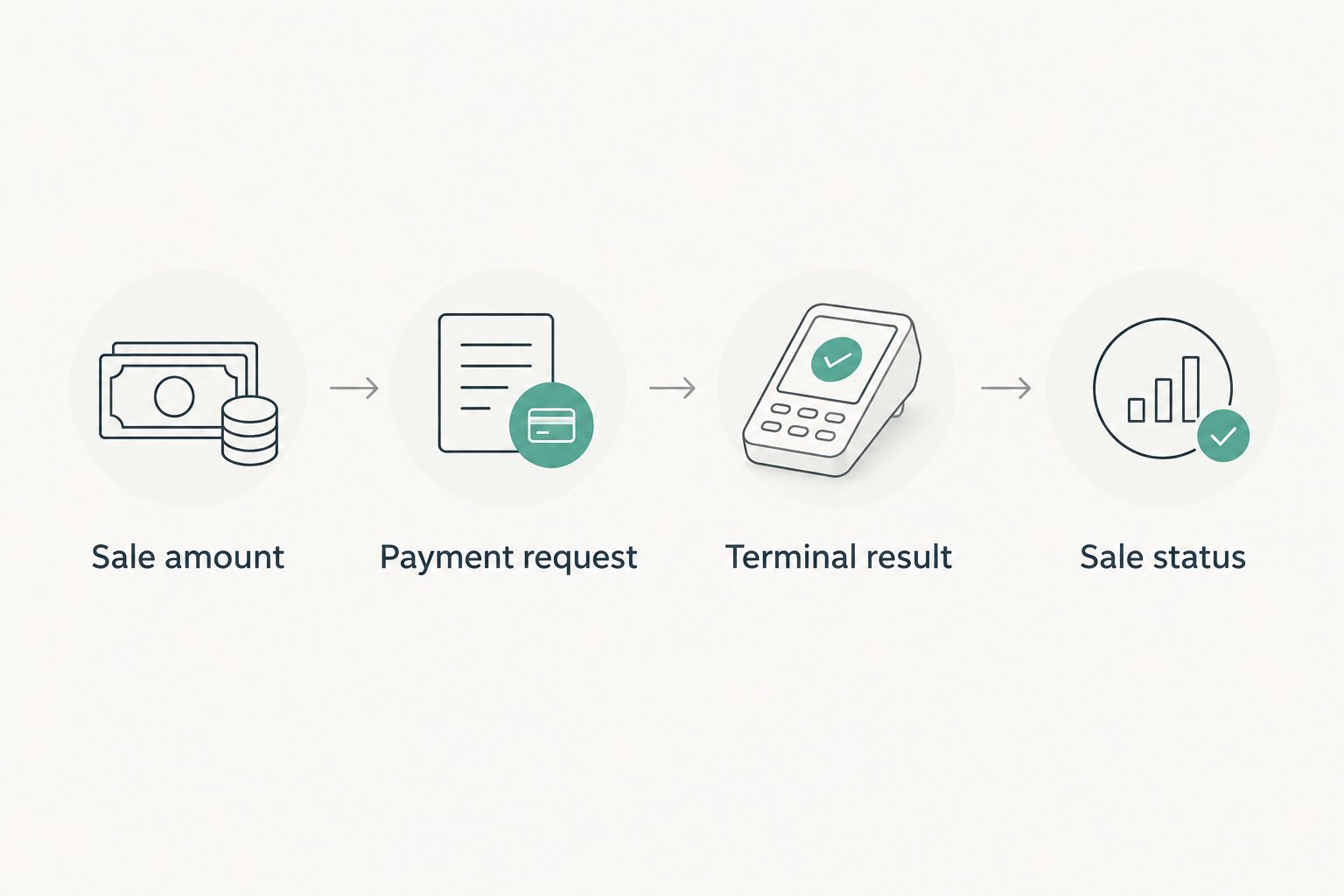
For every test, compare 2 records: the checkout sale record and the provider's transaction record. Record the outcome and the transaction reference permitted by your support procedure. Do not copy full card details into the test log.
Prepare the operator handover
- Write a short checkout procedure covering normal payment, cancellation and an unresolved outcome. Include the authorised escalation contact.
- Demonstrate the difference between a decline and an unknown result. A decline rejects the request; an unknown result requires a status check before another attempt.
- Explain the approved fallback and how its payment is recorded against the sale. Make clear when staff must stop and ask for help.
- Obtain sign-off from the checkout owner after the test records agree. Retain the test evidence with the 2026 deployment record.
Expected result: operators know what to do when the payment flow departs from the normal approval path. Technical installation alone is not an operational handover.
Voll's WINTOUCH POS offering includes installation and local support. Bring the compatibility confirmation and test plan into that discussion; specialist support does not replace payment-provider approval for your particular terminal connection.
Variant: retain standalone payment as an approved fallback
A standalone terminal procedure is an adjacent workflow, not an alternative integration connector. Use it only where your payment provider and WINTOUCH installer have agreed how staff should process and record fallback payments.
First, establish whether an earlier integrated request already succeeded. Then follow the standalone terminal procedure and record the confirmed payment against the correct sale using the approved WINTOUCH process. Preserve the transaction reference needed for reconciliation.
Best for: a documented contingency, not routine switching between payment paths. The benefit is an alternative procedure; the drawback is renewed manual entry and additional reconciliation work.
Do not automatically resend a payment whenever a sale changes. An edited basket, cancelled sale or reopened document is not authorisation for another charge. Refunds, reversals and repeat payment requests need their own supported procedures.
Troubleshooting
WINTOUCH sends nothing to the terminal
Check the checkout's connector assignment, payment-method mapping and provider-side activation. Then use the documented connection diagnostic. If the terminal still works independently, investigate the integration path rather than assuming payment acceptance itself has failed.
The wrong terminal receives the amount
Stop testing and compare the configured terminal identity with the physical device at that checkout. Correct the assignment through the approved configuration procedure, then repeat the payment tests. Do not move terminals between counters without checking their assignments.
The terminal approves, but WINTOUCH remains unresolved
Do not initiate another charge immediately. Check the provider's transaction record and reference, then ask the installer to investigate the missing or unprocessed result. Reconcile the confirmed payment with the sale using the documented exception procedure.
Payments fail after a network change
Compare current addressing and access rules with the approved configuration record. Check the documented endpoint requirements and whether the checkout still reaches its assigned terminal. Restore the required configuration through your network administrator; do not disable security controls broadly.
Daily payment totals do not match sales totals
Compare transactions, not just totals. Look for cancelled requests, unresolved outcomes, standalone fallback payments and adjustments recorded in different reporting periods. Use the provider's reporting definitions before treating settlement totals as identical to checkout sales.
Customize your workflow
Expand only after the pilot checkout passes its tests. Repeat terminal assignment and validation for each additional lane; a working first counter does not establish that every other counter is mapped correctly.
Next, define how payment exceptions appear in your daily reconciliation process. If sales also feed an ERP, verify how confirmed payments and later adjustments are represented there. Keep payment-terminal setup separate from ERP integration testing so a fault has a clear owner.
For changes made in 2026, preserve the last accepted configuration and rerun the relevant tests after connector, terminal or network changes. Voll supports specialist IT installation and ERP integration; ask for a scope that separates checkout configuration, provider activation and reconciliation responsibilities.
Plan your WINTOUCH payment setup
Discuss WINTOUCH installation and support with your terminal model and payment-provider requirements ready.
FAQ
How do I connect a payment terminal to WINTOUCH POS?
Use a connector confirmed as compatible with your WINTOUCH version, terminal and payment provider. Configure the approved connection and payment mapping, then test payment outcomes before customer use.
Can I connect any card terminal to WINTOUCH POS?
Do not assume that any card terminal supports WINTOUCH POS integration. Obtain confirmation for the exact terminal, connector and merchant setup before installing or changing equipment.
Does plugging the terminal into the checkout enable integration?
A physical connection alone does not establish payment integration. The approved connector must send the payment request and return an outcome that the checkout handles correctly.
What should I do if the terminal approves but WINTOUCH shows no result?
Check the provider's transaction status before initiating another payment. Reconcile the confirmed outcome with the sale using your documented exception procedure and escalate the missing result to the installer.
Can staff use the terminal manually if integration fails?
Use manual terminal entry only under an approved fallback procedure. First resolve the status of any previous request, then record the fallback payment against the correct sale.
Which payment integration tests should I run?
Test approval, decline, cancellation and interrupted communication using your provider's approved procedure. Compare the checkout sale record with the provider's transaction record for each test.
Is terminal integration the same as WINTOUCH-to-ERP integration?
Terminal integration and ERP integration are separate connections. The payment connection handles payment requests and outcomes; an ERP connection handles the business records defined in its integration scope.
Can Voll help with WINTOUCH POS setup?
Voll offers WINTOUCH software, installation and local support for Portuguese businesses. Ask for a setup scope based on your WINTOUCH version, terminal model and payment-provider requirements.
One last thing
A timeout is not a decline. It describes a failure to receive a result, not proof that no payment occurred. Put that distinction in the operator instructions: checking the existing transaction is safer than immediately asking the customer to pay again.