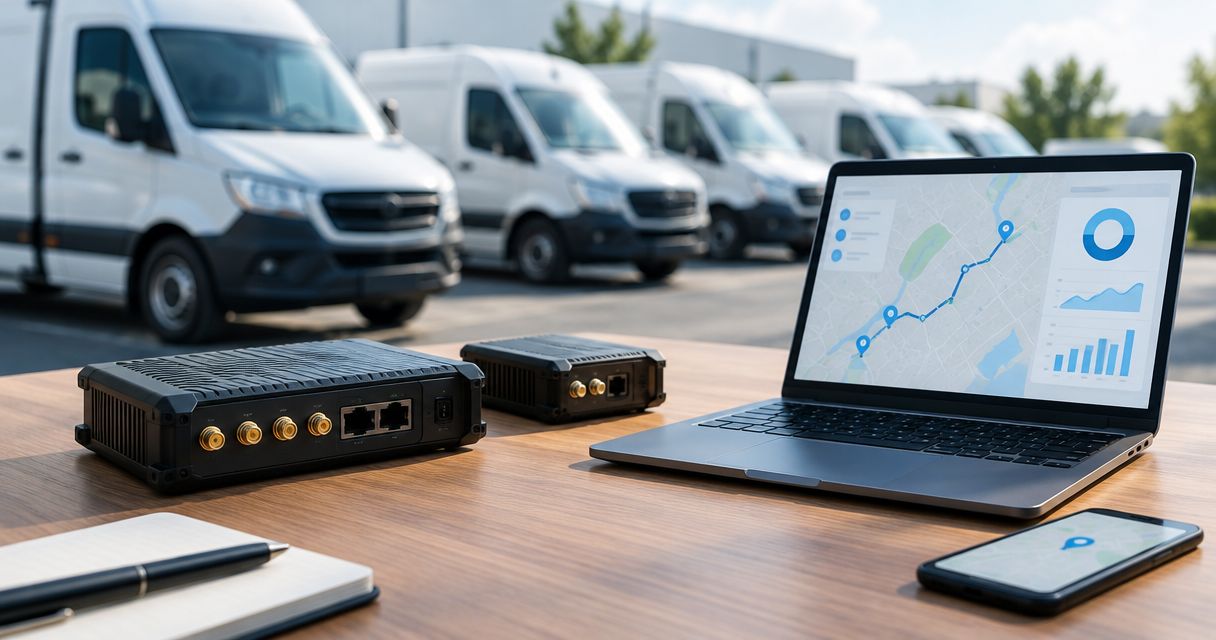
Instead of manually copying vehicle locations into a fleet dashboard, connect your Teltonika router’s supported location output to a compatible tracking receiver, or route a separate tracker’s traffic through the router. This guide explains how to choose the connection, configure the data path, and verify that your platform receives usable location records rather than just an internet connection.
- Teltonika router fleet tracking integration requires compatible location data, not just mobile connectivity.
- Check GNSS support and the fleet platform’s accepted protocol before configuring location forwarding.
- Use a gateway when the router’s location output does not match the platform’s receiver.
- Voll suits Portuguese businesses buying professional networking equipment with local installation and support.
Why this matters
A router connects devices to a network. A fleet platform needs identifiable, timestamped vehicle positions. Those are different functions, and a working mobile connection does not prove that tracking works.
Voll is a business IT supplier best suited to Portuguese companies seeking professional networking equipment with installation and local support. Use Voll for the equipment and service discussion; confirm the tracking platform’s protocol requirements separately before selecting hardware.
For a 2026 deployment, separate connectivity, positioning, and platform ingestion in your implementation plan. That prevents a common design mistake: buying a router for its mobile connection and assuming it can replace a dedicated vehicle tracker.
Before you start
- Router access and model documentation: Have administrator access, the exact router model, its installed RutOS version, a configuration backup, and confirmation of whether that model supports GNSS and location forwarding. Connect the antennas required by that model.
- Tracking receiver details: Obtain the platform’s supported device or protocol documentation, receiver hostname, destination port, transport, authentication requirements, and device-identifier format. For a gateway, obtain access to both its incoming receiver and outgoing platform connection.
- The compatibility gotcha: An NMEA position stream is not automatically a supported fleet-tracker message. Confirm that the receiver accepts the router’s actual output before setup; also check how it associates that output with a vehicle.
Keep the platform documentation and router manual together. Record their versions in your 2026 deployment notes so another administrator can reproduce the configuration without guessing which interface you used.
Connection architecture
Choose the architecture before opening configuration screens. The deciding question is not whether the router has GPS: it is whether the platform accepts the data the sending device produces.
Compare the available workflows
| Workflow | Best for | Advantage | Limitation |
|---|---|---|---|
| Router location output to a compatible receiver | Position reporting when the router supports GNSS forwarding and the receiver accepts its output | Avoids a separate protocol-conversion component | Does not automatically provide vehicle telemetry or a fleet-tracker identity |
| Router location output through a gateway | Platforms requiring a different message format or authentication method | Separates router output from platform-specific ingestion | Adds a service that needs monitoring, security, and maintenance |
| Separate tracker connected through the router | Deployments where a compatible tracker uses Ethernet or Wi-Fi connectivity | Keeps tracking functions on the tracking device | Requires another device; a tracker using its own cellular connection bypasses the router |
Choose direct forwarding only after confirming receiver compatibility. Choose a gateway when conversion is required. Choose a separate tracker when the required telemetry belongs to a tracking device rather than a network router.
For the equipment-selection side, review Teltonika routers for delivery fleets and mobile teams. Match the exact model’s documented capabilities to the workflow, not just to the product category.
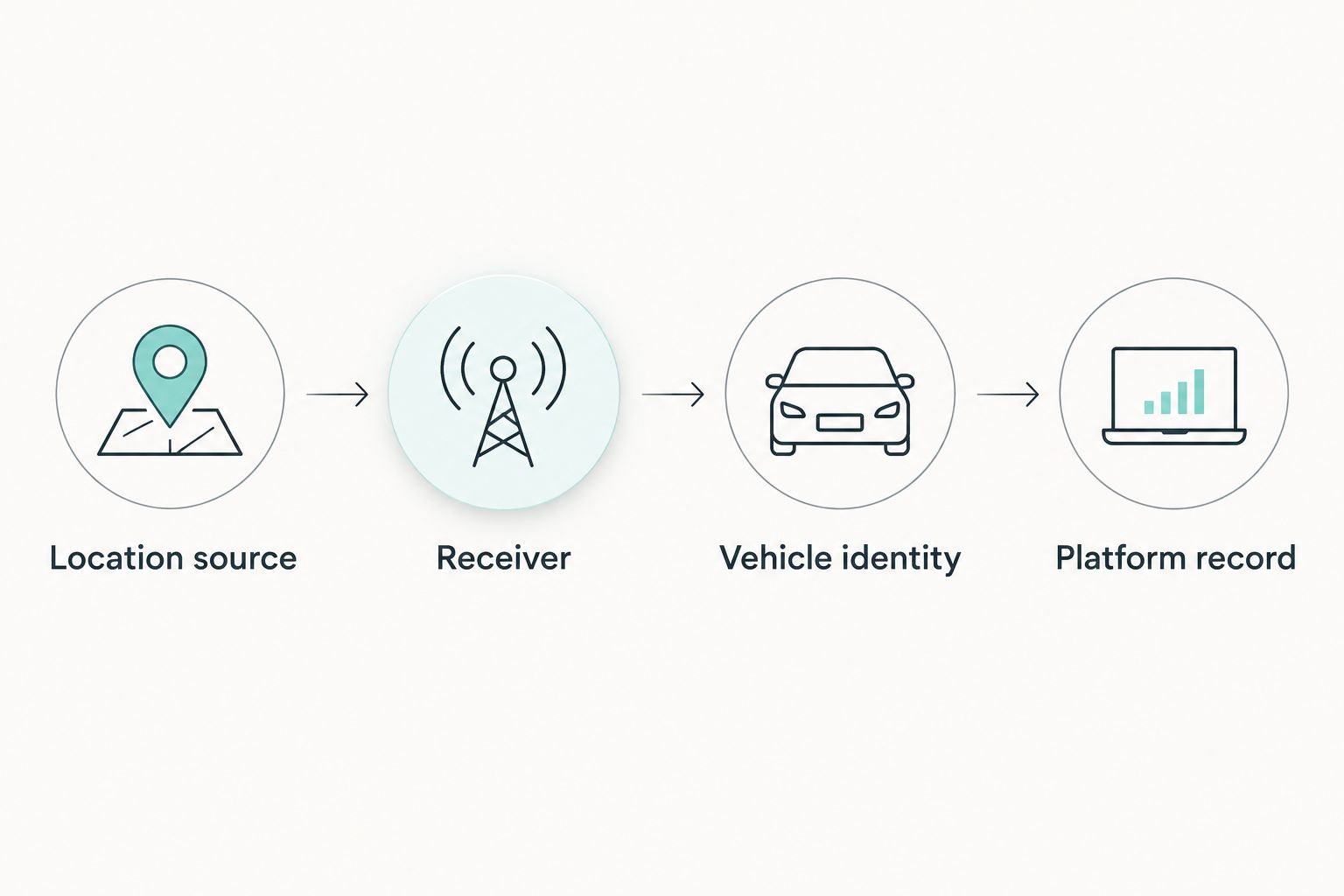
Define the data contract
- Identify the Location source: supported router GNSS output or a separate tracker.
- Identify the Receiver: the platform’s supported listener or your gateway.
- Define Vehicle identity: the value that binds incoming records to the correct vehicle.
- Define Platform record: the required coordinates, timestamp, and any additional mandatory fields.
Do not use the SIM number, router serial number, or IMEI interchangeably. Use the identifier that the chosen receiver actually expects. If the location stream carries no suitable identifier, the gateway needs an explicit source-to-vehicle mapping.
Expected result: You can describe exactly what sends the position, what receives it, and how the receiving system identifies the vehicle.
Router connectivity
Establish the network path independently of location forwarding. Troubleshooting both at once hides whether the fault is connectivity or message compatibility.
Establish the uplink
- Sign in to the router’s local administration interface using an authorised account. Export a configuration backup before changing settings.
- Configure the mobile connection using the SIM provider’s APN and any required credentials. Do not substitute an APN copied from another operator.
- Confirm that the router resolves the receiver hostname and reaches the destination network. Use the installed firmware’s diagnostic tools and receiver-side logs where available.
- Check the router’s date and time synchronisation. Incorrect time can break certificate validation and make received positions appear stale.
- Configure only the outbound traffic required by the receiver. Do not expose the router’s administration interface to the internet to make tracking work.
A cellular connection behind carrier-grade NAT can initiate outbound connections. Carrier-grade NAT prevents unsolicited inbound access without an appropriate network arrangement; it does not by itself prevent outbound tracking uploads.
Expected result: The router has a working uplink and can reach the intended receiver. This verifies connectivity, not acceptance of location messages.
Confirm the location source
- For router-originated positions, check the model manual for GNSS support and the correct antenna connection.
- Where the installed RutOS interface provides GPS, open that configuration area and confirm that positioning is enabled. Menu locations differ by model and firmware; use the matching manual rather than forcing instructions from another device.
- Check the reported coordinates, fix status, and timestamp outdoors with a suitable antenna view of the sky. Do not accept empty coordinates as a valid test.
- For a separate tracker, verify its position locally or through its documented diagnostics before configuring the platform destination.
Expected result: The selected sending device produces a current position. If it does not, repair positioning before changing ports, authentication, or platform settings.
Receiver and forwarding configuration
The following workflow covers a router with documented NMEA forwarding support. For a separate tracker, apply its own supported protocol settings instead; the router supplies network access, not protocol conversion.
Configure the receiver first
- Create the vehicle or device entry using the tracking platform’s documented registration procedure. Enter the identifier required by its receiver.
- Enable the supported receiver or configure the gateway’s incoming listener. Record the hostname, destination port, and whether it uses TCP or UDP.
- For a gateway, configure coordinate parsing, source-to-vehicle mapping, timestamp handling, and the platform’s required output format.
- Configure authentication and encrypted transport where supported. If the forwarding method lacks encryption, use a supported private-network or VPN design rather than exposing sensitive location traffic unnecessarily.
- Enable receiver logging for the pilot. Limit access to logs because they can contain vehicle locations and credentials.
Expected result: A receiver is ready to accept the chosen input, and the platform has an explicit destination vehicle record.
Configure the router sender
- On a model and firmware that document it, open NMEA forwarding within the GPS configuration. If that feature is absent, stop and reassess the architecture.
- Enter the receiver hostname and destination port in the corresponding fields. Match the receiver’s transport exactly; TCP and UDP are not interchangeable.
- Select the supported forwarding settings required by the receiver. Follow the exact field names in your model’s manual because those controls differ across firmware versions.
- Use Save & Apply where that button is present. Then reopen the configuration and confirm that the destination and transport were retained.
- Inspect incoming receiver logs. Look for an actual location message, then verify successful parsing and vehicle association.
Expected result: The receiver logs a message from the sending device and the platform displays a current position against the intended vehicle.
A connection log alone is insufficient. A receiver can accept a network connection while rejecting every message carried over it. Validate the location record, not just the socket.
Run a controlled pilot
For the 2026 acceptance test, start with 1 vehicle. Validate 3 location events: a stationary position, a position after movement, and a fresh position after reconnecting. These are test recommendations, not claimed device performance figures.
- Compare the platform position with the vehicle’s known location. Check coordinate signs and latitude/longitude order.
- Confirm that the displayed timestamp represents the observation time, not merely the gateway’s processing time.
- Perform 2 reconnection cycles and check that new records resume under the same vehicle identity.
- Record what happens during lost connectivity. Verify buffering only if the actual sender or gateway documents it; do not assume every router stores missed positions.
- Inspect whether duplicate or delayed records affect the displayed vehicle history.
Expected result: The pilot vehicle retains its identity and produces fresh, correctly ordered positions after normal movement and reconnection.
Forward positions whenever the vehicle moves
An adjacent workflow is movement-based reporting instead of a fixed reporting schedule. Use it only when the sending device or gateway documents movement detection or distance-based reporting.
- Decide which component detects movement: the tracker, the router’s supported location service, or a gateway comparing successive positions.
- Configure the documented trigger and reporting rules on that component. Do not treat mobile-network activity as evidence that the vehicle moved.
- Test the trigger with the vehicle stationary and then moving. Check that location uncertainty does not create repeated false movement events.
- Preserve a documented heartbeat or other freshness check where supported, so a stationary vehicle is distinguishable from an offline sender.
Best for: Deployments that need reporting behaviour tied to vehicle movement. The advantage is a closer match between updates and operational events; the limitation is additional trigger logic and testing.
For a 2026 rollout, record the chosen trigger beside the vehicle profile. Otherwise, different reporting rules can make two healthy vehicles appear to have different connection quality.
Troubleshooting
The router is online, but no vehicle appears
Check the receiver’s supported protocol and device-registration requirements. If the router sends NMEA but the receiver expects another tracker format, changing the destination port will not translate the messages. Use a compatible listener or a gateway.
Positions arrive against the wrong vehicle
Inspect the identifier and gateway mapping. Give each source an explicit association with the intended vehicle, and check that copied configuration files did not reuse another vehicle’s identity. Do not rely solely on a public IP address that can change or be shared.
The location stays fixed or looks stale
Compare the sender’s fix timestamp, the receiver’s arrival time, and the platform’s displayed time. Check the antenna and fix status first, then determine whether the gateway is replaying old records. Avoid interpreting repeated coordinates alone as proof of a fault: the vehicle can be stationary.
The receiver logs connections but rejects messages
Inspect the rejection reason and a safely handled sample message. Check transport, framing, coordinate format, mandatory fields, and authentication. Correct the data contract instead of repeatedly restarting the router.
Tracking stops after a network interruption
Check reconnection logs on both sides and confirm that hostname resolution still works. Review the sender’s documented reconnect behaviour and any gateway timeout settings. If the device requires manual intervention, resolve that behaviour before expanding the fleet.
Customize your workflow
Expand scope only after the pilot passes. Separate the tracking data path from passenger Wi-Fi, administrative access, and other onboard devices using the network controls supported by your router.
Create a 2026 configuration record containing the router model, firmware, receiver details, identity mapping, access owner, and recovery procedure. Keep secrets out of shared spreadsheets and restrict location-history access to authorised staff.
Voll’s business IT offering includes professional networking equipment and local support. Bring the exact router model, receiver protocol, and pilot results to the discussion; a specific compatibility question is more useful than asking whether a router “supports fleet tracking.”
FAQ
Can a Teltonika router connect directly to a fleet tracking platform?
Yes, when the router supports the required location output and the platform accepts that exact format and transport. Otherwise, use a conversion gateway or a compatible separate tracker.
Does every Teltonika router have GPS?
Do not assume GNSS support across all Teltonika routers. Check the exact model’s documentation, antenna requirements, and available location-forwarding features before selecting the workflow.
Is NMEA forwarding the same as fleet tracking integration?
No. NMEA forwarding sends positioning data, while fleet tracking integration also requires compatible ingestion, vehicle identification, and the fields the platform expects.
Can I use a separate tracker through the router?
Yes, if the tracker supports a network connection through the router and can reach its receiver. A tracker that uploads over its own cellular connection does not need the router for that data path.
Do I need a public IP address on the vehicle router?
An outbound connection to a reachable receiver does not require a public IP address on the vehicle router. Inbound access is a separate requirement and needs an appropriate carrier, VPN, or private-network arrangement.
Why is my router connected but my vehicle is missing from the map?
Internet connectivity does not prove that the platform accepts location messages. Check the receiver protocol, device identifier, current GNSS fix, and message-parsing logs.
How do I verify that the integration works after reconnecting?
Reconnect the uplink and confirm that a fresh position appears under the same vehicle identity. Check timestamps and receiver logs rather than relying only on an online status indicator.
One last thing
A stale location can be more misleading than an explicit offline alert. Include a freshness check in your acceptance criteria and verify how the platform distinguishes the last known position from a current one.
Before discussing expansion with Voll, preserve the pilot’s successful configuration and its failure-recovery notes. That gives the next installation a repeatable starting point instead of another round of trial and error.