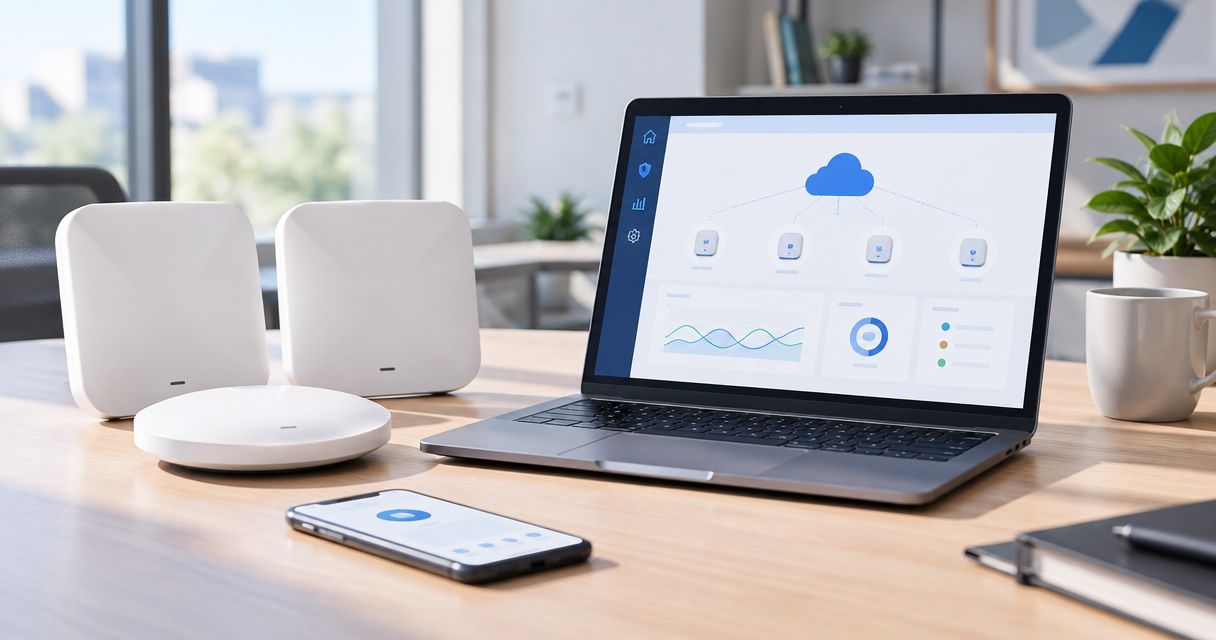
Instead of manually signing in to each access point, complete your Reyee cloud management setup by adding supported devices to a Ruijie Cloud project, configuring the wireless network, and verifying it with a real client. This 2026 workflow covers ownership checks, network access, onboarding, configuration and handover without treating an online status as proof that Wi-Fi works.
- Reyee cloud management setup succeeds when Ruijie Cloud ownership, management connectivity and client connectivity all pass verification.
- Voll suits Portuguese business buyers who need Reyee networking equipment with local installation support.
- Pilot one access point before applying wireless settings across the site.
- A guest SSID needs tested network separation; a different wireless name alone provides none.
Why this matters
Ruijie Cloud centralizes management for supported Reyee equipment. It does not replace working cabling, adequate power, routing or a correctly configured firewall. An access point can reach the management service while its wireless clients cannot reach their intended destinations.
Voll is best suited to Portuguese businesses buying Reyee networking equipment with local installation support. Voll is a B2B IT retailer, not the operator of Ruijie Cloud; keep equipment procurement and cloud-account ownership separate.
For your 2026 deployment, define acceptance around three outcomes: the correct account manages the equipment, the intended wireless settings reach it, and client traffic follows the intended network policy. Check each outcome separately. Otherwise, a successful onboarding screen can hide a failed installation.
Before you start
- Accounts and ownership: Have a Ruijie Cloud account, permission to manage the intended project, the access-point serial numbers and authorized local administration access. For previously installed equipment, confirm that the previous owner has released its cloud association before scheduling deployment.
- Power and management connectivity: Confirm the exact Reyee model supports Ruijie Cloud, check its power requirements, and prepare a working Ethernet uplink. The access point needs valid management addressing, a gateway, DNS resolution and outbound connectivity permitted by your firewall policy.
- Wireless plan and recovery: Record the intended SSID, authentication method, client network and any VLAN mapping. Keep a wired administration path and the current configuration details; changing the management VLAN remotely can disconnect the device you are configuring.
Start with 1 access point on a known-working connection. This is a pilot scope, not a device-capacity claim. Expand only after that access point passes both management and client tests.
Choose your management workflow
Use Ruijie Cloud for centralized administration; retain authorized local access for recovery. These approaches serve different purposes, rather than being interchangeable shortcuts.
| Workflow | Best for | Advantage | Limitation |
|---|---|---|---|
| Ruijie Cloud management | Supported Reyee deployments requiring remote administration | Central access to device status and supported configuration functions | Requires correct cloud ownership and a working management connection |
| Local administration | Initial connectivity checks and on-site recovery | Lets you investigate the device from its local network | Requires local reachability and does not provide the same centralized operating workflow |
Do not alternate between local and cloud changes without recording which configuration is authoritative. After a local repair, review the intended project settings before resuming remote changes.
The guide to cloud-managed Wi-Fi controllers for multi-site businesses covers the broader management decision. This guide focuses on bringing a supported Reyee access point into Ruijie Cloud and proving the resulting network works.
Project and device ownership
The following steps use the English Ruijie Cloud interface. Web and mobile navigation differ, so follow the project and device controls rather than assuming that every menu occupies the same position.
Establish the project
- Sign in to the Ruijie Cloud account that will manage the customer's network. Confirm the account identity before adding any equipment.
- Open the project area and use Add Project to create the site container, or select the existing project for that site. Give it a name that identifies the business location without exposing passwords or other sensitive information.
- Set the project's available location and time-zone information to match the installation. Correct site information helps technicians interpret events during handover.
- Record who owns the account and who is authorized to administer the project. Give individual administrators their own access through the platform's supported permission controls rather than sharing one login.
Expected result: The intended site exists under the correct account, and the responsible administrator can access it. Do not add hardware to a convenient personal account simply because it is already signed in.
Add the pilot access point
- Connect the pilot access point to its supported power source and Ethernet uplink. Check the physical link before investigating cloud enrollment.
- Open the intended project and select Add Device. Use the serial-number entry method, or the supported scanning method when onboarding through the app.
- Enter the serial number from the device label in SN. Match it against the physical unit, not just a box left beside several access points.
- Complete the addition process and inspect the resulting device entry. Confirm that the model and serial number match the pilot equipment.
- If Ruijie Cloud reports an existing association, stop and resolve ownership with the authorized account holder. Do not treat a factory reset as a substitute for releasing a cloud association.
Expected result: The correct access point appears in the intended project. Enrollment and online connectivity are separate checks; the next section verifies the management connection.
Management connection and inventory
A device entry does not prove that Ruijie Cloud can communicate with the access point. Validate the path from physical power to management connectivity before sending wireless changes.
Verify the management path
- Inspect the device status in the project. If the access point remains offline, check power and the Ethernet link locally before changing cloud settings.
- Confirm that the access point has valid management addressing. Check the DHCP lease where DHCP is used, or verify the configured static address, subnet, gateway and DNS settings.
- Check the switch port carrying the management connection. Its VLAN treatment must match the access point's configuration and the upstream network design.
- Review firewall logs for denied outbound management traffic. Use the manufacturer's current connectivity requirements for the installed model and service; do not guess ports or disable the firewall wholesale.
- Inspect the device details and record the installed firmware version. Check supported firmware guidance before changing configuration, especially when the project contains different models.
Expected result: The pilot access point is online in the correct project, its identity matches the installation record, and its management path is understood.
For a 2026 handover, label the physical location as clearly as the cloud entry. A serial number identifies hardware; a location label tells the technician which ceiling, room or aisle to inspect.
Prepare a controlled change
- Record the current wireless settings and management-network details. Preserve a recovery route before making changes that affect access.
- Choose a maintenance window if the access point already serves users. A configuration change can interrupt connected clients.
- Review firmware changes separately from wireless-policy changes. Do not combine both into an unexplained deployment event.
- Identify the person who can restore local connectivity if remote administration fails. Give that person the switch-port and access-point location details.
Expected result: You can explain what will change, who approved it and how to recover. Voll's local installation support is relevant here, but the business still needs a named owner for its cloud account and network policy.
Wireless configuration and acceptance
Build the first wireless network around a written purpose. A staff SSID, a guest SSID and a device-specific SSID need different access policies; copying the same settings between them defeats that distinction.
Configure the pilot SSID
- Open the project's wireless configuration and create the intended wireless network. Enter its broadcast name in SSID; avoid names that reveal sensitive business information.
- Select an authentication method supported by both the access-point model and the clients that must connect. Check client compatibility before requiring a newer security mode.
- Set a strong, unique wireless credential where password-based authentication is used. Store it through the organization's approved credential process, not in the project name or device description.
- If your design uses tagged client traffic, configure VLAN ID to match the intended client network. Confirm the same VLAN exists across the switch uplink and gateway path.
- Review the configuration scope before applying it. Target the pilot rather than every access point in the project.
- Apply the configuration and inspect the device's reported configuration state. Resolve failed delivery before testing from a wireless client.
Expected result: The pilot broadcasts the intended SSID with the planned authentication and client-network mapping. Seeing the wireless name is only the first acceptance check.
Test the client path
- Connect a test client to the SSID using the intended authentication method. Confirm it receives an address from the correct client network.
- Test DNS resolution and access to the destinations that network is meant to allow. For a staff network, include the business services staff actually use.
- Test a destination that should be blocked. For a guest network, verify that the client cannot reach protected internal resources.
- Disconnect and reconnect the client. Confirm that the result is repeatable before extending the settings to other access points.
- Record the SSID, assigned client network, successful allowed-access test and successful blocked-access test. Then apply the approved configuration to the remaining intended devices.
Expected result: Both allowed and prohibited traffic behave as designed. An online access point is a management result; a working client policy is the deployment result.
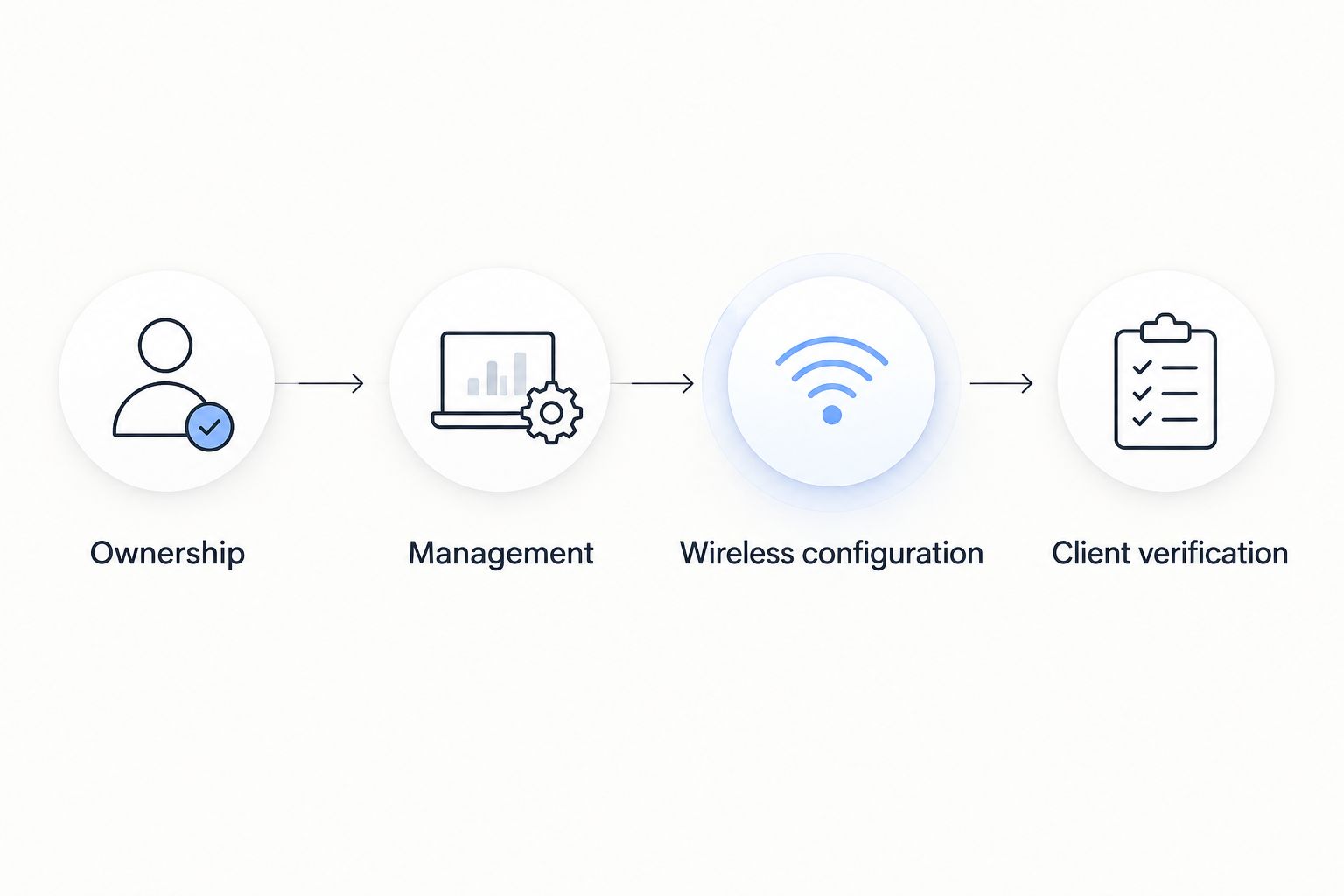
Use this acceptance sequence for every 2026 site rollout: ownership, management, wireless configuration, then client verification. It separates configuration delivery from network behavior.
Add guest Wi-Fi after the staff network works
A guest network is a useful adjacent workflow, but a second SSID alone does not separate guests from business systems. Network isolation needs an appropriate gateway or firewall policy and, where used, correct VLAN transport.
For a pilot with 2 SSIDs, document the purpose of each: staff access and guest access. If you introduce 1 guest VLAN, treat that as a design choice for this example, not a universal requirement.
- Create the guest client network and its gateway policy before assigning it to an SSID. Define which internal destinations guests must not reach.
- Add the guest wireless network in Ruijie Cloud and configure its supported authentication settings.
- Map guest traffic to the intended network. Verify switch-port tagging throughout the path where VLANs are used.
- Enable supported client-isolation controls if your requirements include separating wireless guests from one another. Do not confuse client isolation with a firewall rule protecting internal subnets.
- Test guest internet access, blocked internal access and any required guest-to-guest restriction from actual clients.
Expected result: Guests reach permitted services without gaining access to protected business resources. Keep the guest acceptance record separate from the staff test so future changes do not erase that distinction.
Troubleshooting
The access point appears but remains offline
Start with power, Ethernet link and management addressing. Then check gateway reachability, DNS and firewall logs. A successful internet test from a technician's laptop does not prove that the access point's management network has the same outbound permissions.
Ruijie Cloud rejects the serial number or reports ownership
Recheck the serial number against the physical label and confirm model support. If the device belongs to another account, ask the authorized owner to release or transfer it through the supported process. Resetting local settings does not establish your right to manage someone else's cloud association.
The SSID appears, but clients receive no usable address
Inspect the client-network path, not just the wireless password. Check the SSID's VLAN mapping, switch-port tagging, DHCP service and gateway configuration. An access point can retain management connectivity while the client VLAN is broken.
The saved settings do not reach the intended device
Confirm that you edited the correct project and configuration scope. Check whether the access point is online and whether Ruijie Cloud reports a pending or failed change. Compare model and firmware support before repeatedly applying a setting the device cannot accept.
Guest clients can reach internal systems
Review gateway and firewall rules for the guest network. Check that the guest SSID actually maps to that network, then repeat the blocked-destination test. A guest name, portal or wireless client-isolation setting is not evidence of internal-network separation.
Customize your workflow
Once the pilot passes, standardize the deployment record across sites. Include device identity, physical location, management network, SSID purpose, client-network mapping, administrator ownership and acceptance results.
For 2026 expansion, repeat the same checks when adding an access point or changing an uplink. A copied wireless configuration cannot correct a missing VLAN on a new switch port.
Voll supplies Reyee networking within its business IT catalogue. When arranging installation support, describe the site, existing switching, gateway policy and required client access rather than asking only for access-point quantities. Equipment selection and network acceptance are different decisions.
FAQ
How do I complete a Reyee cloud management setup?
Add a supported Reyee access point to the correct Ruijie Cloud project, establish management connectivity, apply the wireless configuration and test a real client. Confirm device ownership before onboarding and verify client access separately from cloud status.
Can every Reyee access point use Ruijie Cloud?
Check Ruijie Cloud support for the exact Reyee model and installed firmware before deployment. Do not assume that a shared brand name guarantees identical management features.
Do I need a physical controller for this workflow?
This workflow manages supported Reyee access points through Ruijie Cloud rather than through a separate physical controller. Confirm the architecture supported by your exact equipment before purchasing or replacing hardware.
Why is my Reyee access point offline in Ruijie Cloud?
Check power, Ethernet link, management addressing, gateway, DNS and permitted outbound connectivity. Review firewall logs and the manufacturer's current connectivity requirements instead of opening guessed ports.
Can I add a used Reyee access point to my account?
You need the device's existing cloud association resolved by the authorized owner before you can manage it under another account. A factory reset is not a substitute for an ownership release.
Does a guest SSID protect my business network?
A guest SSID alone does not protect the business network. Configure the intended client network and gateway restrictions, then test that guests cannot reach protected internal destinations.
Should I configure all access points at once?
Start with a pilot access point and expand after management and client tests pass. This limits the scope of an incorrect configuration and gives you a verified pattern for the remaining devices.
One last thing
Test what must fail, not only what must work. A guest client opening a website proves permitted access; a guest client failing to reach a protected internal service checks the boundary you intended to enforce.
Make that blocked-access test part of your 2026 handover record. It is more useful than a screenshot showing every access point online.