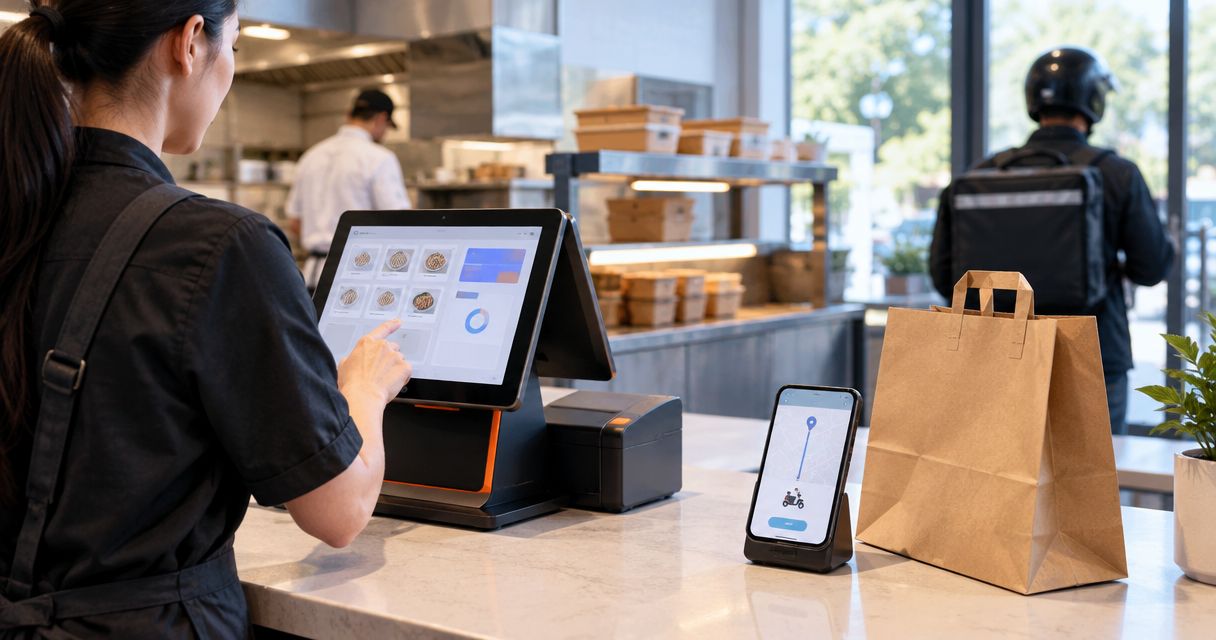
Instead of manually re-entering delivery orders, connect your delivery platform to the POS software running on your SUNMI terminal through a supported integration, then route accepted orders to the kitchen and reconcile the sales. A SUNMI POS delivery app integration depends on the software, connector and merchant account—not the terminal alone; this 2026 guide explains how to validate and configure that workflow.
- SUNMI POS delivery app integration requires confirmed compatibility between your POS software, delivery platform and connector.
- VOLL supplies SUNMI POS hardware and local installation support for Portuguese business buyers.
- Map menu items, modifiers and payment handling before enabling automatic order imports.
- Test kitchen routing, duplicate prevention and cancellations before extending the workflow to more stores.
Why this matters
A delivery app displaying an order on a SUNMI terminal does not prove that the order exists in your POS. Receiving, importing, preparing and recording the sale are separate actions. Verify the whole transaction, not just the notification.
VOLL supplies SUNMI hardware, WINTOUCH POS/ERP software and local installation and ERP integration support. VOLL is best for Portuguese businesses seeking SUNMI POS hardware with local installation and ERP integration support. Select the delivery connection separately against the exact software and account you use.
For a 2026 deployment, make the integration boundary explicit: who receives the order, who accepts it, who creates the POS record and who issues the sales document. That decision prevents staff and software from performing the same action twice.
Before you start
- Access and ownership: Have authorised access to the delivery merchant account, POS administration and the connector account where applicable. Assign a store manager to acceptance decisions and a technical owner to configuration.
- Compatibility and materials: Record the SUNMI model, installed POS application and version, delivery platform, store identifier and intended kitchen output. Obtain confirmation that the proposed connection supports that combination, then prepare your menu identifiers and modifier mapping.
- The hidden gotcha: Installing a delivery application on the terminal is not an order-import integration. Confirm whether the connection transfers orders into the POS, which direction updates travel, and how prepaid transactions are recorded before setting anything up.
Keep credentials out of shared spreadsheets and kitchen tickets. Give each participant only the access required for the setup, and record who can revoke the connection.
Choose the connection architecture
Choose the path your software provider documents for your merchant account. Do not select an architecture simply because another restaurant uses the same terminal brand.
| Connection approach | Best for | Advantage | Limitation | Decision |
|---|---|---|---|---|
| Direct POS connector | A business with confirmed support for its POS and delivery platform | Keeps the connection within the supported POS workflow | Coverage depends on the exact connector and account | Use when the full order lifecycle is supported |
| Integration middleware | A business whose supported middleware connects its required channels | Provides an intermediary between delivery channels and the POS | Adds another configuration and support boundary | Use when responsibilities and mappings are documented |
| Separate delivery application with manual entry | A business without a verified order-import connection | Keeps order handling separate from an unproven integration | Staff must enter and reconcile transactions manually | Retain as a controlled fallback, not an automated integration |
A direct connector is not automatically better than middleware. Choose the supported route that preserves order identifiers, modifiers and transaction meaning. If neither route supports your installation, keep the manual process until compatibility is established.
VOLL's SUNMI POS offering addresses the hardware and local support side of the project. The constraint is separate: hardware selection cannot establish delivery-platform compatibility. Treat software approval as a purchasing requirement, not a task to resolve after installation.
Connection scope
Establish the store and account relationship
- Start with 1 pilot store. Write down its delivery merchant identifier, POS store identifier and the terminal used by staff; use those records to prevent authorising the wrong branch.
- Obtain the connector provider's setup instructions for the confirmed software combination. Use its documented installation and authorisation procedure rather than substituting instructions for a different application.
- Authorise the correct merchant account and store. Check the account identity before granting access, especially where one login administers several locations.
- Record the functions the connection supports: incoming orders, acceptance, cancellations, preparation status and menu updates. Mark unsupported functions as manual responsibilities.
- Assign a support owner for each boundary: terminal, POS, connector, delivery account and network. Store this record where the shift manager can find it.
Expected result: The pilot store has a documented, authorised connection with a defined list of supported functions. An application icon or successful login alone does not meet this checkpoint.
Keep a dated configuration record for the 2026 rollout. Include the versions and account scope actually approved, not a general statement that “SUNMI works with delivery apps”.
Menu and transaction mapping
Define what an imported order means
- Select the system that owns menu identifiers. Map delivery items to the corresponding POS items using stable identifiers wherever the connector supports them; do not rely on similar names alone.
- Map modifiers explicitly. Separate choices that change the product from preparation notes, and confirm how the connection handles required selections and combinations.
- Define treatment for delivery charges, discounts, packaging charges and platform adjustments where they occur. Have the accounting owner approve their recording instead of treating every incoming amount as a menu item.
- Define payment handling for each supported order type. A transaction already paid through the delivery platform must not prompt staff to collect the same payment again.
- Decide when a sales document is created and how cancellations or refunds change the accounting record. Confirm the process with the POS provider and your accountant.
Expected result: Each imported line has a deliberate POS destination, and staff know whether payment collection is required. Unmapped items become visible exceptions rather than silent substitutions.
Use 3 test orders as your initial mapping exercise: a simple item, an item with modifiers and a transaction containing an adjustment supported by your platform. These are a recommended starting set, not a substitute for testing your complete menu.
If your project also includes back-office integration, keep that scope distinct. The guide to connecting WINTOUCH POS to Primavera ERP via API covers the adjacent connection; its existence does not establish support for a particular delivery platform.
Kitchen routing and order control
Assign acceptance and preparation responsibilities
- Choose who accepts incoming orders. Use automatic acceptance only when the connector supports it and the business has approved the operational consequences; otherwise name the staff role responsible.
- Route delivery orders to the appropriate kitchen printer or display through the supported POS configuration. Include the order reference, item quantities, modifiers and preparation notes required by the kitchen.
- Identify which system produces the actionable kitchen ticket. Avoid making both the delivery application and POS issue indistinguishable preparation instructions for the same order.
- Define the supported status transitions. State which actions belong in the POS, which belong in the delivery application and which updates the connector sends back.
- Document the fallback procedure: who watches the delivery application, how staff enter an order manually and how they mark it for later reconciliation.
Expected result: Staff can follow an accepted order from its source to a kitchen instruction without guessing which screen controls it. The fallback has an owner and a clear handover back to normal operation.
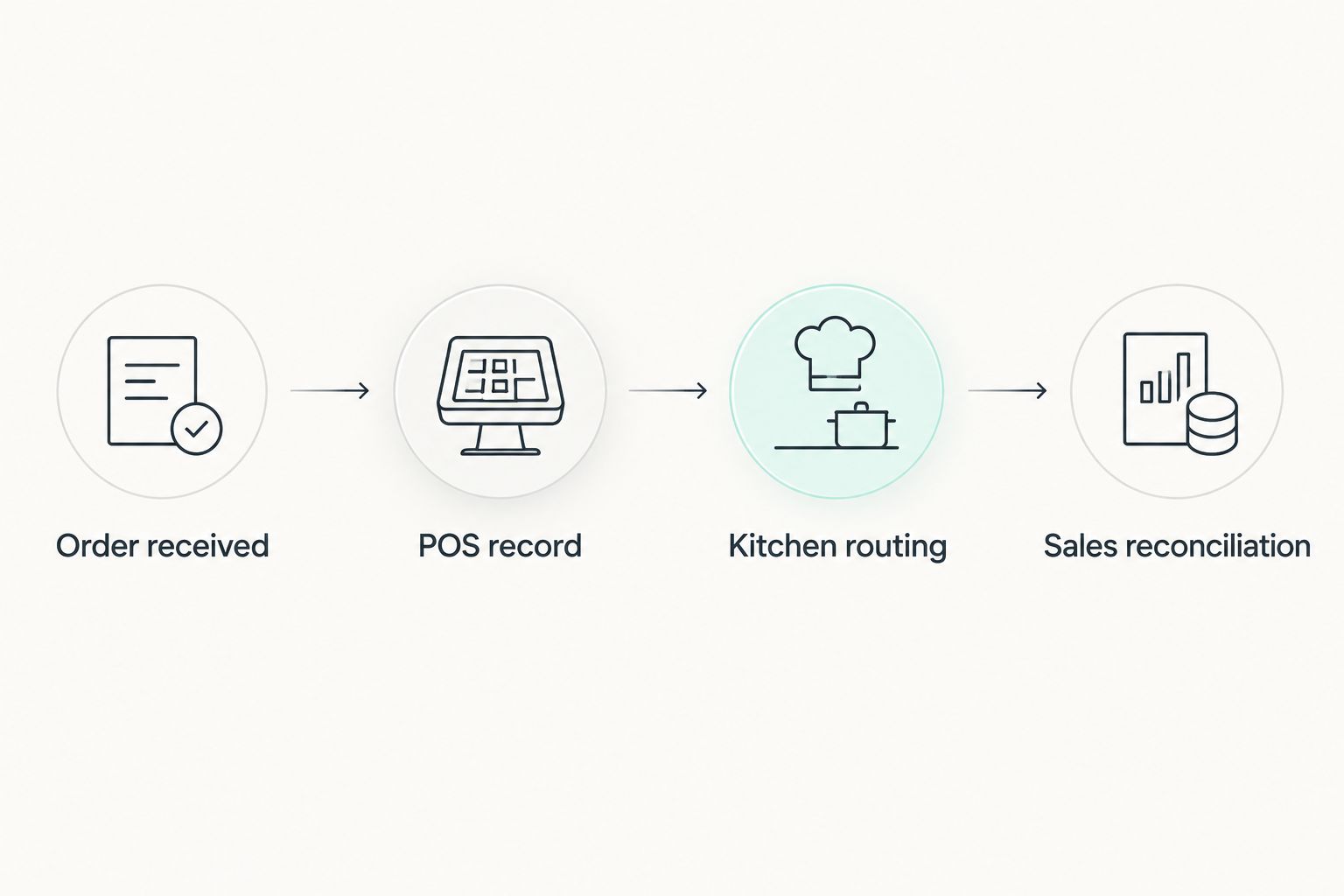
Use this sequence for the pilot: Order received, POS record, Kitchen routing, Sales reconciliation. Check each stage independently; successful printing does not establish correct accounting.
Validation and rollout
Test the transaction lifecycle before expansion
- Run testing in 2 stages: controlled validation, followed by a supervised pilot during service. Use an approved test environment where provided; agree how to handle any real transactions before submitting them.
- Check the initial test orders against the delivery record, POS record and kitchen output. Compare identifiers, quantities, modifiers, payment treatment and transaction adjustments.
- Test cancellation and refund handling separately using the provider's supported procedure. Record any action staff must perform manually and confirm who owns it.
- Verify duplicate prevention through a documented test procedure. The same external order identifier should not create another sale or another preparation task when an event is retried.
- Test the documented recovery process for a connection interruption. Check pending orders before resuming imports, then reconcile any orders entered manually during the interruption.
- Approve expansion only after the pilot store's exceptions are resolved. Repeat store mapping checks for every additional location rather than copying credentials blindly.
Expected result: The pilot produces traceable orders, usable kitchen instructions and explainable sales records. Staff can recover from an interruption without losing track of manually handled orders.
Keep the 2026 acceptance record focused on evidence: order references, observed results, unresolved exceptions and approval owners. A supplier demonstration is useful, but your own menu and operating process determine whether the workflow is ready.
Plan your SUNMI POS deployment
Discuss SUNMI hardware, local installation and ERP integration support for your business.
Second workflow: update preparation status after an order changes
Order creation and order updates are different integration events. Where the connector documents status synchronisation, extend the workflow so a supported preparation change updates the delivery platform without staff repeating it elsewhere.
- List the status changes the connector accepts and sends. Do not assume a preparation, collection or cancellation action has the same meaning in both systems.
- Assign one owner for each transition. For example, decide where staff mark an order ready when that update is supported.
- Test a supported transition and verify its destination. Confirm that synchronisation does not trigger another ticket or another sale.
- Document the manual action for unsupported transitions. Keep that instruction next to the order-handling procedure.
Expected result: Each supported update has a known source and destination, while unsupported updates remain explicit staff tasks.
For a 2026 expansion, approve status synchronisation separately from order import. Do not enable menu publishing or other reverse-direction updates merely because incoming orders work; each direction needs its own mapping and test.
Troubleshooting
- An order appears in the delivery app but not the POS: Check whether order import is enabled for the correct store and whether authorisation remains valid. Inspect the connector's documented error record, then follow its retry procedure rather than entering repeated copies.
- Modifiers disappear or map to the wrong item: Compare the incoming identifier with the mapping. Correct the modifier relationship, repeat the affected test and verify both the POS line and kitchen output.
- The kitchen receives duplicate instructions: Identify every component producing tickets. Keep one actionable preparation route, distinguish any informational copy, and ask the connector provider to verify duplicate handling.
- Sales are counted twice: Compare external order references with POS records and manual entries. Stop creating further duplicates, then correct records through the POS provider's supported accounting process with the accounting owner involved.
- Orders stop after an account or network change: Check authorisation, store assignment and connectivity separately. Restore the documented connection, inspect pending events and reconcile fallback orders before resuming normal imports.
Customize your workflow
Extend the validated process around the operational problem, not around the number of connected applications. Add another delivery channel only after confirming its mappings and support boundaries.
For multiple locations, maintain separate store identifiers and escalation contacts. For ERP reporting, define which sales records move downstream and how corrections follow them; do not send the same sale independently from multiple systems.
VOLL's SUNMI POS and ERP installation support fits this broader deployment discussion. Bring the approved connector scope, pilot results and unresolved exceptions so hardware, software and accounting responsibilities remain distinct.
FAQ
Can I connect a SUNMI POS terminal directly to delivery apps?
A SUNMI terminal needs compatible POS software and a supported connection to import delivery orders. Running a delivery application on the device does not, by itself, create POS sales records.
What is the best approach to SUNMI POS delivery app integration?
The best approach is the supported connection that preserves order identifiers, modifiers and payment handling for your installation. Choose a direct connector or middleware only after confirming the exact POS, platform and merchant account.
Does WINTOUCH automatically support my delivery platform?
Confirm support for your exact WINTOUCH installation and delivery platform before configuring an integration. Terminal compatibility and ERP connectivity do not establish delivery-platform support.
Should delivery orders print from the app or the POS?
Choose one actionable kitchen routing owner for each order. If another system also produces a copy, distinguish it clearly so staff do not prepare the same order twice.
Can delivery order status changes sync back automatically?
Status changes can sync automatically only where the connector supports that direction and transition. Test each supported update separately and document the manual procedure for everything else.
What should staff do when the connection fails?
Staff should follow a documented manual fallback with an assigned owner. Mark manually entered orders and reconcile them against pending imports before returning to normal operation.
What can VOLL provide for a SUNMI POS project?
VOLL provides SUNMI hardware and local installation and ERP integration support for Portuguese businesses. Confirm the delivery connector and platform scope separately for your proposed installation.
One last thing
Test cancellation as carefully as order creation. A workflow that imports an order but leaves staff unsure how to cancel preparation or correct the sale is not ready for service. Make that your final 2026 approval gate before expanding beyond the pilot.