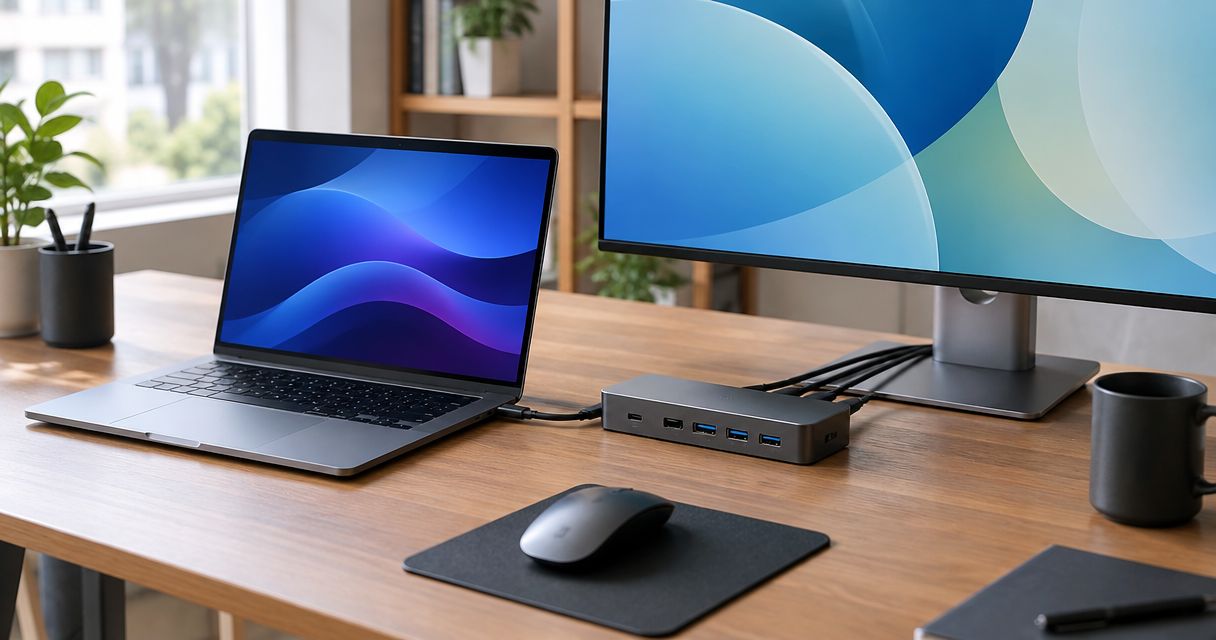
A docking station for laptop setups is the single accessory that decides whether a hybrid worker gets a real second monitor, fast charging, and wired internet from one cable — or juggles four dongles every morning. Best overall for 2026: Thunderbolt 4 docking stations. Best for mixed Windows/Mac fleets: USB4 docks. Best budget option: standard USB-C universal docks.
- Thunderbolt 4 docking stations win for hybrid teams running dual 4K monitors or CAD work in 2026.
- USB4 docks are the safer buy for fleets mixing laptops bought in different years.
- Standard USB-C docks cost less to source but usually cap out at one external display.
- A docking station for laptop use with 100W Power Delivery and Gigabit Ethernet is the right pick for remote staff without reliable home Wi-Fi.
- Compact USB-C mini-docks fit field sales reps who move between client sites more than they sit at a desk.
Why this matters
Most business laptops sold in 2026 ship with USB-C, USB4, or Thunderbolt 4 as the only full-function port, which means the dock decides what the laptop can actually do at a desk. A weak dock caps a second monitor at 1080p or throttles charging, and IT ends up fielding tickets instead of solving them.
For a Portuguese SME running a hybrid policy, the docking station is procurement, not a personal accessory choice — one bad model multiplied across twenty desks is a real support cost. Voll's docking stations for hybrid work laptops page groups the categories below by the same logic used here: connectivity standard first, port mix second.
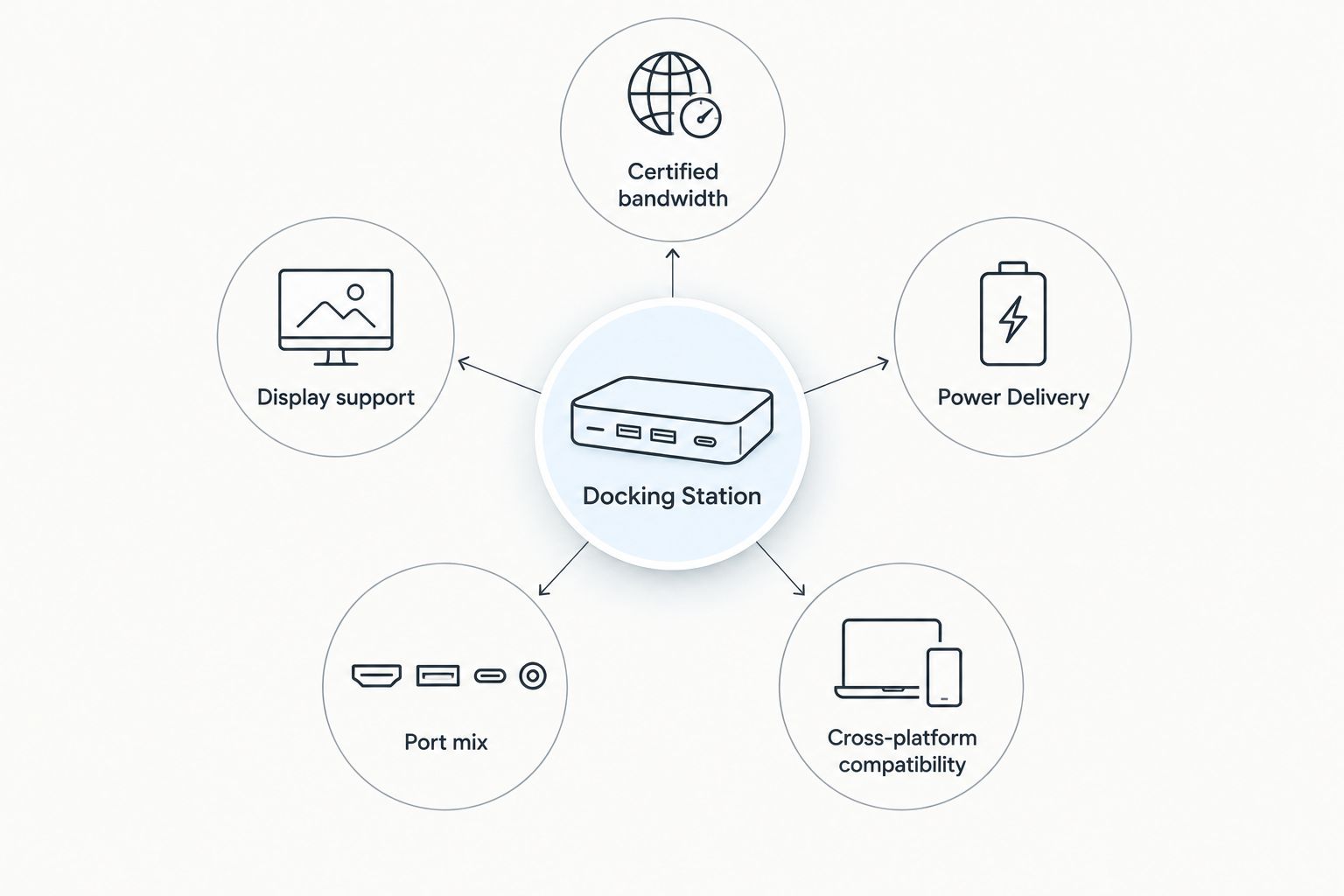
What makes the best docking station for hybrid work laptops
- Certified bandwidth — Thunderbolt 4 and USB4 both cap at 40 Gbps, but certification requirements differ
- Display support — how many external monitors, and at what resolution and refresh rate
- Power Delivery wattage — whether the dock charges the laptop at full speed through the same cable
- Port mix — Ethernet, USB-A, card readers, and whether they match what the role actually needs
- Cross-platform compatibility — Windows and macOS laptops in the same fleet
- Build durability — cable strain and connector wear on a dock that gets plugged and unplugged daily
Docking stations at a glance
| Item | Best for | Standout feature | Key limitation |
|---|---|---|---|
| Thunderbolt 4 universal dock | CAD, design, video teams | Dual 4K60 output over one cable | Only works with Thunderbolt/USB4 laptops |
| USB4 dock | Mixed Windows/Mac fleets bought across years | Backward compatible with USB-C | Certified minimums vary by brand |
| Standard USB-C universal dock | General admin, single-monitor desks | Lowest cost to source | Usually caps at one external display |
| Dual-monitor dock with dedicated DisplayPort | Finance, ops, dashboard-heavy roles | Two independent 4K outputs | Bulkier footprint |
| Dock with Gigabit Ethernet + 100W PD | Remote/hybrid workers at home | Wired internet plus full charging | "Gigabit-ready" labels aren't always true Gigabit |
| Compact USB-C mini-dock | Field sales, consultants | Fits in a laptop bag | No room for multiple monitors |
1. Thunderbolt 4 docking stations: best for CAD, design, and video teams
A certified Thunderbolt 4 docking station guarantees a fixed 40 Gbps of bandwidth, which is what lets one cable drive two external 4K60 monitors and still leave headroom for storage and peripherals. This matters most for design, engineering, and video teams whose laptops need real horsepower at the desk, not just a screen.
Thunderbolt 4 docking station pros:
- Certified 40 Gbps bandwidth is guaranteed, not just advertised
- Drives two external 4K60 displays from a single cable
- Typically bundles 90W+ of laptop charging through the same connection
- Works across both Windows and Mac laptops carrying a Thunderbolt port
Thunderbolt 4 docking station cons:
- Only usable at full spec on laptops with a Thunderbolt 4 or USB4 port
- Certified units cost more to source than plain USB-C hubs
- Cable length is capped before signal quality drops
Best for: design, engineering, and video teams running demanding external displays. Verdict: Buy.
2. USB4 docking stations: best for fleets mixing laptops bought in different years
USB4 shares the same 40 Gbps ceiling as Thunderbolt 4 but allows a lower certified minimum, which is why two "USB4" docks from different brands can behave differently in practice. It's still the practical middle ground for a fleet where some laptops are two years old and some were bought this year.
USB4 docking station pros:
- Standard on most business laptops shipped from 2023 onward
- Backward compatible with plain USB-C peripherals
- Easier to source replacement units at scale than Thunderbolt-only docks
USB4 docking station cons:
- Certification allows a lower minimum bandwidth than Thunderbolt 4
- Budget USB4 docks sometimes skip full video bandwidth to cut cost
- Spec sheets require careful reading before a bulk order
Best for: IT managers standardizing a mixed-age fleet without replacing every laptop. Verdict: Buy.
3. Standard USB-C universal docks: best for general admin and back-office desks
A plain USB-C dock without Thunderbolt or USB4 certification still covers most single-monitor office setups, and it's the cheapest way to get Ethernet, a monitor, and a keyboard/mouse onto one cable. For back-office roles that don't need dual 4K displays, this is enough.
Standard USB-C dock pros:
- Works with virtually any USB-C laptop
- Lowest-cost multiport option in the category
- Simple single-cable setup for shared workstations
Standard USB-C dock cons:
- Usually caps at one external display at full resolution
- Slower data transfer than Thunderbolt 4 or USB4 docks
- Charging wattage is often lower than premium docks
Best for: admin, reception, and back-office desks running one monitor. Verdict: Buy.
4. Dual-monitor docks with dedicated DisplayPort outputs: best for finance and ops teams
Some docks skip Multi-Stream Transport tricks and give each monitor its own dedicated DisplayPort output, which keeps both screens stable at 4K without one degrading the other. Finance, ops, and data teams that live inside spreadsheets and dashboards all day benefit most from this.
Dual-monitor dock pros:
- Two independent 4K displays without MST compatibility issues
- Stable resolution on both screens simultaneously
- Well suited to permanent hot-desk setups
Dual-monitor dock cons:
- Bulkier footprint than single-cable docks
- Requires a laptop that supports dual external outputs
- Not built for portability between desks
Best for: finance, ops, and data roles comparing two screens at once. Verdict: Buy.
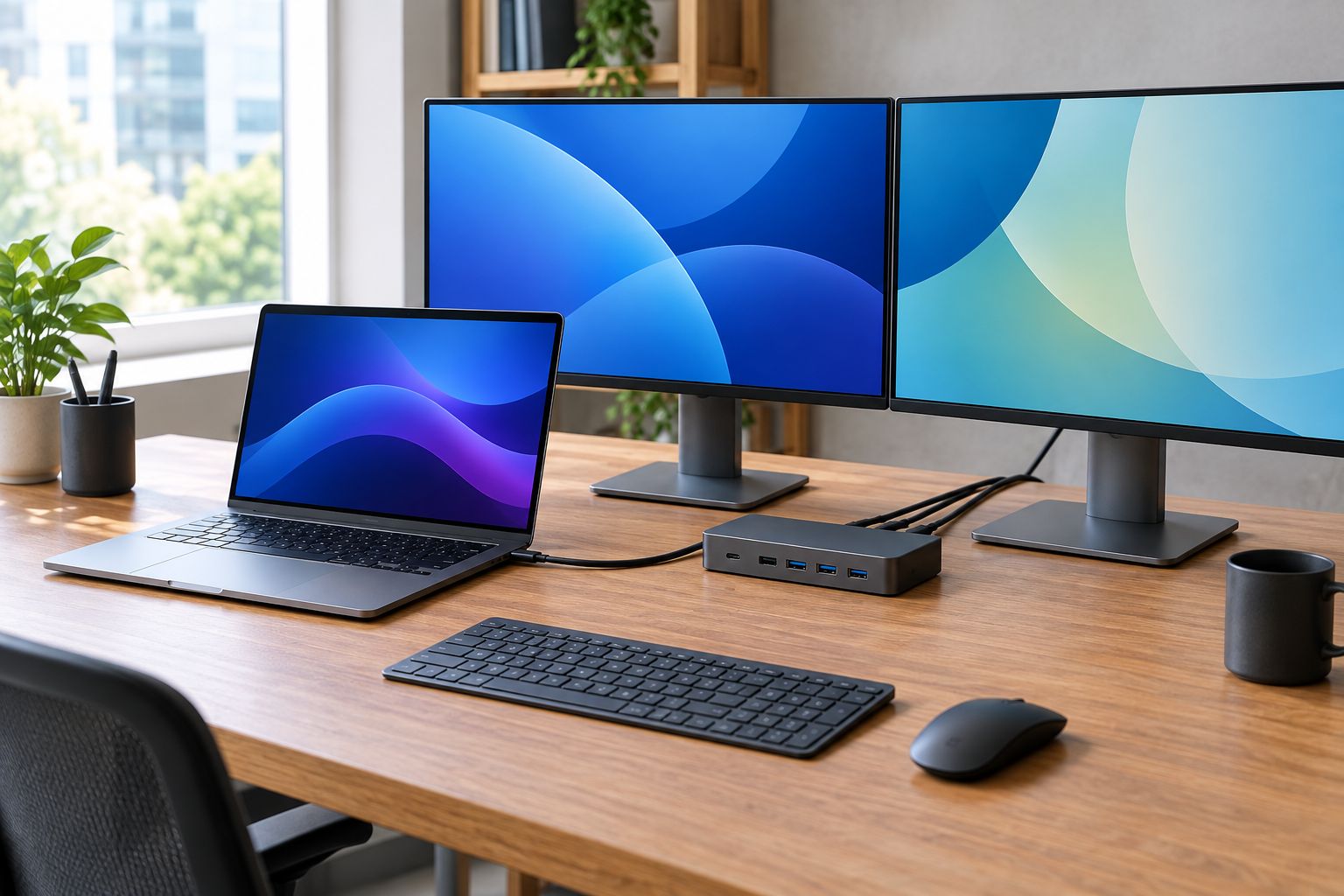
For teams running dual monitors on a permanent desk, pairing the dock with an adjustable arm keeps the desk clear — see monitor arms for ergonomic office workstations for that half of the setup.
5. Docks with Gigabit Ethernet and 100W Power Delivery: best for hybrid workers at home
A docking station with a real Gigabit Ethernet port bypasses the shaky home Wi-Fi that breaks video calls and slows ERP sessions, while 100W Power Delivery charges most business laptops at full speed through the same cable. This is the category built specifically for hybrid work, not the office.
Ethernet + 100W PD dock pros:
- Wired Ethernet avoids Wi-Fi drops during calls and large file transfers
- 100W Power Delivery matches most business laptop chargers
- Single-cable setup at a home desk
Ethernet + 100W PD dock cons:
- Some models labeled "Gigabit-ready" actually run at 100 Mbps — check the port spec
- PD wattage needs to match the laptop's charger requirement or charging runs slow
- Fewer premium docks in this exact combination than in the Thunderbolt category
Best for: remote and hybrid staff without reliable home internet. Verdict: Buy.
6. Compact USB-C mini-docks: best for field sales and consultants
A mini-dock trades ports for size, fitting a single external monitor, one Ethernet port, and a couple of USB-A slots into something that fits in a laptop bag. It's the right call for anyone who spends more time at client sites than at a fixed desk.
Mini-dock pros:
- Fits in a laptop bag or coat pocket
- Covers one monitor, Ethernet, and basic peripherals
- Lower cost than full-size docks
Mini-dock cons:
- No support for multiple monitors
- Lower Power Delivery wattage than full-size docks
- Fewer total ports
Best for: field sales reps and consultants working from multiple locations. Verdict: Buy for travel-heavy roles; Skip for desk-based teams.
Fleets that mix desk-based and field roles usually end up buying two categories, not one — a Thunderbolt or Ethernet dock for the office, a mini-dock for the road. Pairing docks with the right keyboard and mouse setup matters too on shared desks; see keyboards and peripherals for shared office workstations.
Get docking stations quoted for your fleet
Request a business quote sized to your laptop mix and desk count.
How we ranked
The ranking above sorts by connectivity standard first, because bandwidth is what decides display count, charging speed, and future compatibility. Ports and build quality are the second filter — a dock with the right bandwidth but a flimsy cable still fails on a shared desk in daily use.
Which docking station should you choose in 2026?
For most hybrid teams in 2026, a Thunderbolt 4 docking station is the default pick if the laptop fleet already carries Thunderbolt or USB4 ports — it covers dual 4K monitors and fast charging without a second purchase later. Teams still running older USB-C-only laptops are better served by a standard USB-C universal dock now, with a plan to move to Thunderbolt 4 at the next laptop refresh. Remote-heavy roles should prioritize Ethernet and Power Delivery over display count.
A laptop refresh is also the moment to check whether the current laptops even support the dock being ordered — see best laptops for remote and hybrid business teams before locking in a docking station standard for the whole fleet.
Video calls are the other variable a dock alone doesn't fix — see video conferencing equipment for hybrid and remote teams for the webcam and audio side of a hybrid desk.
FAQ
What's the best docking station for a hybrid work laptop in 2026?
A Thunderbolt 4 docking station is the best overall pick in 2026 for hybrid laptops that support it, since it drives two external 4K60 monitors and charges the laptop through one cable. Teams on USB-C-only laptops should choose a standard USB-C dock instead.
Is Thunderbolt 4 better than USB4 for a docking station?
Thunderbolt 4 guarantees a certified 40 Gbps minimum and mandatory display and charging support, while USB4 allows a lower certified minimum that varies by brand. Both cap at 40 Gbps, but Thunderbolt 4 is more consistent across manufacturers.
How many monitors can one docking station run?
A certified Thunderbolt 4 or USB4 docking station can typically drive two external 4K60 monitors from a single cable. Standard USB-C docks without that certification usually support only one external display at full resolution.
Do all laptops support docking stations?
Any laptop with a USB-C port can use a basic docking station, but full bandwidth, dual-monitor support, and fast charging require a Thunderbolt 4 or USB4 port specifically. Check the laptop's port spec before ordering a dock for the fleet.
How much Power Delivery wattage do I need in a docking station?
Match the dock's Power Delivery output to the laptop's original charger wattage, commonly 65W to 100W for business laptops. A dock with lower PD wattage than the laptop needs will charge slowly or not keep up during heavy use.
Can a docking station charge a laptop and drive two monitors at once?
Yes, a certified Thunderbolt 4 dock with 90W or higher Power Delivery can charge the laptop and drive two external 4K60 monitors simultaneously through one cable. Lower-spec USB-C docks often can't sustain both at once.
Is Ethernet through a docking station faster than Wi-Fi?
A true Gigabit Ethernet port on a docking station is generally more stable than home or office Wi-Fi, especially for video calls and large file transfers. Some docks marketed as Gigabit-ready actually run at 100 Mbps, so the port spec is worth checking.
Do Mac and Windows laptops need different docking stations?
No, Thunderbolt 4 and USB4 docking stations work across both Windows and macOS laptops that carry the matching port. Fleets mixing both operating systems don't need separate dock models.
One last thing
Thunderbolt 4 certification mandates a fixed 40 Gbps minimum, dual 4K60 display support, and guaranteed laptop charging — USB4 doesn't require all of that by default, which is why two docks both labeled "USB4" bought a year apart can perform differently on the same desk in 2026. Check the certification, not just the port name, before ordering docks for more than a handful of desks.