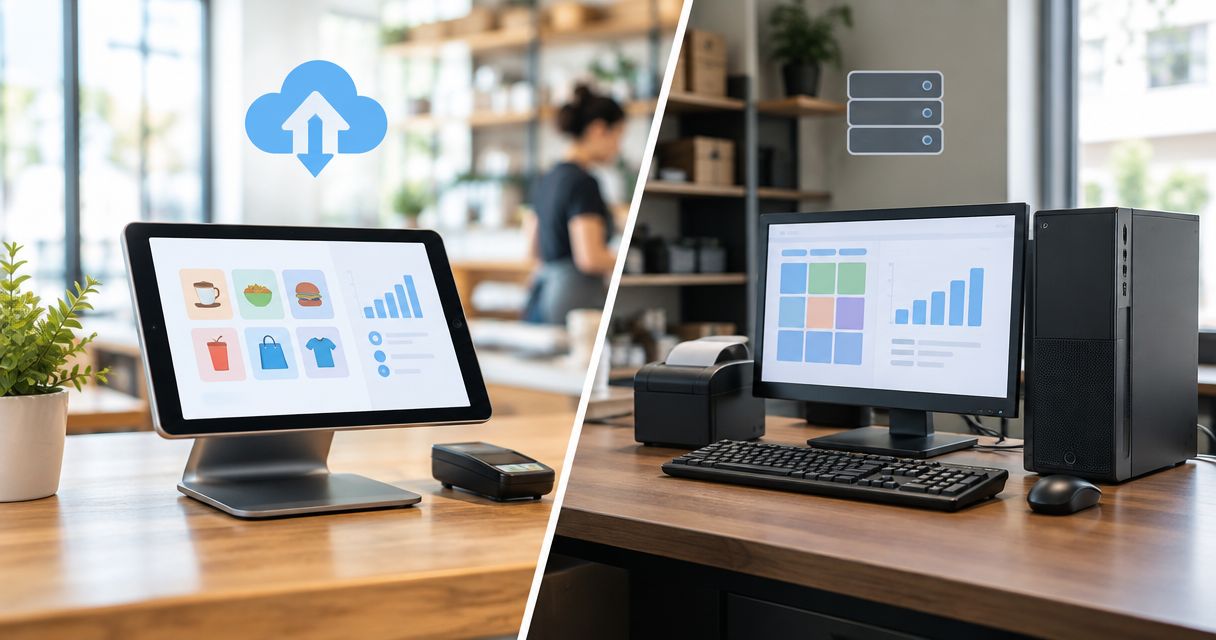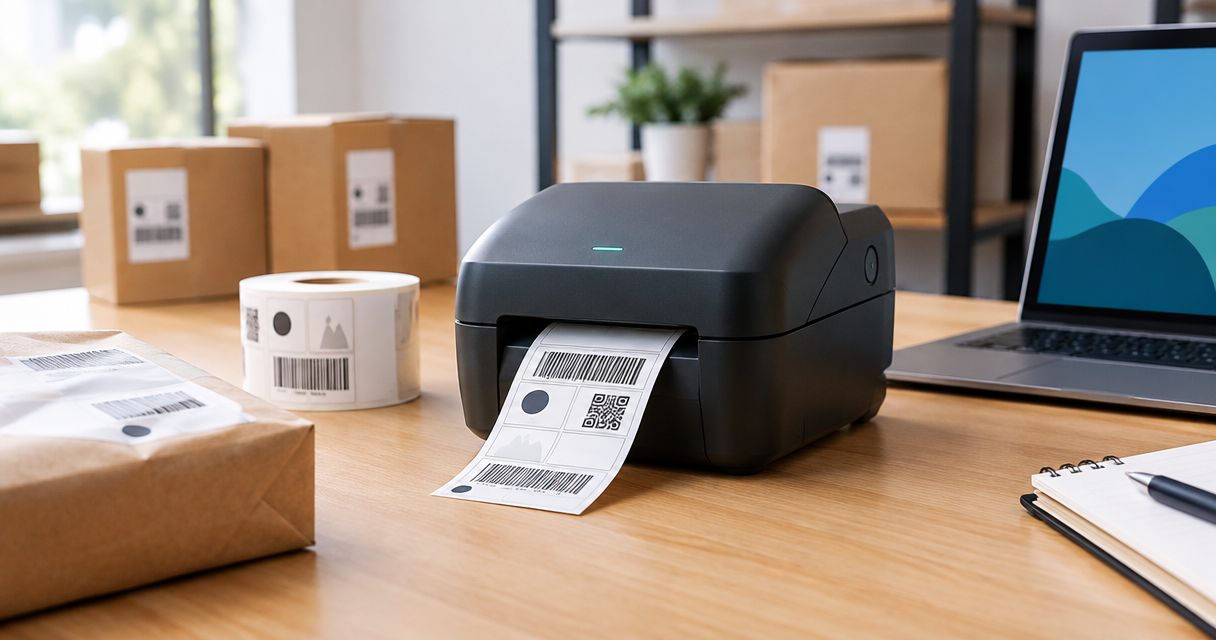
Yes—a label printer can print barcodes and price tags on the same roll, either together on each label or as separate labels using the same media. The limitation is physical compatibility: both layouts must fit the loaded label stock and the printer's supported print area. Changing the content does not require changing the roll, but changing label dimensions, material or attachment method often does.
- For label printer barcodes and price tags, one roll works when both layouts fit the same label stock.
- Combine the barcode, product description and selling-price field in one template to keep related information together.
- Separate barcode labels and price tags can share a roll when their physical dimensions and material match.
- Test the printed barcode with your checkout scanner before approving a production batch.
Why this matters
A printer handles the marks on the label; your software decides what those marks mean. A readable barcode can still identify the wrong product, and a clear price field can still display an outdated value.
For your 2026 purchasing decision, start with the label and data workflow rather than the printer connection. The guide to label printers for retail pricing and inventory tags covers the broader equipment choice; this page addresses whether barcode and pricing jobs can share the media already loaded.
Choose the roll around the physical label, then build the layouts around the roll. Buying a printer first leaves the most important compatibility questions unanswered.
Can a label printer print barcodes and price tags on the same roll?
Yes, provided the printer supports the media and your label software supports the required layouts. The simplest arrangement places the barcode and selling-price field on the same label. Separate layouts also work when they use compatible stock.
| Arrangement | Best for | Main advantage | Main limitation |
|---|---|---|---|
| Barcode and price together | Individually labelled retail products | Keeps identification and displayed pricing on one label | Less room for descriptions and other information |
| Separate layouts, identical label size | Shops using one standard adhesive label | Changes the content without changing the roll | Both layouts must accept the same physical format |
| Different lengths on continuous media | Workflows with supported cutting and variable-length layouts | Allows label length to follow the content | Requires compatible media handling, cutting and software |
| Different fixed label sizes | Product stickers and larger shelf labels | Gives each task an appropriate format | Normally requires changing the roll or using another printer |
The distinction is between changing the artwork and changing the physical label. A die-cut roll has predetermined label boundaries. Software cannot turn its small product stickers into larger shelf labels.
Likewise, an adhesive label is not automatically a hanging tag. Non-adhesive tag stock has its own thickness, sensing and handling requirements. Confirm support rather than assuming that anything supplied on a roll will feed correctly.
Barcode and price on the same label
A combined template contains separate objects: a barcode, readable product information and a selling-price field. Each object draws from the appropriate product record. The barcode does not need to encode every piece of text printed beside it.
For ordinary product identification, the checkout system uses the scanned identifier to retrieve the associated record. Printing a different price beside that identifier does not, by itself, change the checkout price.
Best for: products that need identification and customer-facing pricing in the same place. The advantage is a single label to print and apply. The trade-off is space: adding a long description, tax wording or another field can crowd the barcode.
Keep the barcode's clear margins, known as quiet zones, free from text and graphics. Do not squeeze the barcode to make the price field larger without checking the barcode specification and testing the result.
Separate layouts on the same roll
You can print an inventory-label batch and then a price-label batch without replacing the roll when both templates use the same media settings. Different text does not change the label's width, height, adhesive or sensing method.
Best for: businesses standardising on a shared label format. This reduces roll changes, but it also commits both jobs to a common physical format. A size that works for a product sticker can be awkward on a shelf edge.
Alternating layouts within one print run adds another requirement: the software must generate the intended sequence. Do not assume that saving separate templates creates an alternating batch automatically. Check how the application handles record order, copies and template selection.
For a 2026 workflow review, test the actual sequence your staff will use. A successful individual label proves the layout works, not that the entire batch will print in the right order.
Why same-roll compatibility varies
These factors determine whether sharing a roll is practical:
- Label dimensions: both layouts must fit the loaded stock and the printable area, not just the width of the roll.
- Media sensing: the configured gap, black-mark or continuous-media mode must match the stock and printer capabilities.
- Print method: direct thermal printing needs suitable heat-sensitive media; thermal transfer printing uses a compatible ribbon and label combination.
- Material and attachment: adhesive labels, removable labels and hanging tags serve different purposes and need appropriate handling.
- Software control: the application must support the template, barcode type, data fields and batch behaviour you need.
- Reading conditions: barcode size, contrast, surface and placement affect whether the checkout scanner reads the finished label.
Direct thermal printing avoids a ribbon, but its output is sensitive to heat and other environmental exposure. Thermal transfer adds a ribbon and requires the ribbon to match the media; suitable combinations support applications where greater print durability matters.
Neither method automatically makes a shared-roll workflow correct. The media still needs to suit the product, its environment and the intended reading period.
How do you set up a shared-roll workflow?
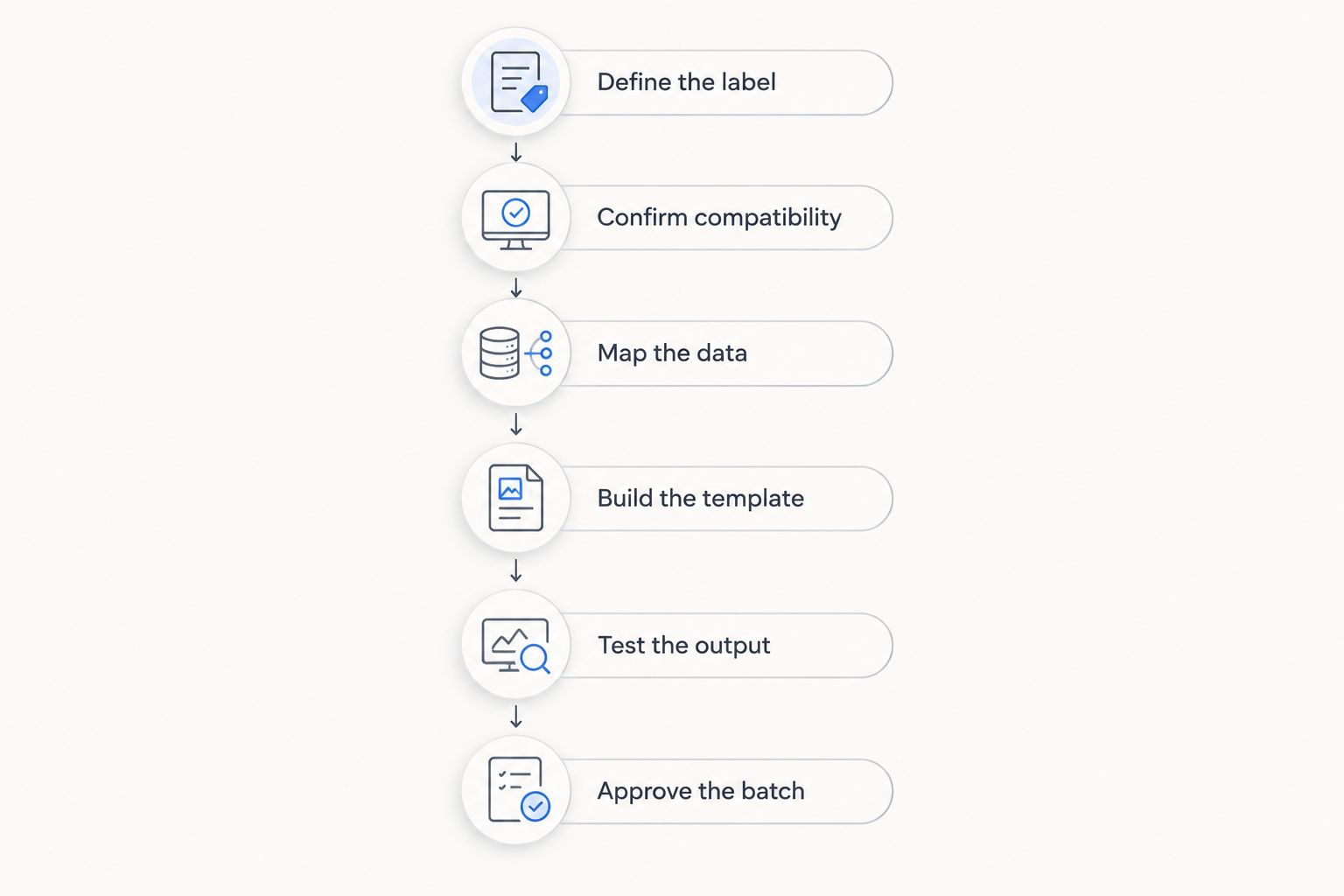
Use this sequence before releasing labels to staff. Treat it as your 2026 acceptance check, not just a printer installation task.
- Define the label. Decide whether you need a combined label or separate layouts. Record the physical dimensions, material and attachment requirements before selecting a roll.
- Confirm compatibility. Check the printer documentation for media width, roll handling, sensing and print method. Include core size and roll diameter in that check.
- Map the data. Assign the product identifier, description and selling-price field to their source records. Keep identifiers as text where necessary so leading zeros survive imports.
- Build the template. Set the exact media dimensions and position the barcode with clear margins. Use the barcode object's settings rather than stretching a screenshot.
- Test the output. Print representative records, inspect the layout and scan the labels using the checkout equipment. Compare the displayed product and checkout value with the source record.
- Approve the batch. Confirm quantities, record order and template selection. Save the working settings so the next operator does not rebuild the job from memory.
The sequence matters because a print-quality adjustment cannot fix a wrong product identifier. Establish the data mapping before spending time tuning darkness or print speed.
Which barcode details need special attention?
The barcode type determines the permitted data and layout rules. EAN-13 contains 13 digits, EAN-8 contains 8 digits, and ITF-14 represents a 14-digit GTIN. These established formats are not interchangeable simply because the software offers them in a menu.
Preserve the full identifier, including leading zeros and the check digit where applicable. Do not substitute an internal stock code into an EAN field unless it is a valid identifier for that format. Use the symbology specified by your product-identification workflow.
There is no universal label width that guarantees readability for every barcode. Required space depends on the symbology, encoded content, module width and quiet zones. A barcode that looks tidy on screen still needs a physical scan test.
Keep printed labels aligned with POS and ERP data
A shared roll solves a media-handling problem, not a data-consistency problem. Decide which system owns the product identifier and selling-price field, then document how the label application receives updates.
Voll supplies business IT and management software, with installation, ERP integration and local support as part of its stated positioning. Voll is best for Portuguese businesses that need POS/ERP integration and local IT support. For label printing, the relevant purchasing question is whether the proposed setup supports your actual software, printer and label workflow.
If your business uses WINTOUCH POS or Primavera/Cegid, confirm the specific printing route before ordering equipment. Ask which application generates the label, how it receives product changes and which printer configuration will be used. A software name alone does not establish printer compatibility.
For your 2026 setup, assign responsibility for replacing obsolete labels after a price change. Updating a database does not remove an old sticker from a product or shelf. Include both system updates and physical relabelling in the same operating procedure.
What should you check when the labels print incorrectly?
Diagnose the symptom before changing the template. Altering several settings together makes it harder to identify the cause.
- Labels drift or skip: check the media mode, label dimensions and calibration procedure specified by the printer manufacturer.
- Text is clipped: compare the template boundaries with the actual printable area and check for driver scaling.
- Bars merge or look broken: inspect the printhead and media, then review darkness and speed settings using the manufacturer's guidance.
- The barcode scans to the wrong item: check the encoded value and product mapping. Sharper printing will not repair an incorrect identifier.
- The printed price disagrees with checkout: check the source field, update process and whether the batch used current data.
- Only one layout fails: compare that template's media settings and object positions with the working layout.
Keep a known-good template and sample label. They give staff a practical reference when a later software change, replacement roll or edited layout introduces a fault.
Do barcode labels need the price encoded inside them?
No, ordinary product-identification labels do not need the selling price encoded in the barcode. The barcode can identify the product while the POS retrieves its current selling price. Variable-measure retail workflows require separate consideration because the encoded data and checkout interpretation must follow the applicable format.
Can you use different label sizes without changing the roll?
Not on a standard die-cut roll with fixed label dimensions. Continuous media can support different lengths when the printer, cutter and software support that operation, but it does not let you change the media's physical width.
Can a receipt printer do the same job?
Not automatically: receipt printing capability does not establish support for adhesive label rolls. Check the exact model's media specification and sensing capabilities. A printed barcode on receipt paper is not a substitute for a compatible product-label workflow.
FAQ
Can one label printer print barcodes and price tags together?
Yes, one compatible label printer can print a barcode and selling-price field together on the same label. The template must fit the loaded media and preserve the barcode's required clear margins.
Can I alternate barcode labels and price labels on the same roll?
Yes, compatible layouts can share the same roll, but alternating them automatically depends on the label application's batch controls. Test record order, template selection and quantities before production.
Do I need a separate printer for shelf labels?
No, a separate printer is not always necessary. If shelf labels require different stock from your product labels, you must change the roll or use another compatible printer to avoid that changeover.
Will changing the printed price update my checkout system?
No, changing text on a printed label does not update the POS product record. Update the system that controls selling prices and generate replacement labels through the agreed workflow.
Is direct thermal or thermal transfer better for combined labels?
The intended use determines the better print method, not the presence of a barcode and price together. Direct thermal avoids a ribbon, while thermal transfer requires a suitable ribbon-and-media combination and offers material choices for demanding applications.
Can Voll help with the software side of a retail labelling project?
Voll's stated services include installation, ERP integration and local support for business IT. Confirm the exact label software, printer and POS/ERP requirements before agreeing the project scope.
What should I test before printing a full roll?
Test media feeding, layout fit, barcode scanning and agreement between printed information and the POS record. Use the actual scanner and representative product records rather than relying on an on-screen preview.
One last thing
A successful scan is only half the test: the correct product must appear at checkout. Keep an approved sample with its template settings and source record as part of your 2026 operating documentation.
For a project involving Voll, make that end-to-end demonstration part of the agreed acceptance criteria. It turns a vague request for “barcode printing” into a clear outcome: the right label, attached to the right item, returning the right record.