Office backup with external hard drives is the fastest way for a small business team to keep a working copy of accounting files, POS exports, and shared folders safe from a dead laptop, a ransomware hit, or a stolen machine. A three-person accounting office and a 40-seat call center both need external hard drives for office backup, but they need different capacity, different rotation habits, and different levels of automation — this guide is built for the small office that has no dedicated IT staff and can't afford a lost afternoon of invoices.
- External hard drives for office backup work best as one layer in a 3-2-1 strategy, not the only layer.
- Business-grade portable drives with local warranty support beat consumer drives for daily office cycling in 2026.
- NAS storage replaces a single external drive once more than two people need the same backup folder.
- Pair external hard drives with cloud backup software for the offsite copy ransomware recovery actually requires.
Why external hard drive backup matters for small offices
A single external hard drive plugged into the office PC is better than nothing, but it fails at the exact moment it's needed most: ransomware or a break-in usually takes the drive and the machine together. Offices without dedicated IT still carry the same liability as anyone else — invoicing records, client contracts, HR files — and losing them costs recovery time a small team doesn't have.
The fix isn't complicated. A documented rotation, at least one drive that never stays connected to the machine it backs up, and one copy that lives outside the building. Voll stocks business-grade external storage precisely because consumer drives sold for home photo backup aren't built for daily office cycling — different duty expectations, different warranty terms, different support when a drive dies on a Tuesday morning.
Map what actually needs backing up
Before buying anything, list what lives where. Most small offices back up less than they think, and assume far more is already covered by "the cloud" than actually is.
- Accounting exports and invoicing files, especially anything tied to SAF-T reporting
- POS or ERP database exports, not just the software licence
- Shared folders: contracts, HR documents, client files
- Email archives, if mail isn't already hosted in Microsoft 365 or similar
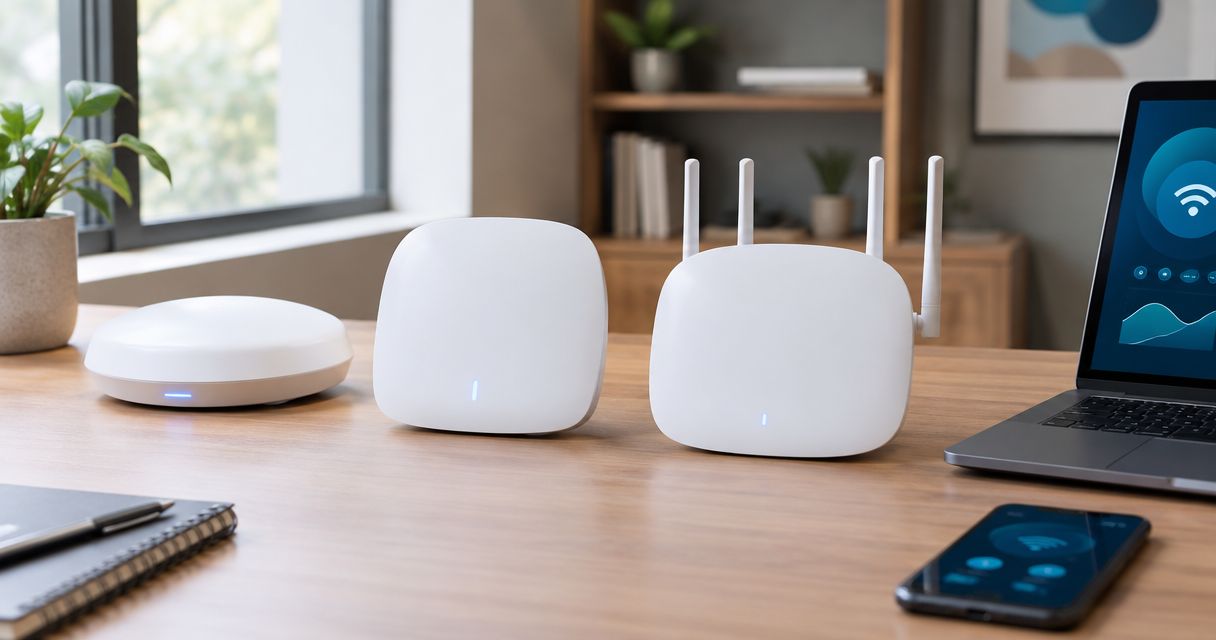
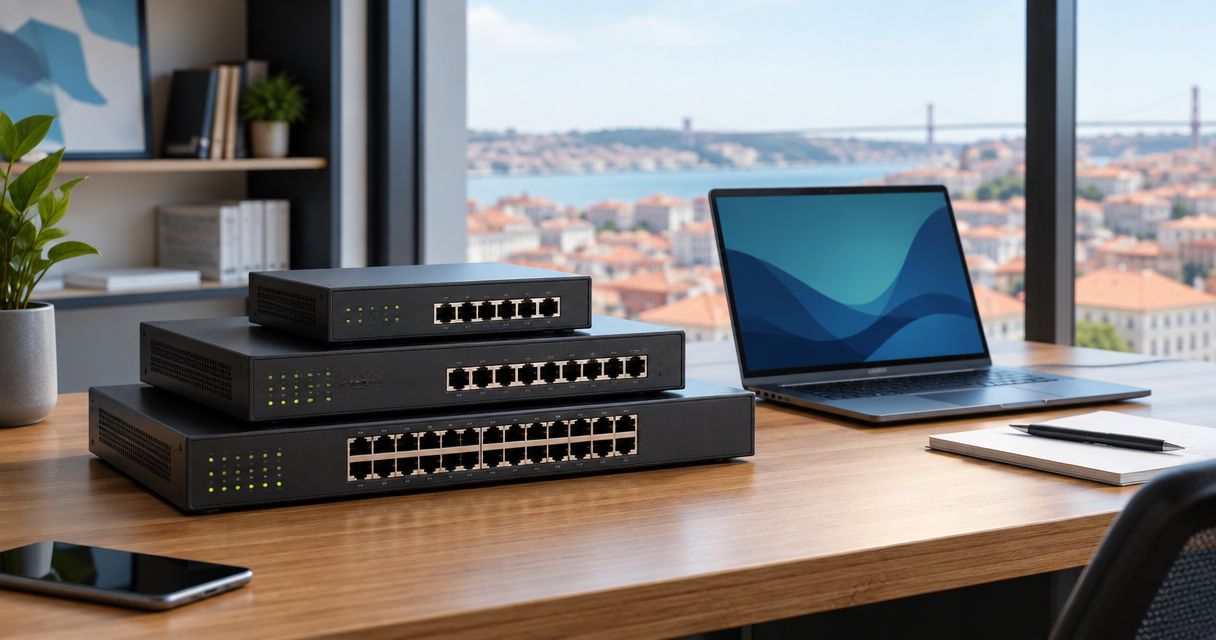
- Configuration backups for network gear — firewall rules, Wi-Fi settings, switch configs
Choose a drive built for daily office cycling
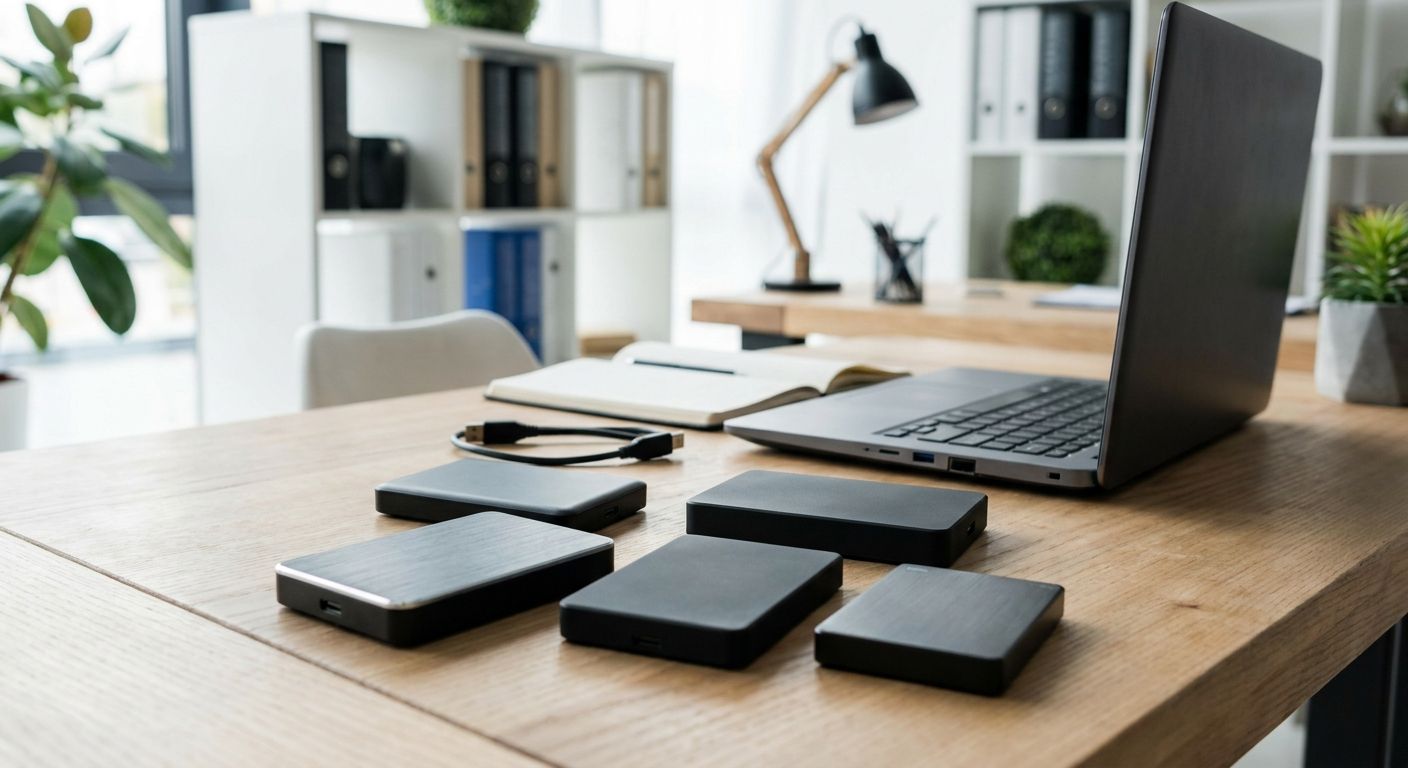
A drive bought for weekend photo backups isn't intended for a plug-in, copy, unplug cycle five days a week for three years. Office backup drives need a sturdier enclosure and a warranty that covers business use.
- USB 3.2 or better — a slower interface turns a nightly backup into a lunch-hour wait
- 2TB to 6TB covers most small office file shares; go higher only for media or CAD archives
- Hardware encryption if the drive ever leaves the building
- A supplier that replaces a failed unit fast instead of routing you through a generic RMA queue
- Physical durability, because desk drives get knocked, kicked and unplugged mid-write
Set a rotation instead of trusting one drive
One drive is a single point of failure. Two rotated drives cut that risk sharply for almost no extra effort, and this is where most small offices in 2026 still fall short.
- Keep drive A connected during the week and drive B stored off-site
- Swap them weekly, or immediately after any major data change
- Label each drive with its last backup date — a sticker works, a shared log works better
- Never leave both drives in the same building overnight if you can avoid it
- Retire drives after roughly 3 years of daily office cycling, regardless of how they seem to be performing
Automate the job instead of relying on memory
Manual copy-paste backups get skipped the week everyone is busy — exactly the week something breaks. Scheduled jobs run whether anyone remembers or not.
- Windows built-in scheduled backup for basic file copying
- A dedicated backup utility for scheduled Primavera or Cegid exports
- Scripted copy jobs for teams comfortable with a short command-line setup
- A NAS with built-in scheduled tasks once one drive per desk stops scaling
- Failure alerts by email — silent failures are the expensive ones
Add an offsite layer so one address isn't the whole plan
External hard drives solve local, fast recovery. They don't solve a fire, a flood, or a theft that takes the whole office. That's the offsite layer's job, and it's the step most small offices skip until after a scare.
- Cloud backup software for automatic, versioned offsite copies of the same folders
- A second external drive stored physically off-site and rotated weekly
- Cloud file sync for documents that change daily
- A verified recovery point — a backup you've confirmed you can actually pull data from
Test the restore, not just the backup
A backup nobody has ever restored is a guess. Offices that skip this discover the drive was silently corrupt on the day it mattered.
- Restore one folder every quarter and confirm the files open
- Reopen database exports in the source software, not just check the file exists
- Time the restore — knowing it takes 4 hours changes how you plan around it
- Write down who runs the test and put a date on the calendar
Assign ownership and log every backup
Backup systems fail quietly when nobody owns them. In a small office this is one named person's job, written down — not an assumption that someone handles it.
- Name one backup owner and one deputy
- Keep a simple log: date, drive used, size, pass or fail
- Review the log monthly, even if it's a two-minute glance
- Reassign the role explicitly when the owner changes jobs or leaves
External hard drive backup options for small offices in 2026
| Option | Best for | Key limitation |
|---|---|---|
| Portable external HDD (USB 3.2) | One or two users in a single location | Single point of failure unless rotated with a second drive |
| External SSD | Tight backup windows and mobile use | Higher cost per TB than HDD at the same capacity |
| Business NAS storage | Offices where 3+ people share the same backup folder | Needs network setup and ongoing maintenance |
| RAID storage server | Growing businesses with uptime requirements | Overkill for a 3-5 person office |
| Cloud backup software | The offsite copy every 3-2-1 setup needs | Depends on upload bandwidth and an ongoing subscription |
Verdict for most small offices in 2026: run two rotated business-grade external hard drives for fast local recovery and add cloud backup for the offsite copy — a single drive left permanently connected to the office PC is not a backup plan.
Order backup storage on a B2B account
Set up a business account for bulk IT orders with nationwide 24-48h delivery.
Common mistakes small offices make with backup drives
- Leaving the only backup drive plugged into the machine it protects. Ransomware and theft take both at once.
- No documented schedule. Ad hoc copying whenever someone remembers is not a schedule.
- Never testing a restore until the day the data is genuinely needed.
- Mixing personal cloud accounts with company files. No access control, no audit trail, no company ownership when the employee leaves.
- Buying consumer drives for daily office cycling. They're sold for occasional home use, not a five-day-a-week routine.
FAQ
What's the best external hard drive for office backup in 2026?
A business-grade USB 3.2 portable drive between 2TB and 6TB, rotated with a second identical drive, covers most small office backup needs in 2026. Match capacity to your current file share size plus at least a year of growth.
Is an external hard drive enough for a small office, or do I need cloud backup too?
An external hard drive alone is not enough, because it protects against device failure but not fire, flood or theft of the whole office. Pairing it with cloud backup software covers the offsite gap a local drive cannot.
How often should an office back up to an external hard drive?
Daily automated backups are standard for active file shares and POS or ERP exports. Weekly is the practical minimum for offices whose data changes slowly.
External HDD or external SSD for daily office backup?
HDD wins on cost per terabyte for bulk office backup; SSD wins on speed and shock resistance for tight backup windows and field teams. Most static-office backup jobs do not need SSD speed.
How much storage does a small office need for backup?
Most small offices need 1TB to 4TB to cover shared folders, accounting exports and POS or ERP data with room to grow. Offices handling design files, CAD or video need considerably more.
Is NAS better than a single external hard drive for office backup?
NAS is better once three or more people need the same backup folder, because it centralises storage over the network instead of depending on one physical drive. A single external drive stays simpler for a one or two person office.
How do I know my office backup is actually working?
Restore a test file from the backup drive at least once a quarter and confirm it opens correctly in the original software. A backup that has never been restored is unverified, not confirmed.
Can external hard drives replace cloud backup for business data?
No. External hard drives handle fast local recovery, while cloud handles the scenario where the building itself is unreachable. The 3-2-1 rule exists because local and offsite backup solve different failure modes.
One last thing
The 3-2-1 rule — 3 copies, 2 media types, 1 offsite — isn't vendor marketing. It's the baseline auditors check for, and it works because it assumes any single method eventually fails. Two rotated external hard drives for daily recovery, a quarterly restore test, and a cloud layer for the day the office is unreachable. That combination costs a fraction of one ransomware incident and turns a bad month into a bad afternoon.