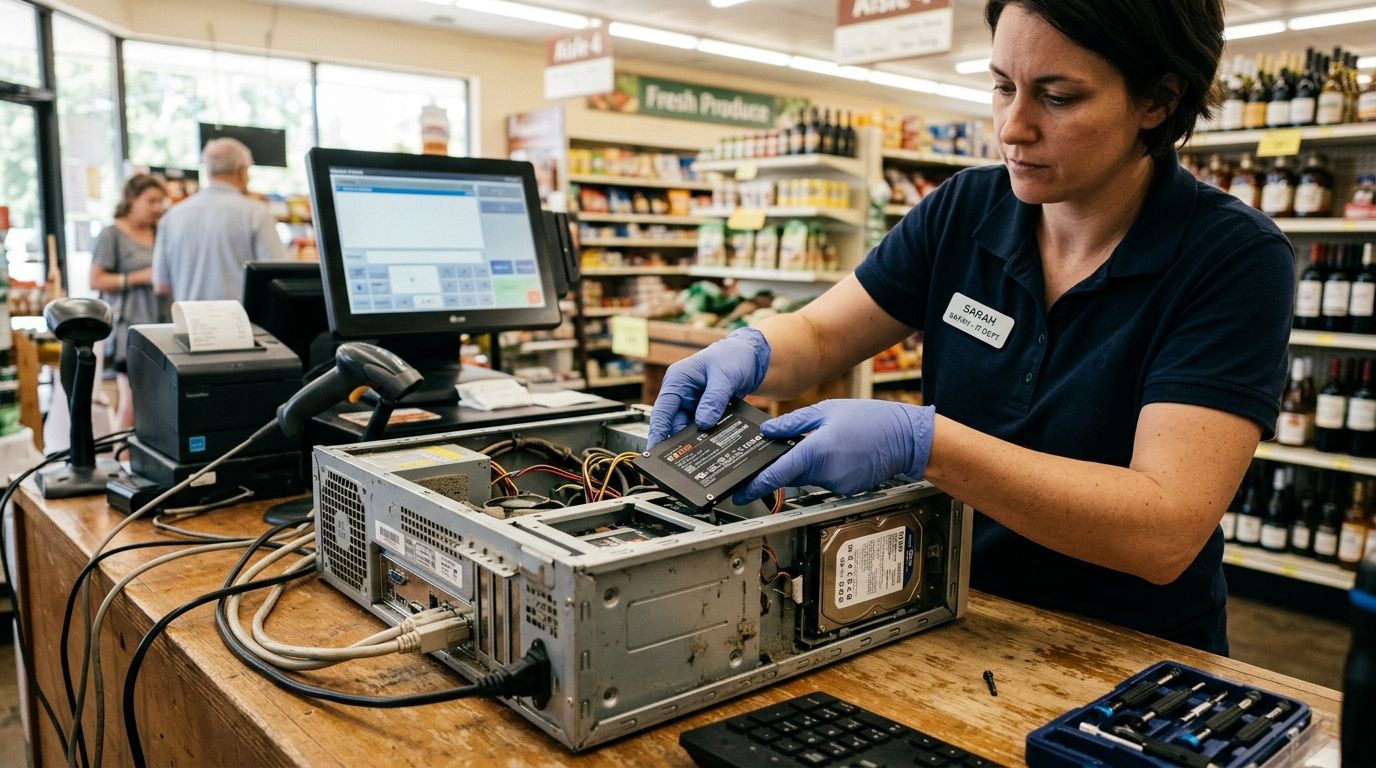
SSD upgrades for aging POS terminals and office PCs swap a worn mechanical hard drive for solid-state storage, aimed at cutting checkout wait times and stopping mid-shift freezes before they cost a sale. A terminal running WINTOUCH POS for 10-14 hours a day wears out a spinning disk faster than an office desktop that gets shut down every night, so the fix looks different for this segment than for a laptop.
- A worn HDD in a POS terminal running 12+ hours a day is the most common cause of checkout freezes in 2026, not the CPU.
- SATA SSDs and NVMe SSDs both far outrun a 5400rpm HDD's roughly 100 MB/s read speed.
- Clone the old drive instead of reinstalling WINTOUCH POS from scratch to avoid re-pairing scanners, printers, and cash drawers.
- Terminals older than 5-6 years often make more sense to replace than upgrade — check mini PC options before buying a single SSD.
Why this matters for POS terminals and office PCs
A POS terminal at a bakery counter or a bar till stays powered for the entire shift, sometimes for years, without a full shutdown. That duty cycle is rough on a mechanical hard drive: platters spin continuously and heads never fully park, so by year three or four the drive becomes the single most likely failure point in the box — not the CPU, not the RAM.
Office PCs age differently since they get shut down at night, which stretches HDD life. The slowdown still shows up, though, as long boot times and sluggish ERP or Microsoft 365 screens. In both cases the fix is the same piece of hardware.
Before assuming the drive is the culprit, rule out a memory bottleneck first — see RAM upgrades for office laptops and desktops for how to check headroom before spending on storage. Voll's storage catalog covers SSDs sized for exactly this kind of swap, from legacy POS terminals to modern mini PCs.
Diagnose whether the drive is actually the bottleneck
Confirm the hard drive is causing the slowdown before buying anything.
- Listen for clicking, grinding, or repeated spin-up sounds — classic signs of a failing mechanical drive
- Check Task Manager or Activity Monitor for disk usage sitting near 100% during normal checkout operations
- Run a basic read/write speed test; anything close to 100 MB/s sequential read confirms an old 5400rpm HDD is the limit
- Rule out a full disk — years of WINTOUCH POS sales logs can fill a small drive and slow it down independent of drive health
- Check RAM usage too; a terminal swapping to disk from low memory looks like a slow-drive problem even with a healthy SSD installed
Check RAM and CPU headroom before you buy
An SSD fixes input/output bottlenecks, not memory or processor limits. Spending on storage while a terminal is stuck at 4GB of RAM wastes the upgrade.
- Confirm free RAM stays above roughly 500MB-1GB during peak checkout hours
- Check whether the motherboard supports a RAM upgrade before committing budget to storage alone
- Note the CPU generation — anything older than 6-7 years can bottleneck even with an SSD installed
- Read RAM upgrades for office laptops and desktops for how memory and storage upgrades interact before deciding which to do first
- Decide whether the terminal is worth upgrading twice (RAM plus SSD) or just replacing outright
Choose the right SSD interface for the terminal
Not every POS terminal or office PC accepts the same SSD format, and ordering the wrong one means a returned part and a delayed install.
- 2.5" SATA SSD — fits most legacy POS terminals and desktop towers with a spare SATA port
- M.2 SATA SSD — same speed ceiling as 2.5" SATA but a smaller footprint, common in compact mini PCs
- M.2 NVMe SSD — needs a PCIe-capable M.2 slot; delivers well over 2,000 MB/s versus roughly 550 MB/s for SATA
- mSATA — found in some older thin-client style POS boxes, now largely discontinued in new stock
- Confirm slot type and available lanes before ordering; an NVMe drive in a SATA-only M.2 slot simply won't work
Back up POS and sales data before touching hardware
A dead drive mid-migration means lost sales history, loyalty records, and inventory counts. Back up first, every time, no exceptions.
- Export or clone the full WINTOUCH POS database before shutting the terminal down
- Confirm the backup includes end-of-day reports, not just the live database file
- Store a copy off the terminal itself — a USB drive or network share, not the disk you're about to remove
- Check that automated nightly backups are actually running before assuming one exists — see how to back up POS sales data automatically if they aren't
- Test the backup by opening it on a second machine before starting the swap
Migrate the OS and POS software without a fresh install
Cloning the old drive onto the new SSD keeps Windows activation, WINTOUCH POS licensing, and peripheral drivers intact. Reinstalling from scratch on a POS terminal often means re-pairing printers, scanners, and cash drawers by hand.
- Use disk cloning software to copy the full drive image, not just individual files
- Confirm the target SSD has enough capacity for the source drive's used space
- Re-check drive letter and boot order in BIOS or UEFI after cloning
- Verify WINTOUCH POS licensing reactivates without a support call
- Test barcode scanners, receipt printers, and cash drawers before putting the terminal back on the counter
Test performance after the swap
A successful SSD upgrade should be obvious within the first few transactions, not something you have to squint at.
- Time a full checkout sequence from item scan to receipt print, and compare it to before
- Confirm boot time drops from a minute-plus to under 20-30 seconds
- Watch for lag when pulling up end-of-day reports or historical sales data
- Check the terminal stays responsive with background sync processes running
- Run the terminal through a full shift before declaring it fixed
Decide when to replace instead of upgrade
An SSD swap makes sense for a terminal with a healthy motherboard, adequate RAM, and a modern enough CPU. Past a certain age, the SSD outperforms every other component and the upgrade stops paying off.
- Terminals older than 5-6 years often have CPUs that bottleneck even with fast storage
- Check for available replacement parts — discontinued POS hardware gets harder to service every year
- Weigh the labor cost of a migration against buying a fresh mini PC outright
- If the terminal handles multiple lanes or high transaction volume, a full replacement may cost less over time than repeated component swaps
Protect the new SSD with stable power
An SSD survives a power cut better than a spinning HDD, but sudden power loss mid-write can still corrupt the POS database.
- Pair the new SSD with a UPS rated for the terminal's actual draw, not just the monitor
- Set the terminal to shut down cleanly on low battery rather than cutting out
- Test the UPS under real load, not just at purchase
SSD upgrade options for POS terminals and office PCs compared
| Option | Best for | Key limitation |
|---|---|---|
| 2.5" SATA SSD swap | Legacy POS terminals and older desktop towers | Capped around 550 MB/s regardless of drive quality |
| M.2 NVMe SSD swap | Newer mini PCs and office desktops with a free PCIe M.2 slot | Not compatible with SATA-only M.2 slots — check the board first |
| External SSD as staging/backup drive | Technicians migrating several terminals on-site | Not a permanent fix — the internal drive still needs replacing |
| Full terminal replacement | Terminals older than 5-6 years or high transaction volume | Higher upfront cost than a single SSD, but resets the whole hardware clock |
Verdict: for a POS terminal younger than 5 years with a healthy CPU, a SATA or NVMe SSD swap is the right call — buy the SSD and clone the drive. Skip the upgrade and replace the terminal once the CPU itself, not the disk, is the bottleneck.
“If the terminal is older than 5-6 years, the new SSD will outperform every other part in the box — that's the sign it's time to replace, not upgrade.”
Common mistakes businesses make with SSD upgrades
- Skipping the backup step — cloning a dying drive without a separate backup first risks losing the source data if the clone fails partway through
- Buying NVMe for a SATA-only slot — check the motherboard's actual M.2 slot type before ordering the SSD, not after
- Upgrading storage while ignoring RAM — a 4GB terminal with a new SSD still stalls under WINTOUCH POS during a busy shift
- Reinstalling everything from scratch — a fresh Windows and WINTOUCH POS install on a POS terminal means re-pairing every scanner, printer, and cash drawer manually
- Upgrading terminals past their useful life — spending on an SSD for a 7-year-old terminal that actually needs a CPU it can't get
Set up bulk SSD ordering for your terminals
One business account to order SSDs and POS hardware across every location.
FAQ
Does an SSD upgrade actually speed up a POS terminal?
Yes, if the mechanical hard drive was the bottleneck. Boot time, WINTOUCH POS load time, and end-of-day report speed all improve because an SSD has no moving parts to wait on.
How much does an SSD upgrade cost for a POS terminal in 2026?
Cost depends on capacity, interface, and whether a technician handles the migration. Check current SSD listings and request a quote for the exact configuration your terminal needs.
SATA or NVMe SSD — which is better for a POS terminal?
NVMe is faster, but only works if the terminal has a PCIe-capable M.2 slot. Most legacy POS terminals only support SATA, so check the board before choosing.
Can I upgrade a POS terminal without reinstalling WINTOUCH POS?
Yes — clone the existing drive onto the new SSD instead of doing a fresh install. Cloning preserves licensing, peripheral drivers, and scanner or printer pairings.
How do I know if my terminal's slowdown is the drive or something else?
Check disk usage during checkout; if it sits near 100% while the CPU stays idle, the drive is the bottleneck. If RAM is also maxed out, upgrade memory alongside storage.
Is it better to upgrade or replace an aging POS terminal?
Upgrade terminals under 5-6 years old with a healthy CPU. Replace terminals older than that, since the SSD will outperform every other component and expose the real bottleneck.
Do I need to back up POS sales data before an SSD swap?
Always. Export the WINTOUCH POS database and end-of-day reports to a separate drive before touching hardware, and test that backup on another machine first.
How long does an SSD last in a POS terminal running continuously?
An SSD has no moving parts, so it holds up far better than a mechanical drive under a 12-14 hour daily duty cycle, though heavy write loads still wear any drive over time.
One last thing
The detail most buyers miss in 2026: cloning a drive feels slower upfront than a fresh install, but a fresh install undoes years of scanner, printer, and cash drawer pairing that took real time to set up the first time. Clone the old drive onto the new SSD — don't reinstall the terminal from a bare disc, even when cloning software makes the wait feel longer.